

The content is subject to changes on Gate.io. For more details, refer to How to Utilize API.
- Log in to your Gate.io account.
- Navigate to My Profile > API Management.
-
Select Create API Key to open a Create API Key page.
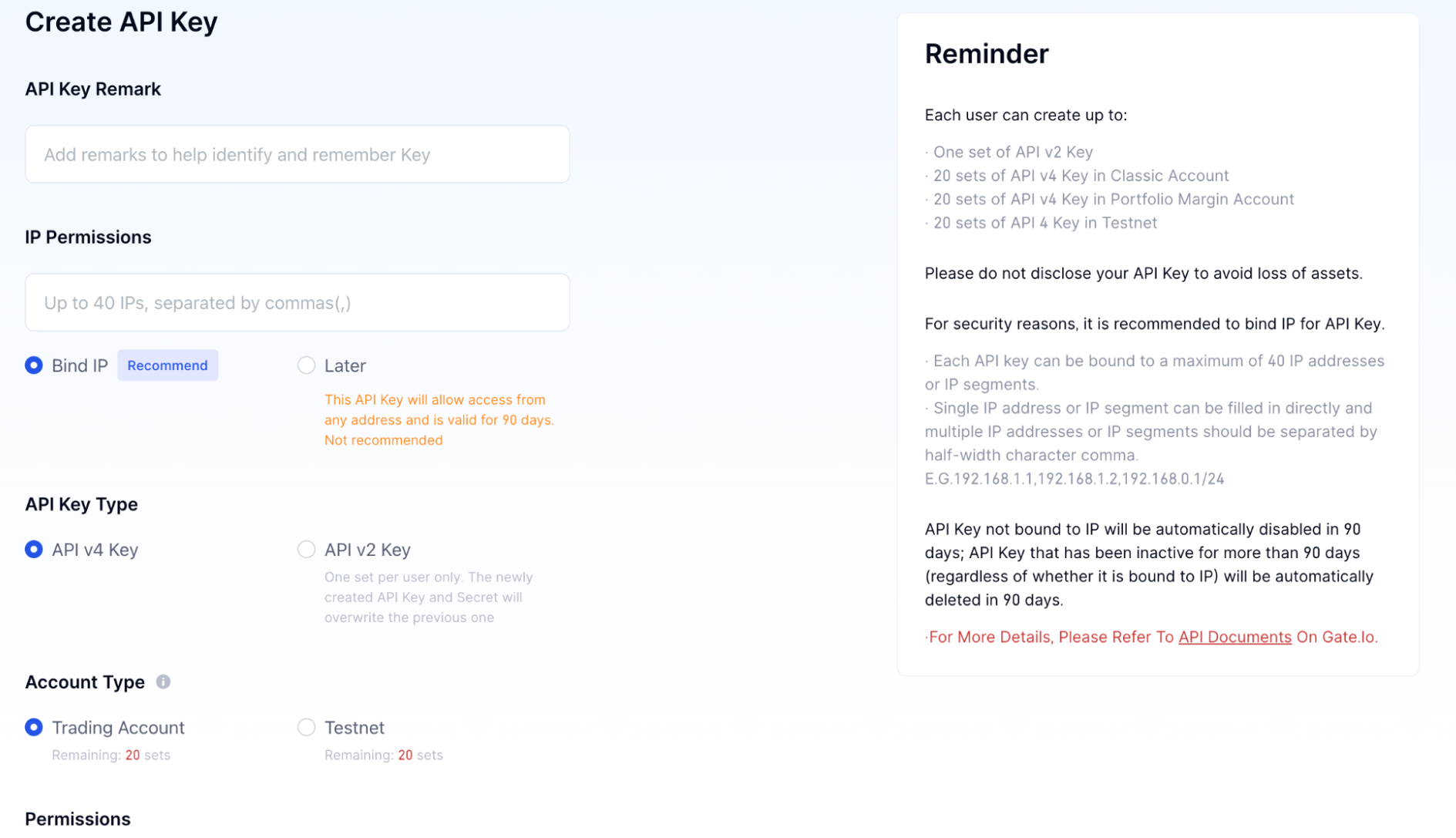
- On the Create API Key page, enter a remark in the API Key Remark field.
-
In the IP Permissions section, select Bind IP and enter Cobo’s IP address
54.201.57.0in the text field. - In the API Key Type section, select API v4 Key.
- In the Account Type section, select Trading Account.
-
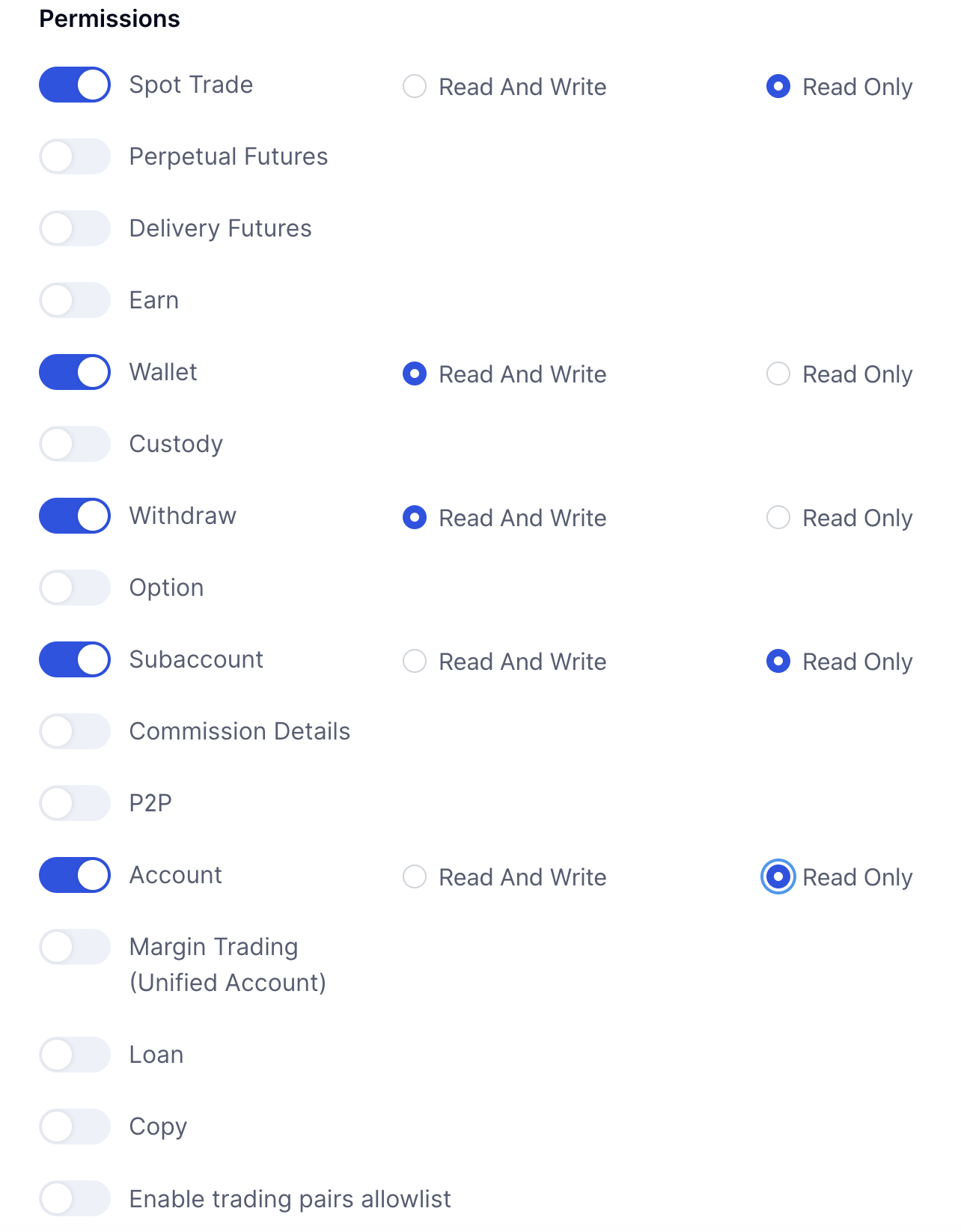
In the Permissions section, enable the following options:
- Spot Trade: Read Only
- Wallet: Read And Write
- Withdraw: Read And Write
- Subaccount: Read Only
- Account: Read Only
- Perpetual Futures: Read Only
- Delivery Futures: Read Only
- Option: Read Only
- Click Confirm to generate the API key.