

Assigning user roles to members requires the appropriate permissions. If you cannot access the Members or User Roles management pages, or if you see No Permission, contact your organization admin and request the role shown on the page or a role that includes the required member and role management permissions.
Assign user roles to new members
To assign user roles while inviting new members:- Log in to Cobo Portal and click your profile avatar in the top-right corner.
- Choose Organization from the dropdown menu.
- Click the Members tab.
- Click Invite Members.
-
In the Invite Members dialog, select the appropriate User Roles for the new member.
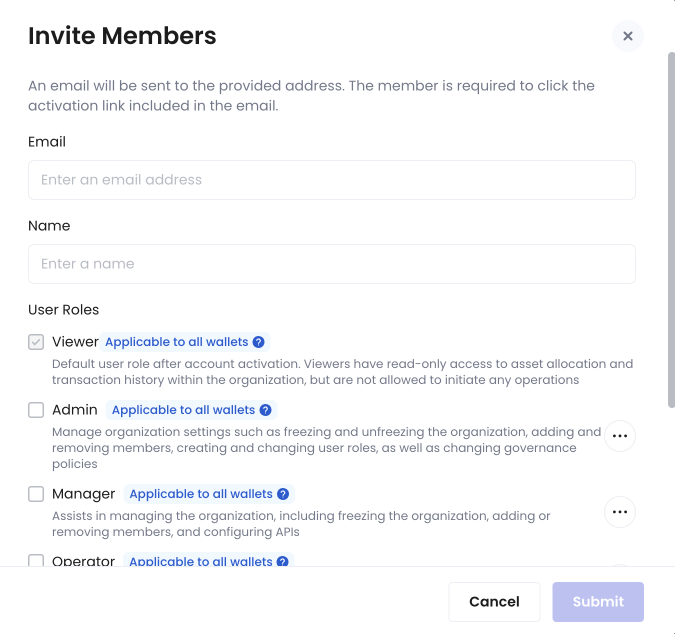
-
To view details about each user role, hover over the more icon

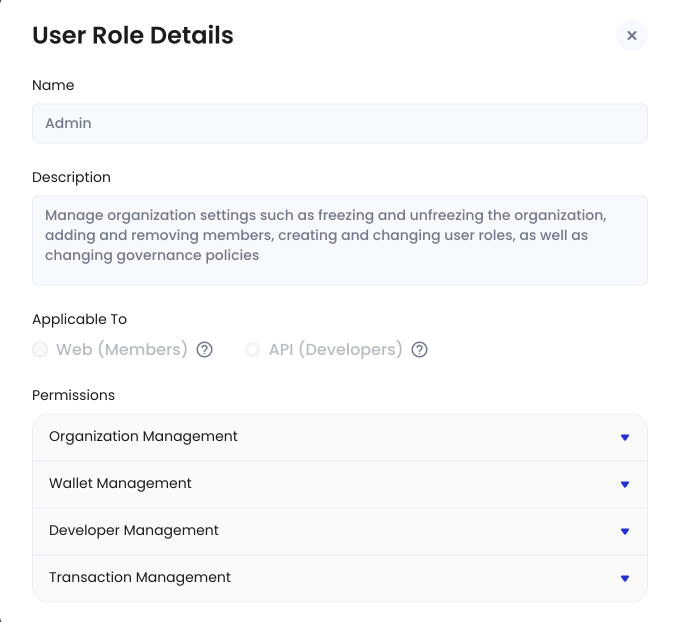
-
To set a wallet scope to each user role, hover over the Applicable to specific wallets label and click Edit Wallet Scope to display the Set Wallet Scope dialog. Select the wallet types to which the role applies and click Confirm.
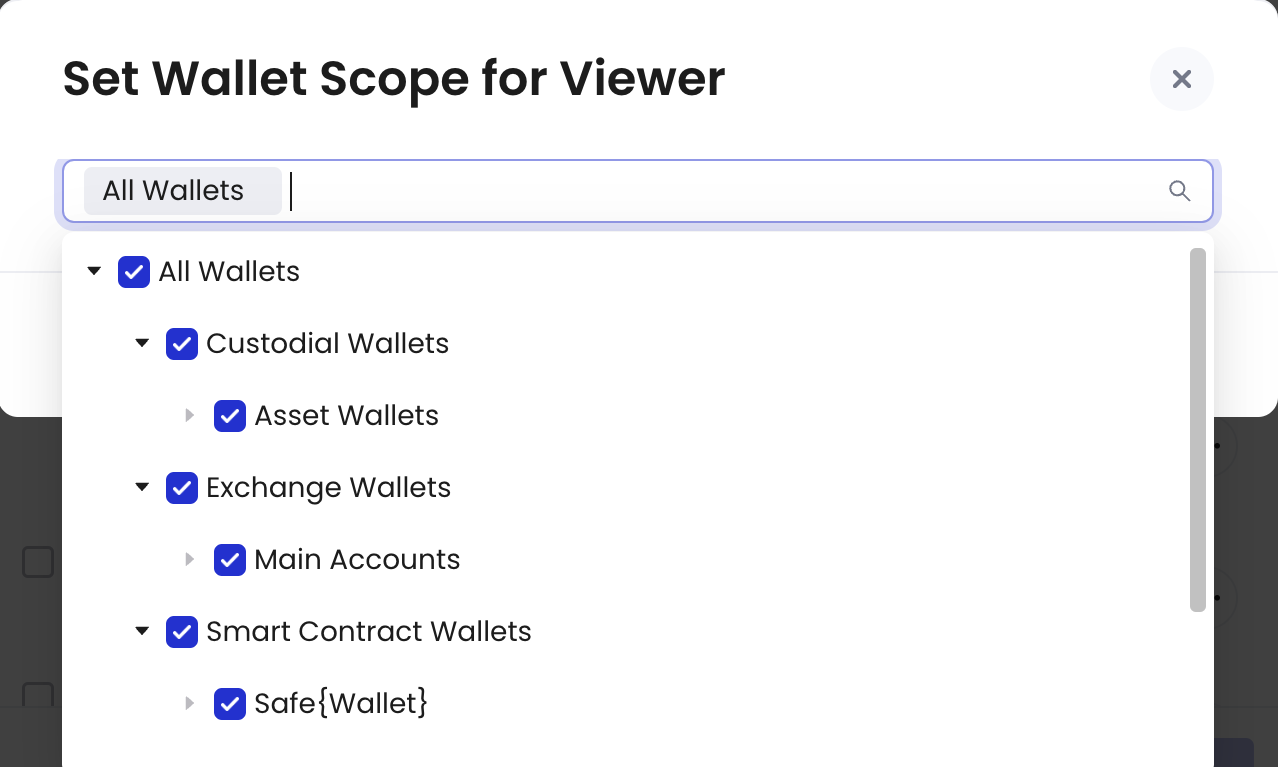 You cannot modify the wallet scope for the user roles Approver, Admin, and Manager.
-
To view details about each user role, hover over the more icon
- Complete the invitation process by providing the rest of the required information and clicking Submit.
Assign user roles to existing members
To assign user roles to existing members:- Log in to Cobo Portal and click your profile avatar in the top-right corner.
- Choose Organization from the dropdown menu.
- Click the Members tab.
-
Locate the member you want to modify and click the Modify User Role

-
In the Modify User Role dialog, select the appropriate User Roles from the menu.
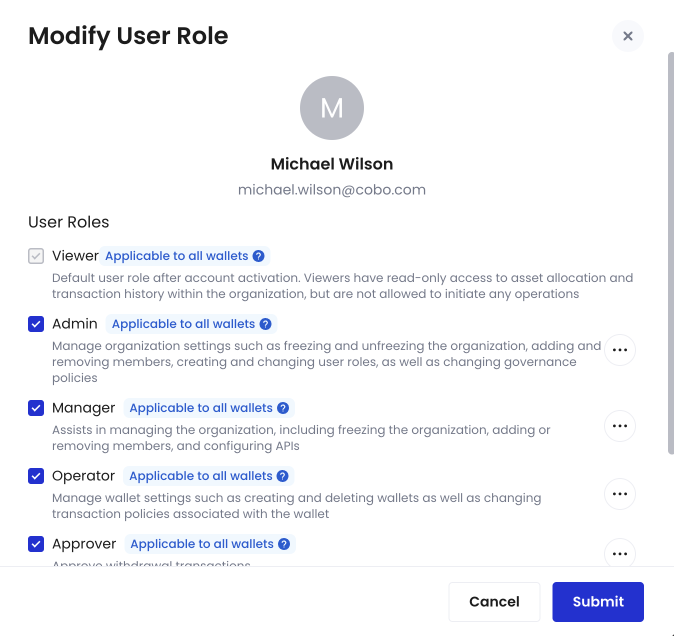
-
To view details about each user role, hover over the more icon
-
To set a wallet scope to each user role, hover over the Applicable to all wallets or Applicable to selected wallets label and click Edit Wallet Scope to display the Set Wallet Scope dialog. Select the wallet types to which the role applies and click Confirm.
-
To view details about each user role, hover over the more icon
- Click Submit to apply the changes.