> ## Documentation Index
> Fetch the complete documentation index at: https://manuals.cobo.com/llms.txt
> Use this file to discover all available pages before exploring further.
# Update app settings
> Learn how to update app settings in Cobo Portal, including optional permissions and wallet scopes after installation.
This article describes how to update the settings of optional permissions and wallet scopes after you've installed a Cobo Portal App.
1. Log into [Cobo Portal](https://portal.cobo.com/login).
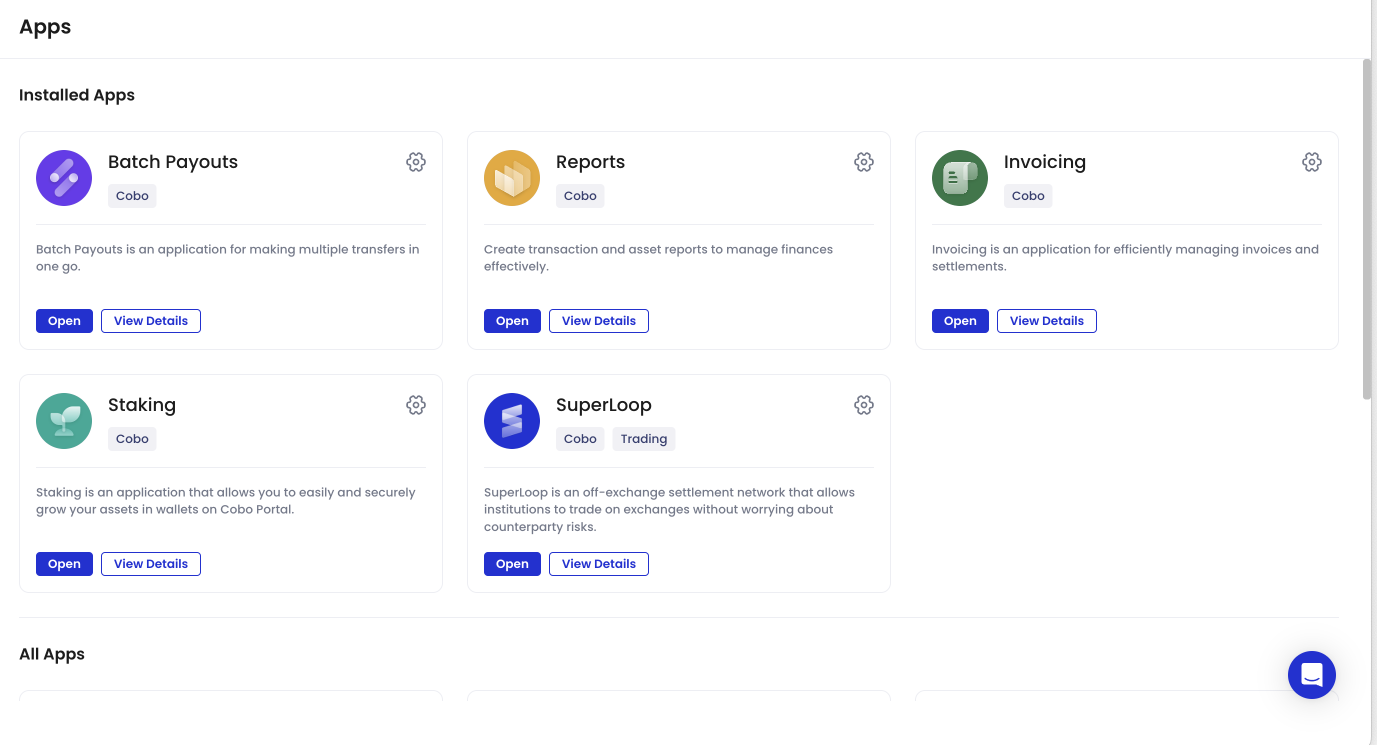
2. Click **Apps** in the left sidebar to open the **Apps** page.
3. In the **All Apps** section or the **Installed Apps** section, click  on an app to open the **App Management** page.
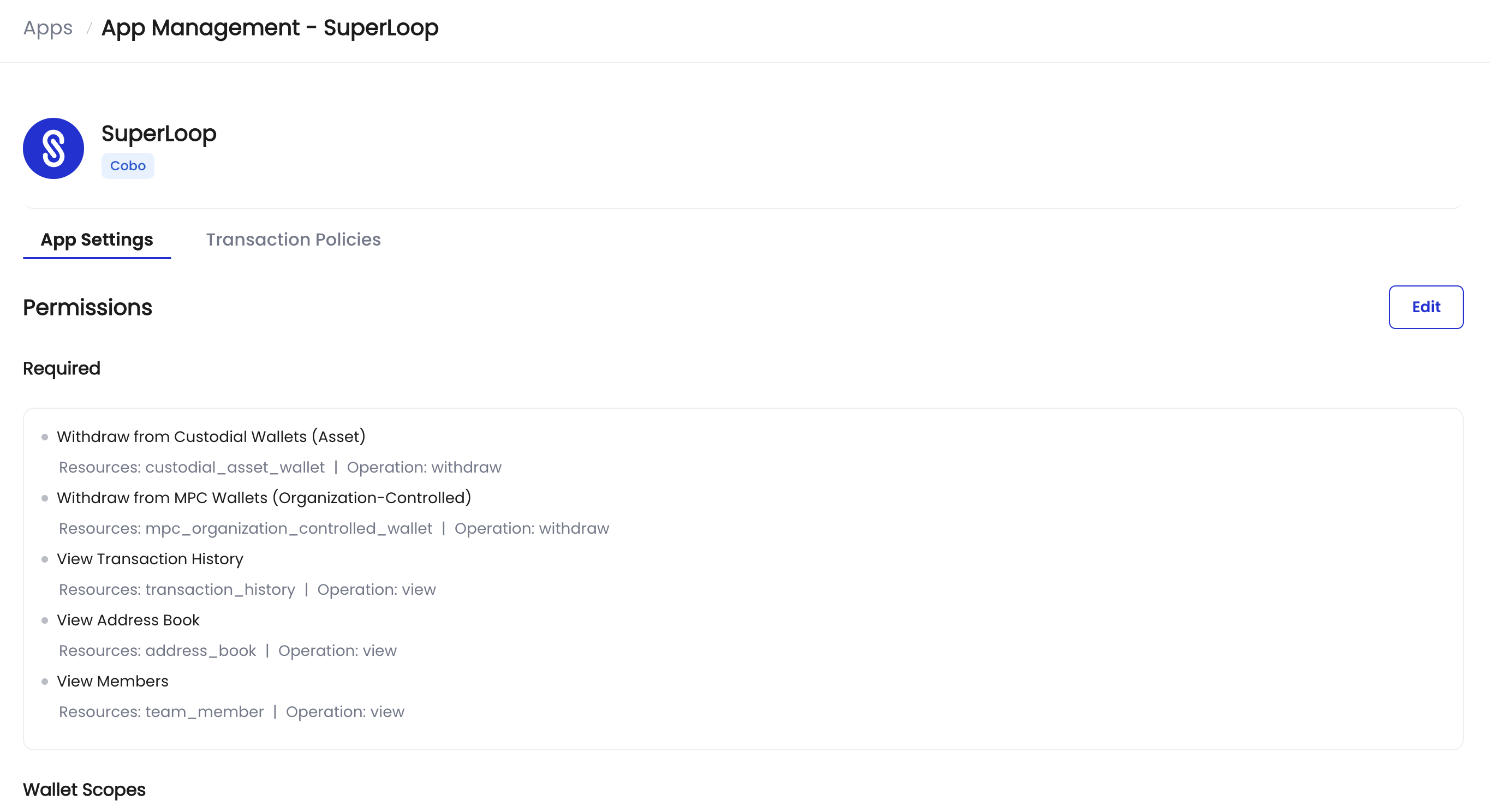
 4. On the **App Settings** tab of the **App Management** page, you can view the required and optional permissions and the applicable wallet scope you have selected during app installation.
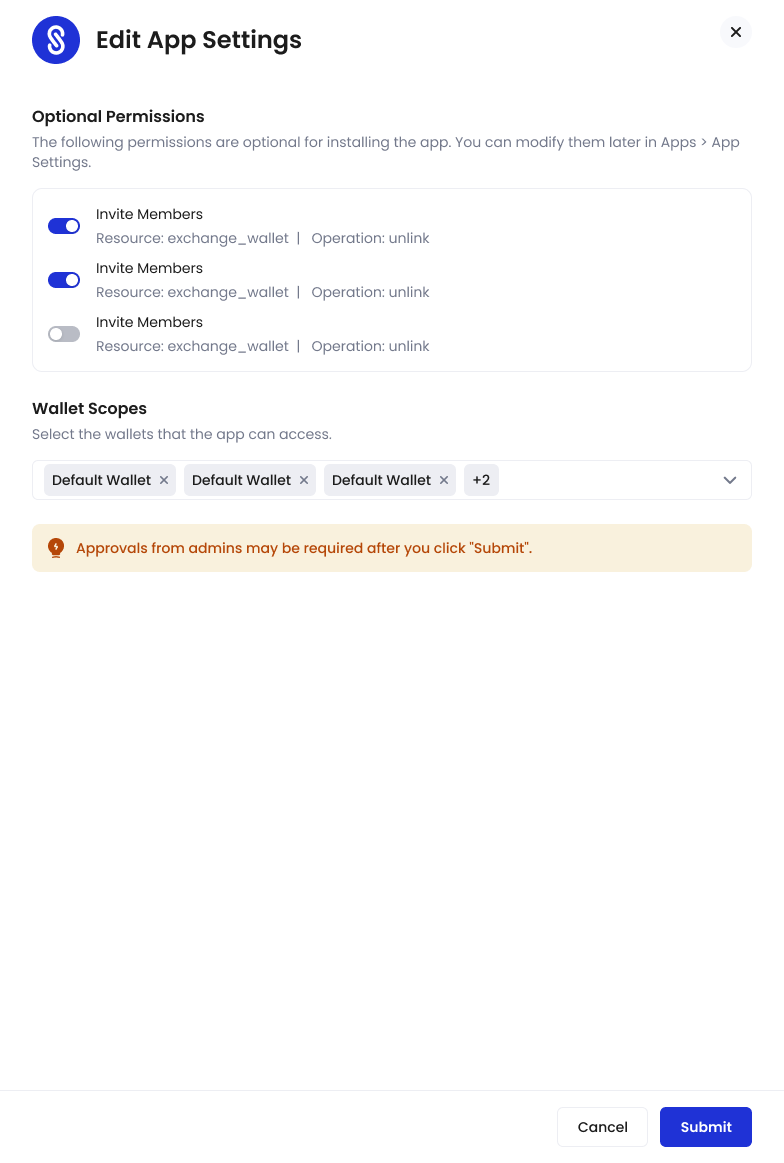
 5. To update the selected optional permissions and the wallet scope, click **Edit** to open the **Edit App Settings** pane.
6. On the **Edit App Settings** pane, update the settings and click **Submit**.
5. To update the selected optional permissions and the wallet scope, click **Edit** to open the **Edit App Settings** pane.
6. On the **Edit App Settings** pane, update the settings and click **Submit**.
 7. On the confirmation dialog, click **Confirm** to proceed.
Depending on the governance policies of your organization, the settings update might require approval from your organization admin. When you click Confirm, your organization admin might receive an approval request for the installation.
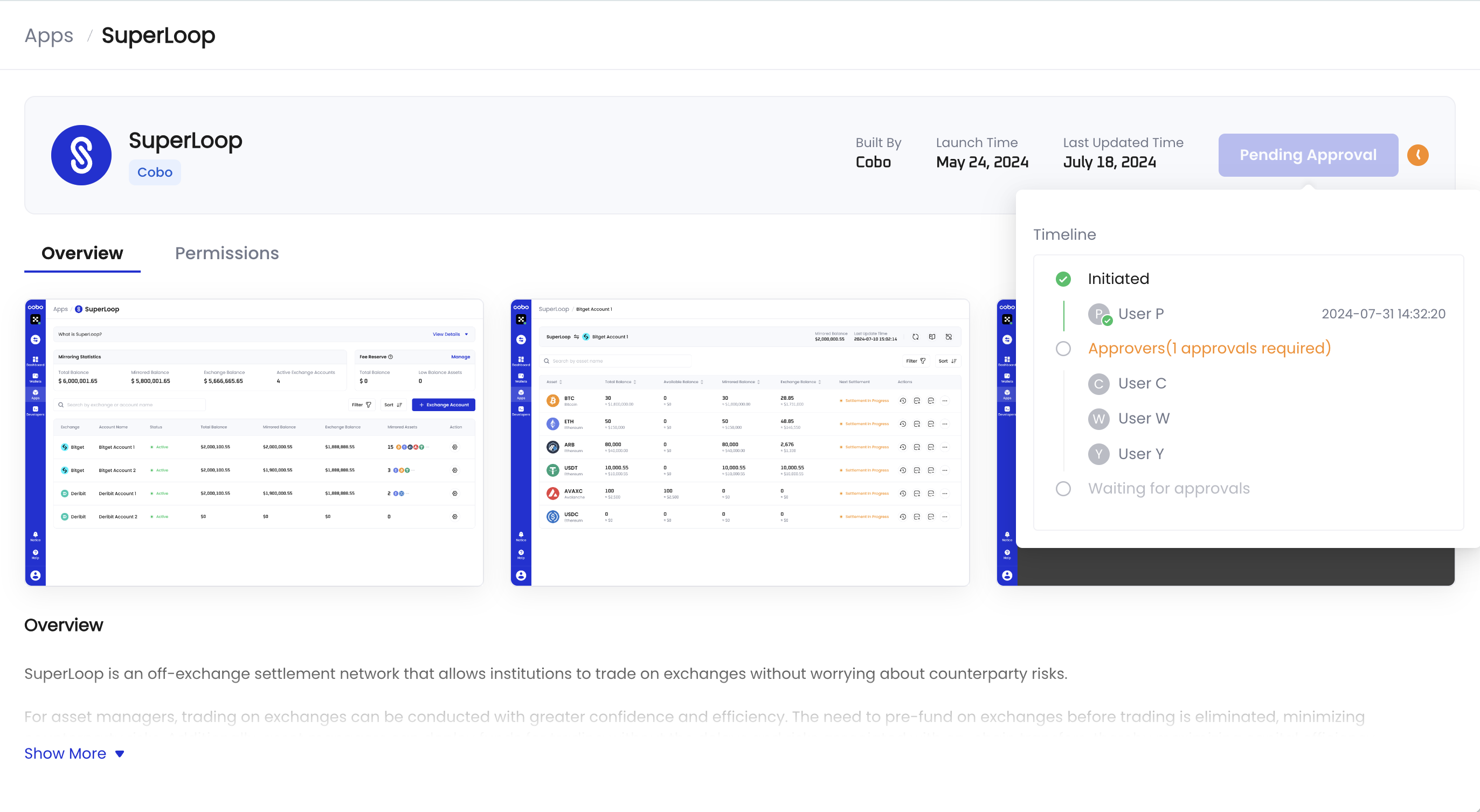
8. You can navigate to the **Apps** or app overview page and hover over the **Pending Approval** button or the clock icon
7. On the confirmation dialog, click **Confirm** to proceed.
Depending on the governance policies of your organization, the settings update might require approval from your organization admin. When you click Confirm, your organization admin might receive an approval request for the installation.
8. You can navigate to the **Apps** or app overview page and hover over the **Pending Approval** button or the clock icon  to view the approval timeline. Once the approval is confirmed, the app settings will be updated.