> ## Documentation Index
> Fetch the complete documentation index at: https://manuals.cobo.com/llms.txt
> Use this file to discover all available pages before exploring further.
# Browse and install apps
> Discover how to browse and install Cobo Portal Apps, enhancing your digital asset management experience.
This article describes how to browse and install Cobo Portal Apps.
Currently, once installed, Cobo Portal Apps cannot be uninstalled.
1. Log into [Cobo Portal](https://portal.cobo.com/login).
2. Click **Apps** in the left sidebar to open the **Apps** page.
The **All Apps** section displays all available Cobo Portal Apps.
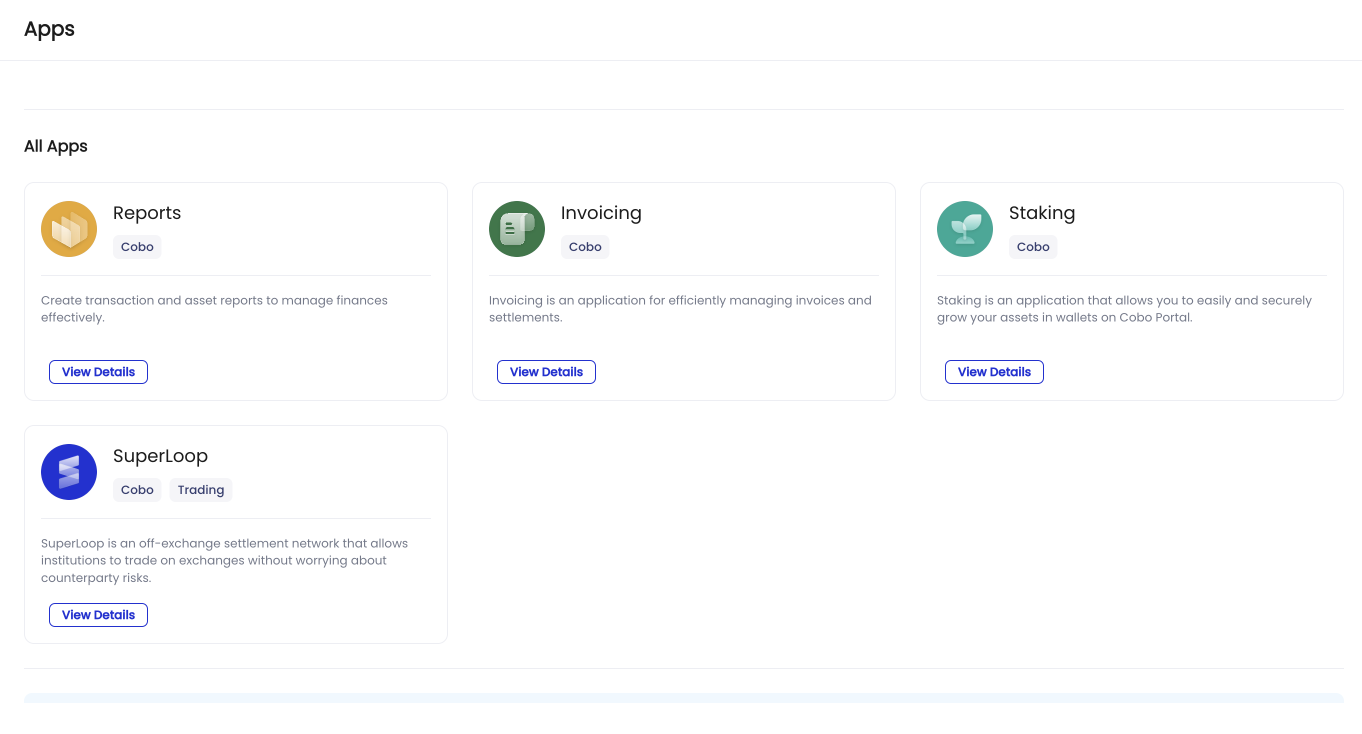 3. In the **All Apps** section, click an app or the **View Details** button, then, you can find the overview and permissions information of the app.
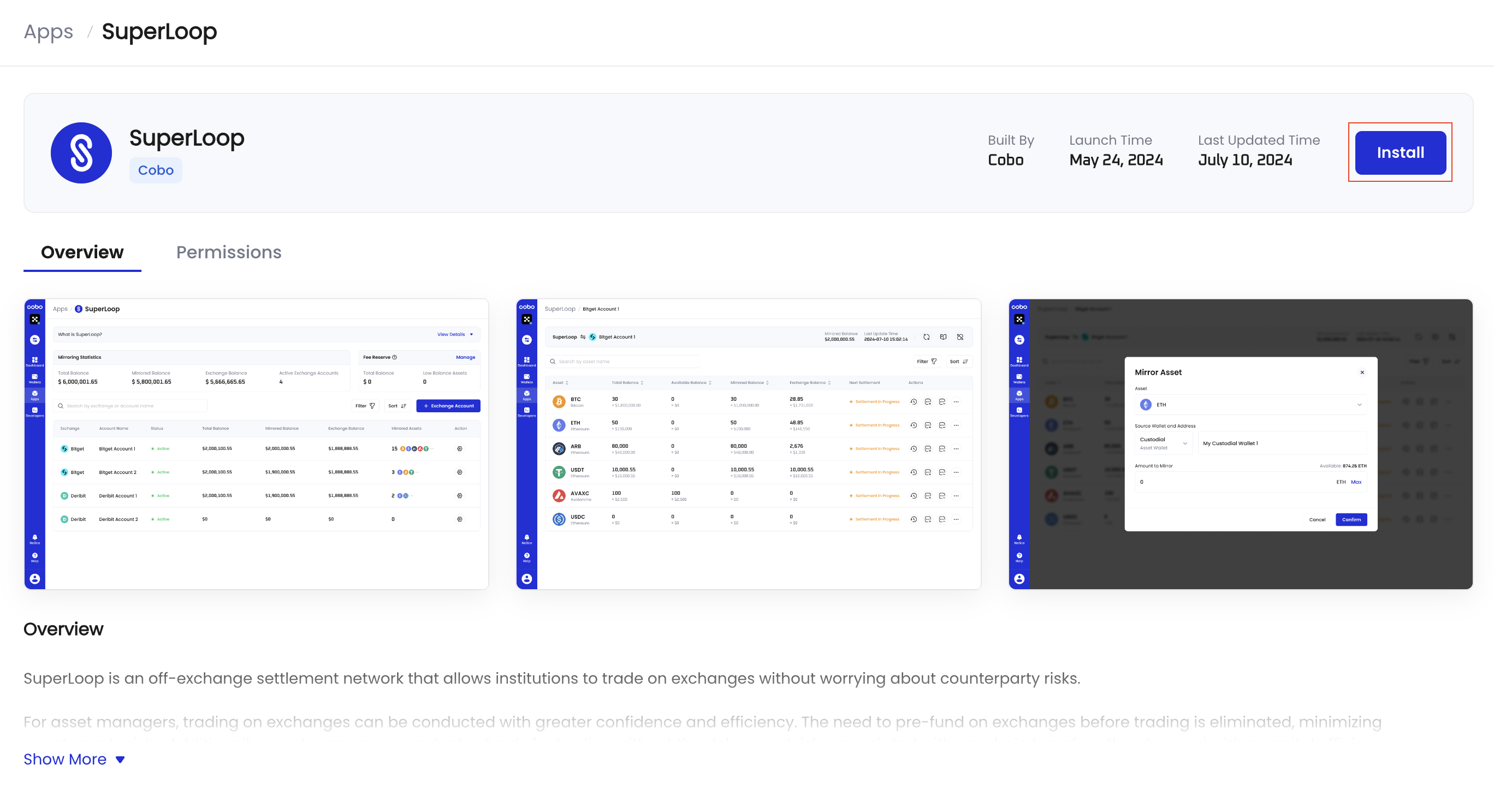
4. Click **Install** to open a pane containing information regarding permissions and wallet scopes.
3. In the **All Apps** section, click an app or the **View Details** button, then, you can find the overview and permissions information of the app.
4. Click **Install** to open a pane containing information regarding permissions and wallet scopes.
 5. The pane lists the required and optional permissions the app needs to access your [organization](/en/portal/organization/introduction)’s resources. You need to select the wallet scope that you want to allow the app to access. By clicking **Submit**, you authorize the app to access the required and optionally selected organization resources.
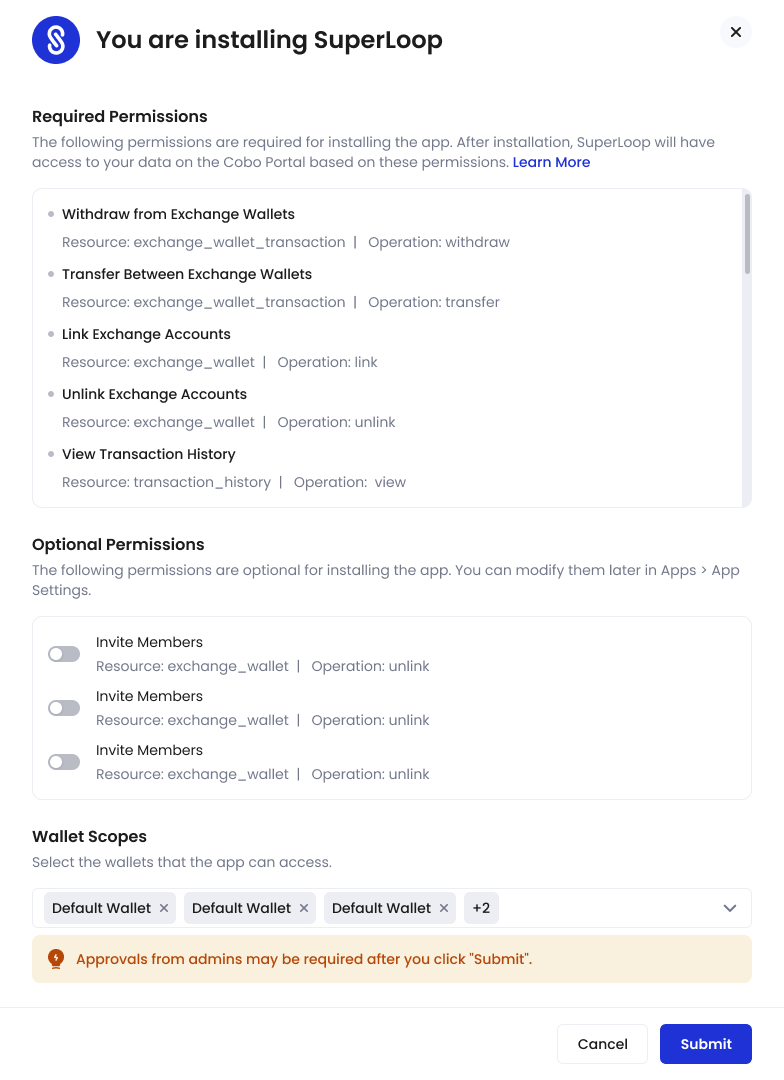 You can change these settings later after the installation, which might require approvals from your organization admin.
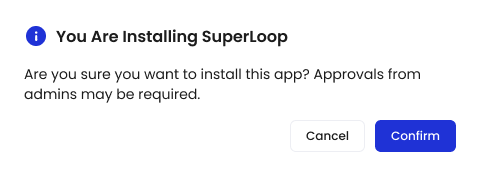
6. Click **Submit** to open a confirmation dialog.
7. In the dialog, click **Confirm** to proceed with the installation.
You can change these settings later after the installation, which might require approvals from your organization admin.
6. Click **Submit** to open a confirmation dialog.
7. In the dialog, click **Confirm** to proceed with the installation.
 Depending on the governance policies of your organization, the installation might require approval from your organization admin. When you click Confirm, your organization admin might receive an approval request for the installation.
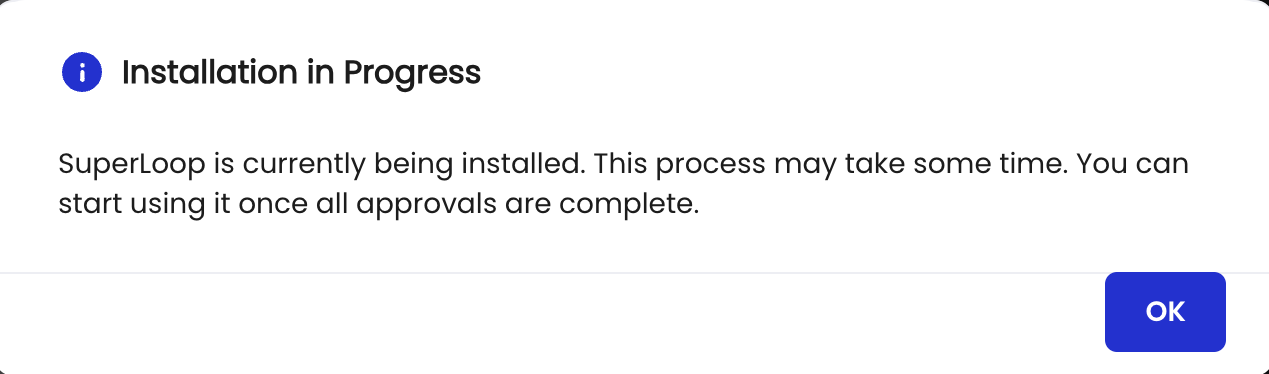
8. The **Installation in Progress** dialog appears, which indicates the app is waiting for your organization admin’s approval. Click **OK** to proceed.
Depending on the governance policies of your organization, the installation might require approval from your organization admin. When you click Confirm, your organization admin might receive an approval request for the installation.
8. The **Installation in Progress** dialog appears, which indicates the app is waiting for your organization admin’s approval. Click **OK** to proceed.
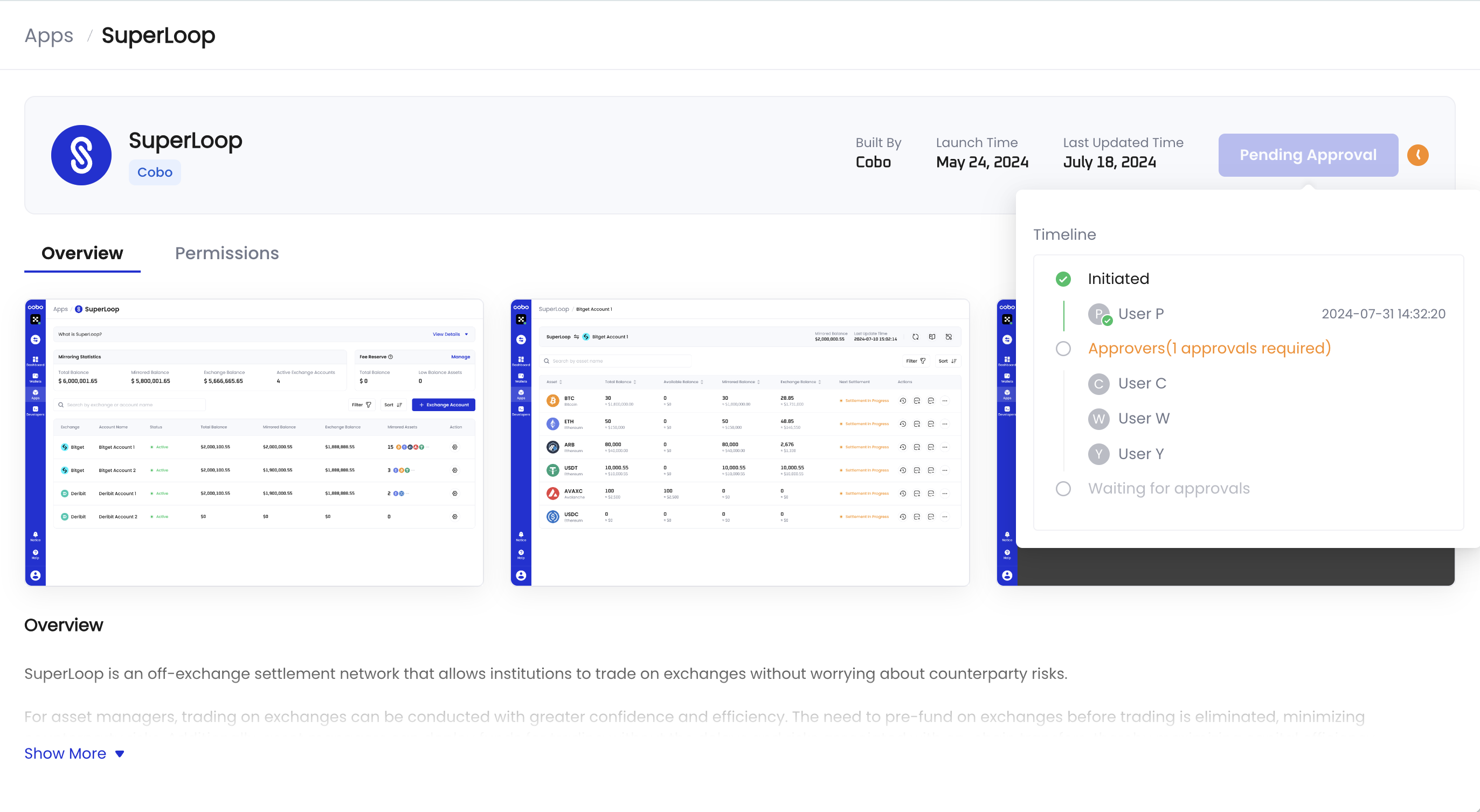
 9. You can hover over the **Pending Approval** button or the clock icon
  to view the approval progress. Once the request is approved, the app will begin installing.
 10. Once the installation is completed, you can click **Open** to start using the app.
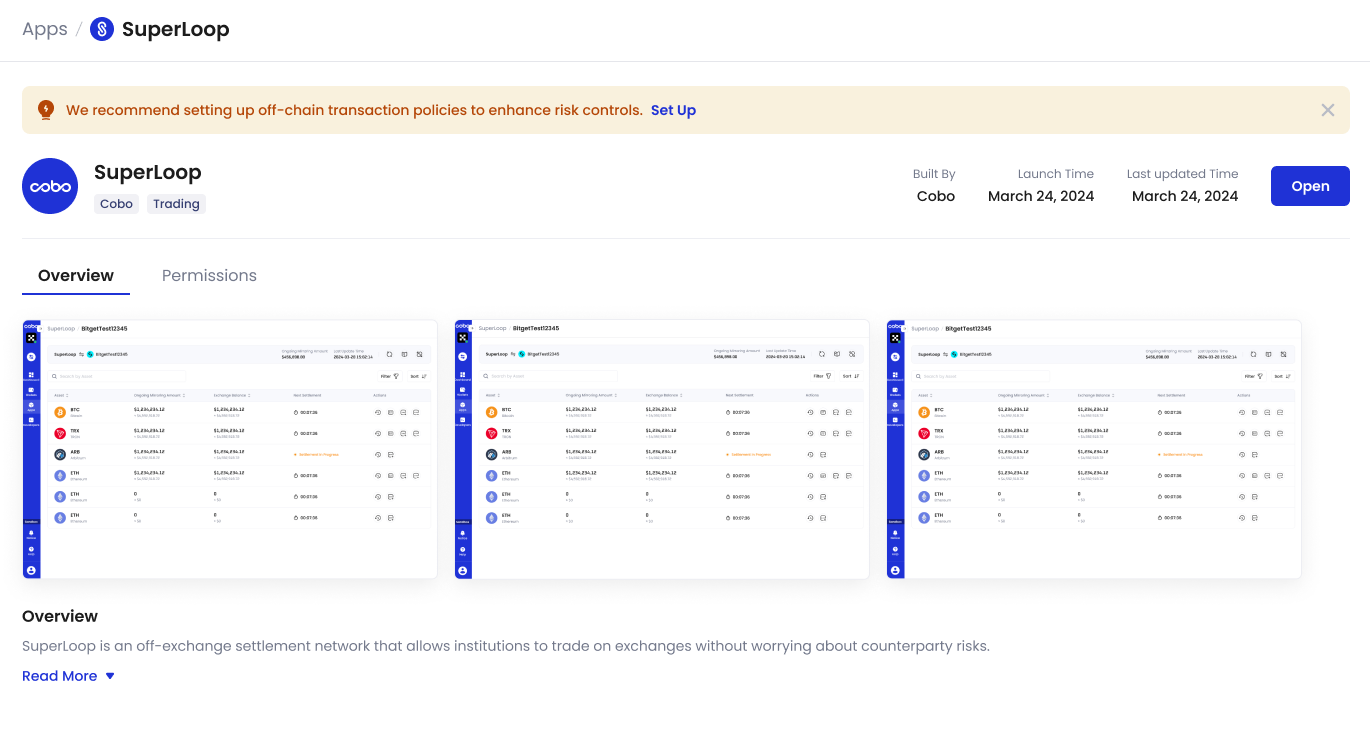 It is highly recommended that you set up transaction policies for the app first. You can click Set Up in the reminder message to navigate to the App Management page. For more details, see Set up and update transaction policies.