> ## Documentation Index
> Fetch the complete documentation index at: https://manuals.cobo.com/llms.txt
> Use this file to discover all available pages before exploring further.
# Connect a dApp with WalletConnect and send a transaction
> Learn how to connect a dApp through WalletConnect in Cobo Portal, send a transaction request, and manage active connections.
## Prerequisites
You must have one of the following [roles](/en/portal/organization/roles-and-permissions) to initiate and manage WalletConnect connections/disconnections:
* Admin
* Spender
## Steps
### 1. Get a pairing link from the dApp
1. Open the target dApp.
2. Choose WalletConnect as the connection method.
3. Obtain the WalletConnect pairing link.
### 2. Initiate the connection in Cobo Portal
1. Log in to Cobo Portal.
2. Go to **Wallets** -> **WalletConnect**.
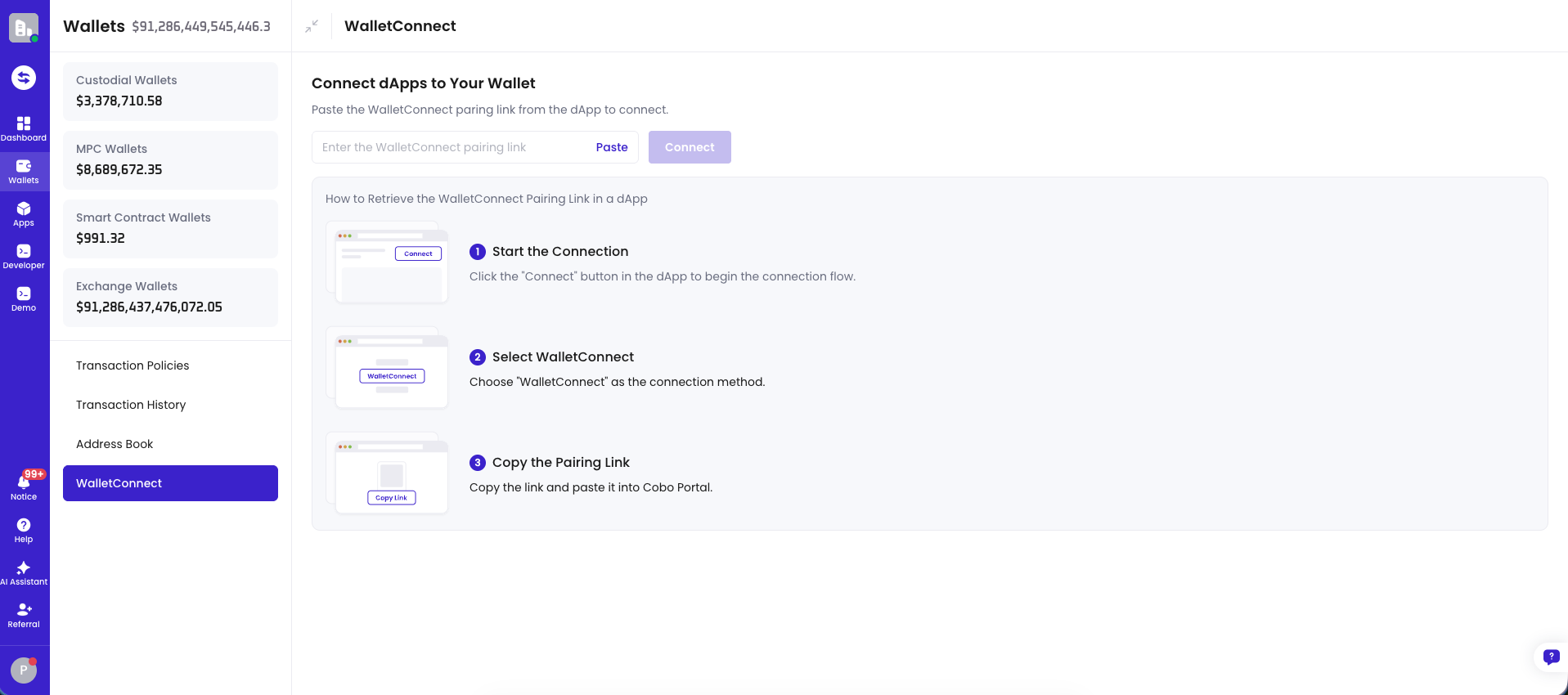 3. Paste or enter the pairing link, then click **Connect**.
4. Select the wallet address you want to use.
5. Review the dApp connection details and risk information (if applicable), then confirm to establish the connection.
### 3. Send a transaction request from the dApp
1. Go back to the connected dApp.
2. Initiate an action in the dApp, such as swapping, staking, or lending.
3. The dApp will send a transaction request to Cobo through WalletConnect.
On the Cobo side, the request will enter the standard transaction workflow:
* Spender approval (callback)
* Risk control approval
* MPC signing
Due to Solana on-chain mechanism, for Solana-chain transactions, the Cobo-side workflow (Spender approval, risk control approval, and MPC signing) must be completed within 1 minute. Otherwise, the Solana transaction or message signature will expire.
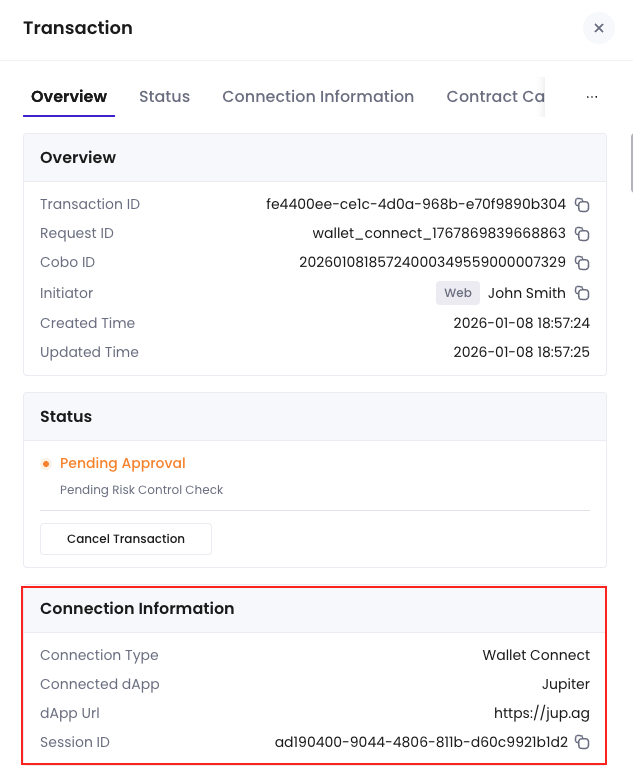
You can verify the dApp connection information in Cobo Portal transaction records and Portal Mobile approval messages. The following screenshot shows the **Connection information** section in Cobo Portal transaction records.
3. Paste or enter the pairing link, then click **Connect**.
4. Select the wallet address you want to use.
5. Review the dApp connection details and risk information (if applicable), then confirm to establish the connection.
### 3. Send a transaction request from the dApp
1. Go back to the connected dApp.
2. Initiate an action in the dApp, such as swapping, staking, or lending.
3. The dApp will send a transaction request to Cobo through WalletConnect.
On the Cobo side, the request will enter the standard transaction workflow:
* Spender approval (callback)
* Risk control approval
* MPC signing
Due to Solana on-chain mechanism, for Solana-chain transactions, the Cobo-side workflow (Spender approval, risk control approval, and MPC signing) must be completed within 1 minute. Otherwise, the Solana transaction or message signature will expire.
You can verify the dApp connection information in Cobo Portal transaction records and Portal Mobile approval messages. The following screenshot shows the **Connection information** section in Cobo Portal transaction records.
 ## Next steps
On the WalletConnect management page, you can view active connections initiated by you (expired or disconnected connections are not shown).
* You can manually disconnect a connection. After disconnection, the dApp can no longer send new transaction requests, but it does not affect transactions that have already been initiated and are in progress.
* Each connection is valid for 1 day by default. If you do not disconnect it within the validity period, the system will automatically close the connection. After a connection is closed, the dApp must reconnect before initiating new actions.
## Next steps
On the WalletConnect management page, you can view active connections initiated by you (expired or disconnected connections are not shown).
* You can manually disconnect a connection. After disconnection, the dApp can no longer send new transaction requests, but it does not affect transactions that have already been initiated and are in progress.
* Each connection is valid for 1 day by default. If you do not disconnect it within the validity period, the system will automatically close the connection. After a connection is closed, the dApp must reconnect before initiating new actions.