> ## Documentation Index
> Fetch the complete documentation index at: https://manuals.cobo.com/llms.txt
> Use this file to discover all available pages before exploring further.
# Deposit assets
> Understand the process of depositing assets into Smart Contract Wallets, ensuring secure and accurate transactions.
Due to the Bybit security incident, Safe Wallet has suspended third-party delegate call services. As a result, Cobo's Smart Contract Wallets and related services (including on-chain transaction policies) are temporarily unavailable. However, existing wallets and on-chain transaction policies can still be used. Recovery timeline will be announced later.
Note: Please make sure that you are sending tokens to the correct address and network. Any errors may result in the loss of funds.
## Deposit by assets
1. Click into a Smart Contract Wallet on Cobo Portal and switch to the **Assets** section.
2. To deposit a specific token, click  next to the respective token (e.g., ETH). Please note that the tokens listed under Assets are automatically retrieved from your Safe\{Wallet} and cannot be modified on Cobo Portal.
3. In the pop-up window, either copy the deposit address for the corresponding token or scan the QR code. If you want to deposit from any of your wallets created on Cobo Portal, click **Deposit from other wallets** instead.
next to the respective token (e.g., ETH). Please note that the tokens listed under Assets are automatically retrieved from your Safe\{Wallet} and cannot be modified on Cobo Portal.
3. In the pop-up window, either copy the deposit address for the corresponding token or scan the QR code. If you want to deposit from any of your wallets created on Cobo Portal, click **Deposit from other wallets** instead.
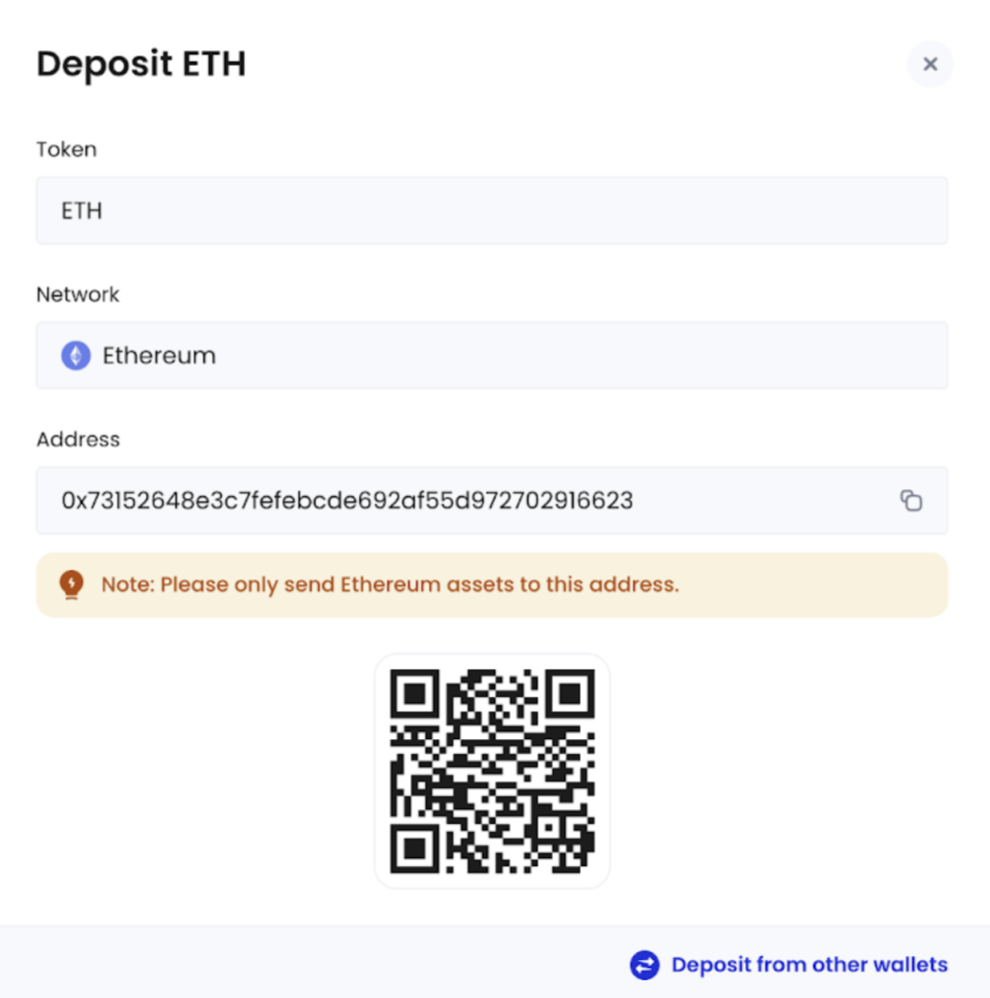 4. Following a successful deposit, the balance for the corresponding token will be automatically updated. You can switch to the **Assets** tab to view the updated balance.
## Deposit directly into Safe\{Wallet}
1. To make a deposit directly into your Safe\{Wallet}, click next to **Total Balance** instead. In the pop-up window, either copy your Safe\{Wallet} address or scan the QR code.
4. Following a successful deposit, the balance for the corresponding token will be automatically updated. You can switch to the **Assets** tab to view the updated balance.
## Deposit directly into Safe\{Wallet}
1. To make a deposit directly into your Safe\{Wallet}, click next to **Total Balance** instead. In the pop-up window, either copy your Safe\{Wallet} address or scan the QR code.
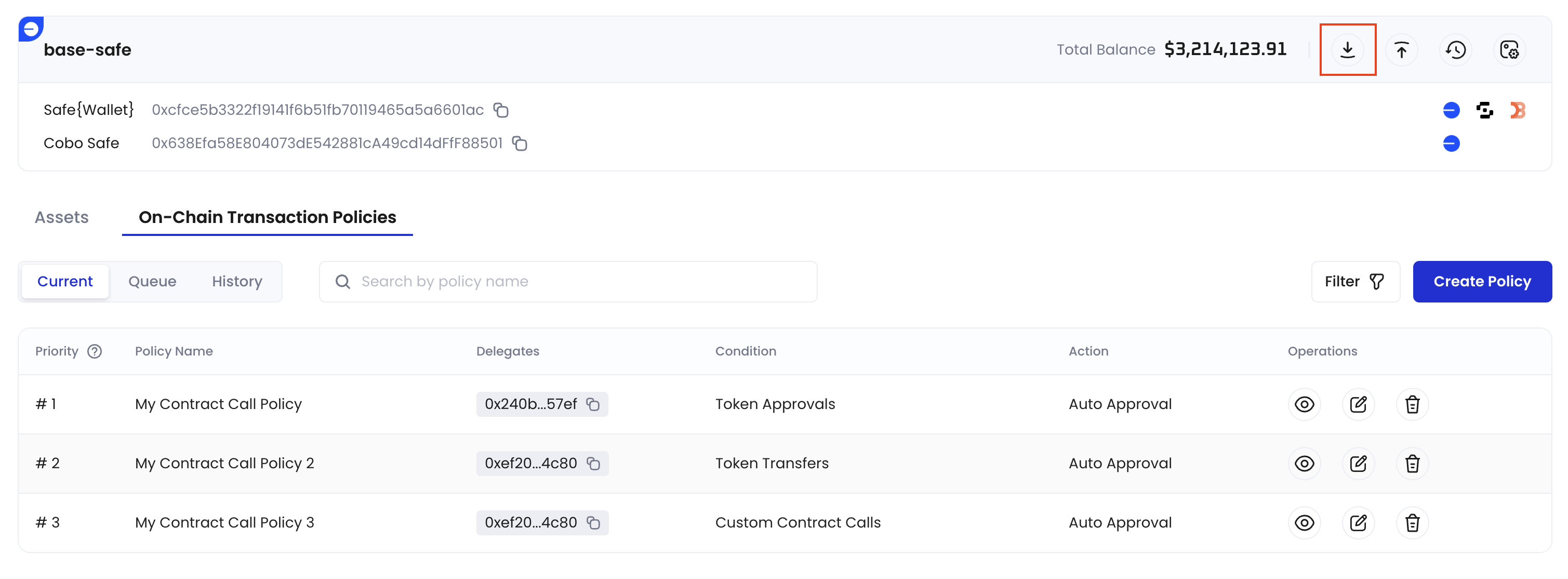 2. Following a successful deposit, the Safe\{Wallet} balance will be automatically updated on Cobo Portal.