> ## Documentation Index
> Fetch the complete documentation index at: https://manuals.cobo.com/llms.txt
> Use this file to discover all available pages before exploring further.
# Create and set up a Smart Contract Wallet (Safe{Wallet})
> Learn how to create and set up a Smart Contract Wallet (Safe{Wallet}) in Cobo Portal for efficient asset management.
Due to the Bybit security incident, Safe Wallet has suspended third-party delegate call services. As a result, Cobo's Smart Contract Wallets and related services (including on-chain transaction policies) are temporarily unavailable. However, existing wallets and on-chain transaction policies can still be used. Recovery timeline will be announced later.
## Prerequisites
* You have set up your account and complete other required steps following the [Quick start guide](/en/portal/quick-start-guide-mpc).
* You have [created](/en/portal/mpc-wallets/ocw/set-up) an MPC Wallet (Organization-Controlled).
* You have been assigned the [Operator](/en/portal/organization/roles-and-permissions) role or a role with equivalent permissions.
Currently, creating a Smart Contract Wallet on Cobo Portal is akin to setting up a Safe\{Wallet} with Cobo Safe enabled.
## Step 1: Create a Safe\{Wallet}
1. Log into [Cobo Portal](https://portal.cobo.com/login).
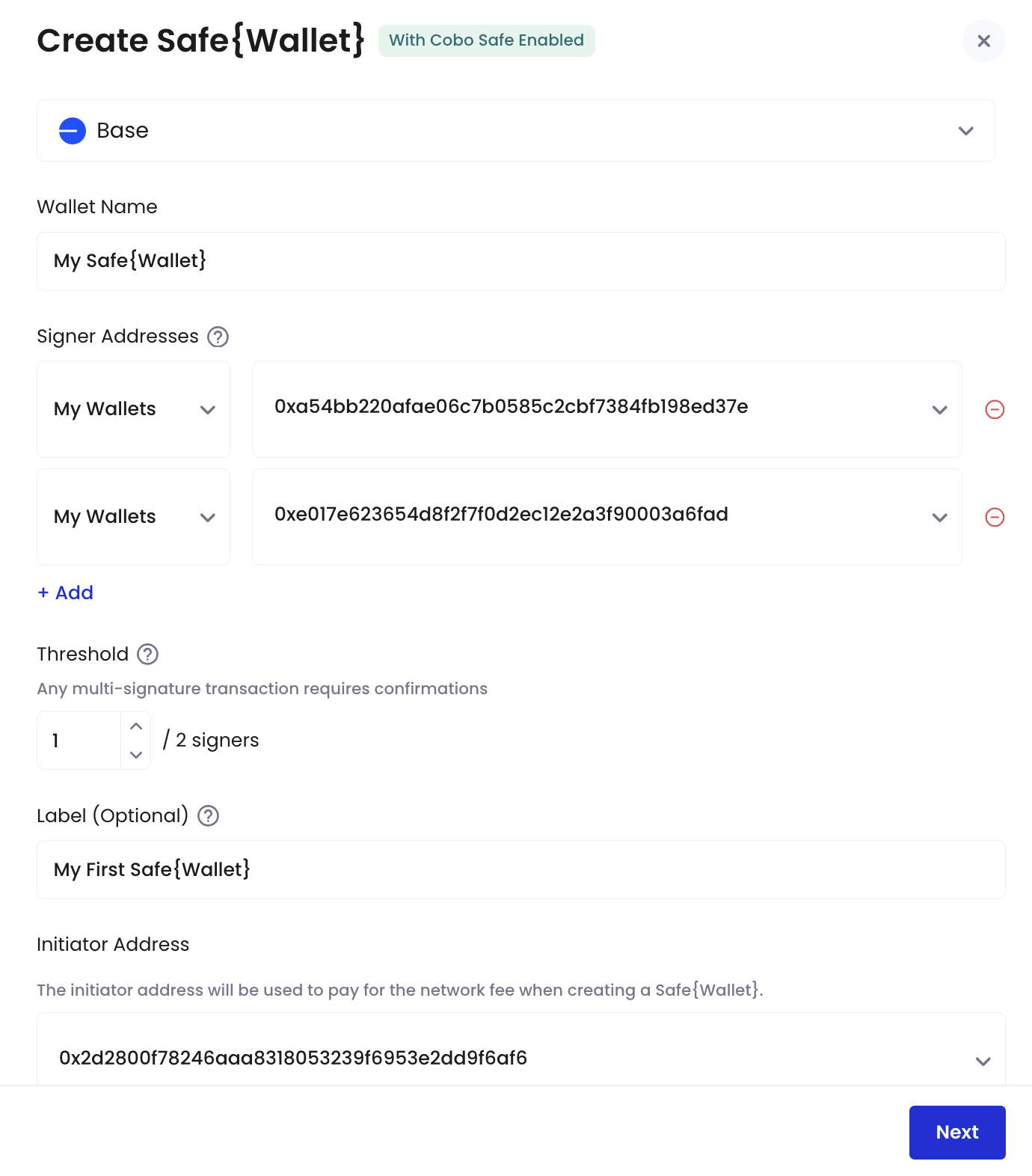
2. Click **Wallets** in the left sidebar, then select **Smart Contract Wallets**, and click the create button.
3. In the pop-up window, select a network where your Safe\{Wallet} will be based.
4. Enter a name for your Safe\{Wallet}.
5. Select signer addresses. These addresses will be used to sign multi-sig transactions on the Safe\{Wallet}.
* My Wallets: Select addresses from your MPC Wallets (Organization-Controlled).
* Address Book: Select MPC Wallets (Organization-Controlled) or EOA addresses listed in your Address Book.
* Other: Manually enter EOA addresses.
6. Enter a signing threshold. The threshold in a Safe\{Wallet} specifies the number of signers required to sign a multi-sig transaction before it can be executed.
7. Enter an optional label for your Safe\{Wallet}. Please note that your Safe\{Wallet} address will only be added to the Address Book if you provide a label in this step.
8. Select an initiator address from your MPC Wallets (Organization-Controlled). This address will be used to cover the network fee when creating your new Safe\{Wallet}.
9. Click **Next**.
 10. Review your Safe\{Wallet} details, including the signer addresses, signing threshold, and initiator address.
11. Confirm on your Portal Mobile that you initiated this request.
12. Your Safe\{Wallet} is successfully created. You may now proceed to Step 2 to complete the wallet setup.
## Step 2: Initialize a Safe\{Wallet}
1. After you approve the wallet creation request on your Portal Mobile, a **Request Confirmed** window will appear. Click **OK** to begin initiating your Safe\{Wallet}.
10. Review your Safe\{Wallet} details, including the signer addresses, signing threshold, and initiator address.
11. Confirm on your Portal Mobile that you initiated this request.
12. Your Safe\{Wallet} is successfully created. You may now proceed to Step 2 to complete the wallet setup.
## Step 2: Initialize a Safe\{Wallet}
1. After you approve the wallet creation request on your Portal Mobile, a **Request Confirmed** window will appear. Click **OK** to begin initiating your Safe\{Wallet}.
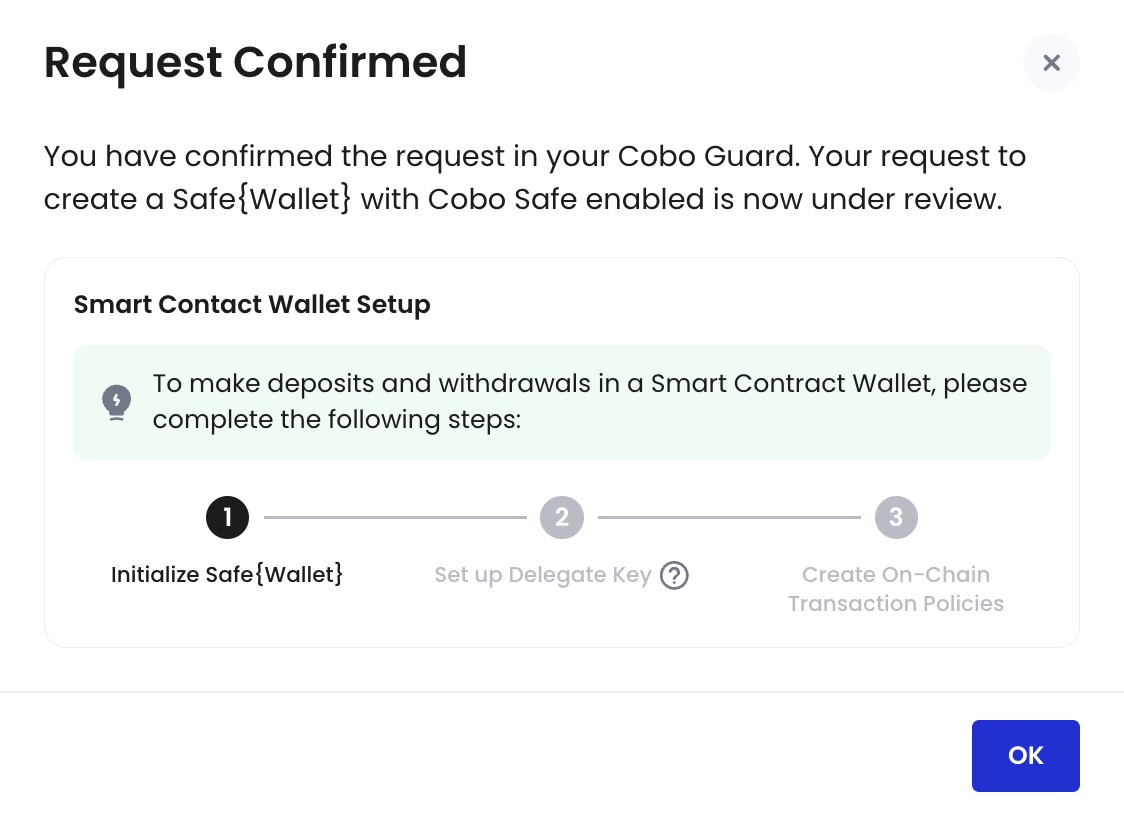 2. You will be automatically redirected to the Smart Contract Wallets homepage, where you will see the initialization status of your new Safe\{Wallet} listed as **Under Review**.
 3. Click **Under Review** > **View**.
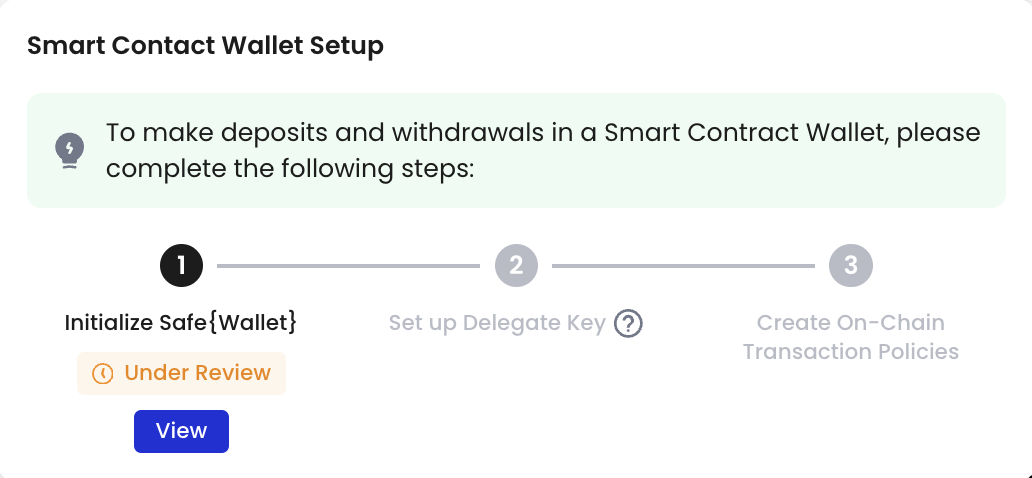 4. You will be redirected to the Transaction History homepage.
5. Connect the initiator address you selected when creating this Safe\{Wallet} and then sign a message. Do note that this initiator address will be used to cover the network fees associated with creating your Safe\{Wallet}.
6. Your Safe\{Wallet} will be successfully initiated once the signing process is complete.
7. Return to the Smart Contract Wallets homepage, where the status of your Safe\{Wallet} will now be automatically updated to **Setup Required**. You may now proceed to Step 3.
4. You will be redirected to the Transaction History homepage.
5. Connect the initiator address you selected when creating this Safe\{Wallet} and then sign a message. Do note that this initiator address will be used to cover the network fees associated with creating your Safe\{Wallet}.
6. Your Safe\{Wallet} will be successfully initiated once the signing process is complete.
7. Return to the Smart Contract Wallets homepage, where the status of your Safe\{Wallet} will now be automatically updated to **Setup Required**. You may now proceed to Step 3.
 ## Step 3: Set up a Delegate Key
The Delegate Key is used to initiate, but not sign, multi-sig transactions on behalf of Safe\{Wallet} signers. It is a dedicated address created and assigned by Cobo.
1. On the Smart Contract Wallets homepage, click **Setup Required** > **Set Up** next to your Safe\{Wallet}.
## Step 3: Set up a Delegate Key
The Delegate Key is used to initiate, but not sign, multi-sig transactions on behalf of Safe\{Wallet} signers. It is a dedicated address created and assigned by Cobo.
1. On the Smart Contract Wallets homepage, click **Setup Required** > **Set Up** next to your Safe\{Wallet}.
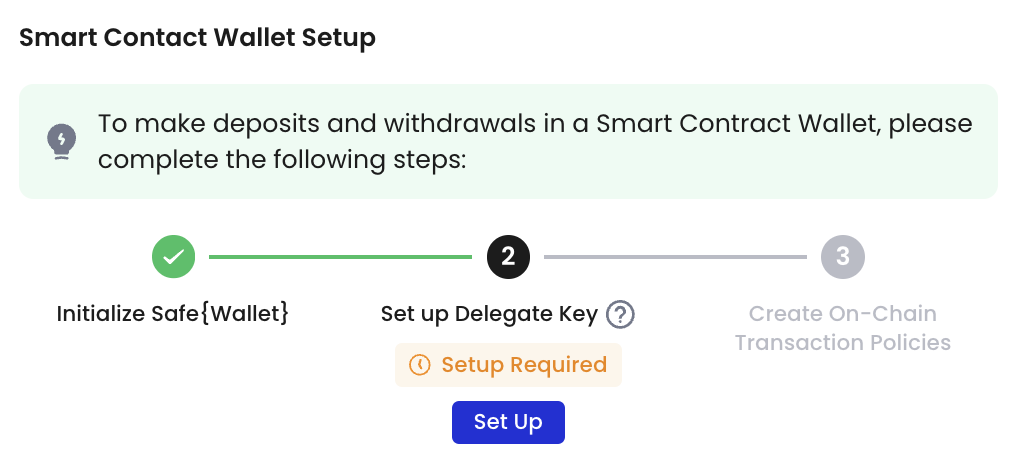 2. Click **Set Up Delegate Key**.
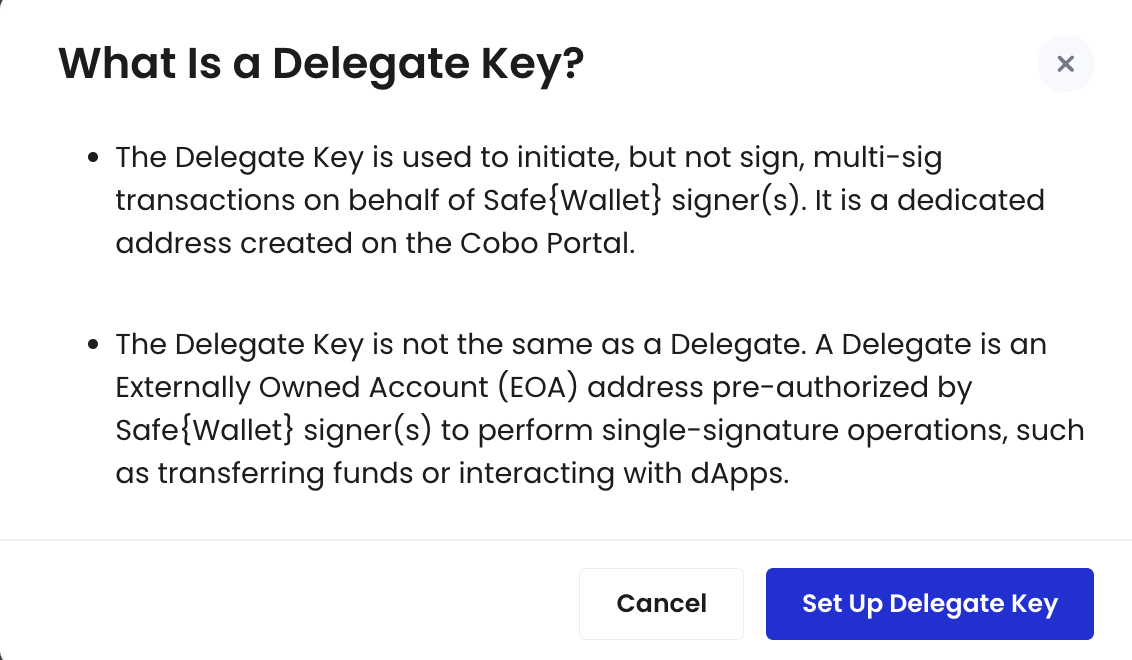 3. If you are not the Safe\{Wallet} signer:
* Click
3. If you are not the Safe\{Wallet} signer:
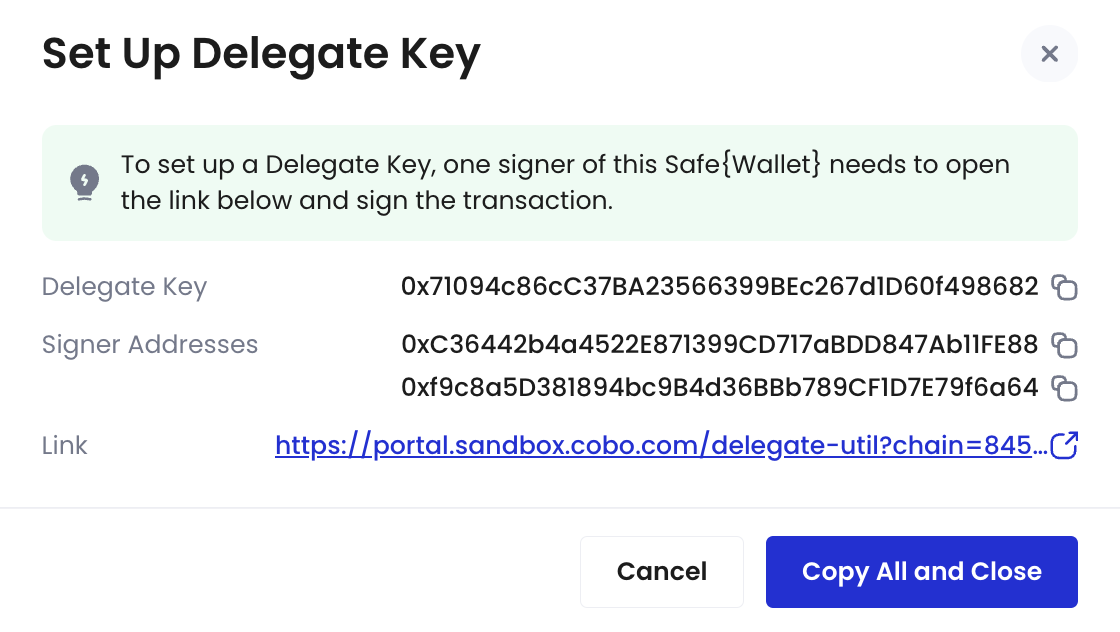
* Click  to copy the link shown in the pop-up window. Then, send it to any of your Safe\{Wallet} signers to sign.
* Alternatively, click **Copy All and Close** to copy all information, including the Safe\{Wallet} address, Delegate Key, and URL.
to copy the link shown in the pop-up window. Then, send it to any of your Safe\{Wallet} signers to sign.
* Alternatively, click **Copy All and Close** to copy all information, including the Safe\{Wallet} address, Delegate Key, and URL.
 4. If you are the Safe\{Wallet} signer:
* Navigate to the link provided and connect to your wallet associated with this Safe\{Wallet}.
* In the pop-up window, review the auto-filled fields and enter a label for this Delegate Key. Then, click **Sign Message**.
* Sign a message in your connected wallet.
4. If you are the Safe\{Wallet} signer:
* Navigate to the link provided and connect to your wallet associated with this Safe\{Wallet}.
* In the pop-up window, review the auto-filled fields and enter a label for this Delegate Key. Then, click **Sign Message**.
* Sign a message in your connected wallet.
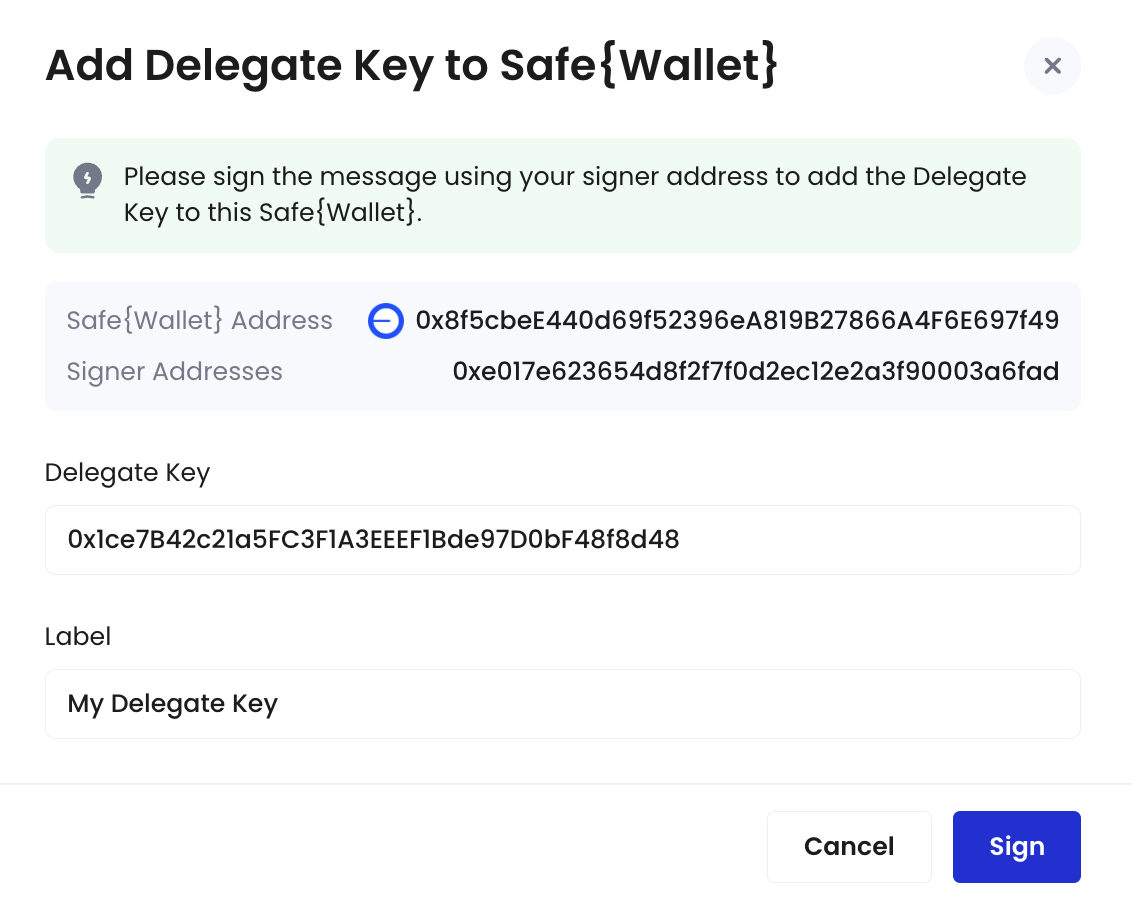 5. The new Delegate Key will be displayed on the homepage. You may now proceed to Step 4.
## Step 4: Create an on-chain transaction policy
1. On the Smart Contract Wallets homepage, click **Setup Required** > **Create** next to your Safe\{Wallet}.
5. The new Delegate Key will be displayed on the homepage. You may now proceed to Step 4.
## Step 4: Create an on-chain transaction policy
1. On the Smart Contract Wallets homepage, click **Setup Required** > **Create** next to your Safe\{Wallet}.
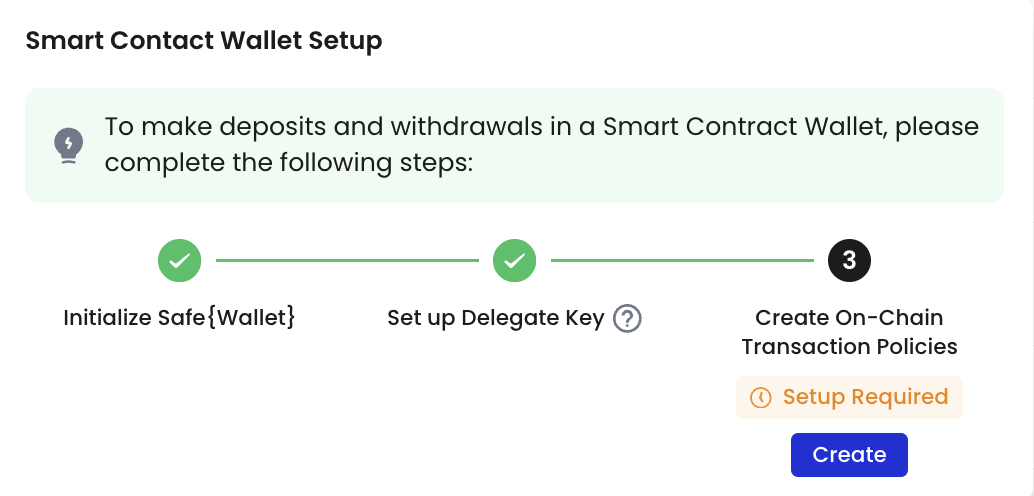 2. Select the type of on-chain transaction policy you want to create. Note that creating an on-chain transaction policy requires you to select Delegates. Upon successful creation of this on-chain transaction policy, you authorize these Delegates to perform certain tasks (e.g., token transfers, token approvals, contract calls) using a single-signature.
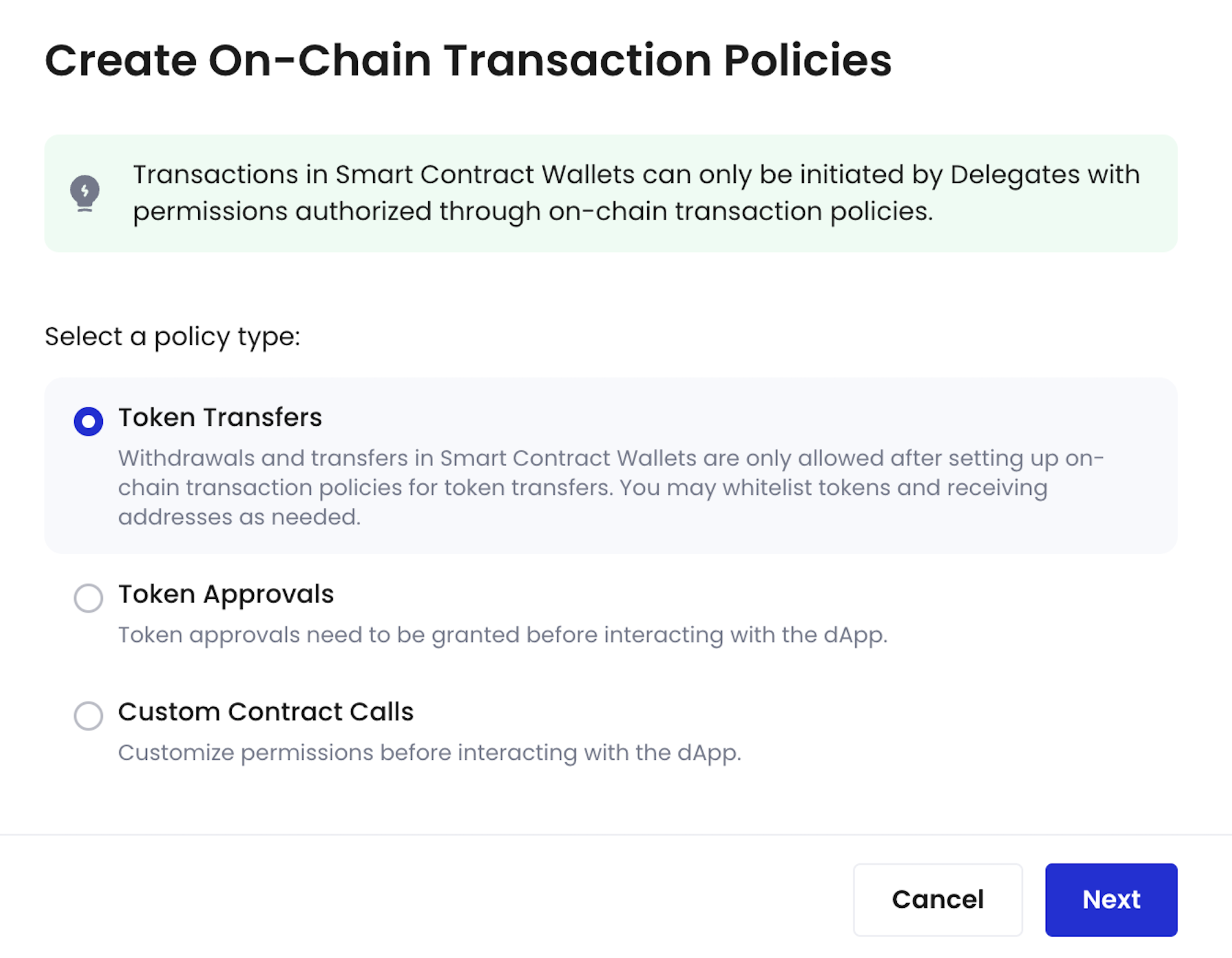 3. Click **Next**.
4. Set up an on-chain transaction policy. For step-to-step guides, refer to [Create contract call policy](/en/portal/risk-controls/create-on-chain-policy).
5. Return to the Smart Contract Wallets homepage, where the status of your Safe\{Wallet} will now be automatically updated to **Ready for use**.
#### What is a Delegate?
Delegate can either be an address from your MPC Wallets (Organization-Controlled), Custodial Wallets (Web3 Wallets), or an EOA address. It is pre-authorized by Safe\{Wallet} signers to perform single-signature operations, such as transferring funds or interacting with dApps. Importantly, the Delegate is responsible for handling gas fees during the execution of single-signature transactions.
3. Click **Next**.
4. Set up an on-chain transaction policy. For step-to-step guides, refer to [Create contract call policy](/en/portal/risk-controls/create-on-chain-policy).
5. Return to the Smart Contract Wallets homepage, where the status of your Safe\{Wallet} will now be automatically updated to **Ready for use**.
#### What is a Delegate?
Delegate can either be an address from your MPC Wallets (Organization-Controlled), Custodial Wallets (Web3 Wallets), or an EOA address. It is pre-authorized by Safe\{Wallet} signers to perform single-signature operations, such as transferring funds or interacting with dApps. Importantly, the Delegate is responsible for handling gas fees during the execution of single-signature transactions.
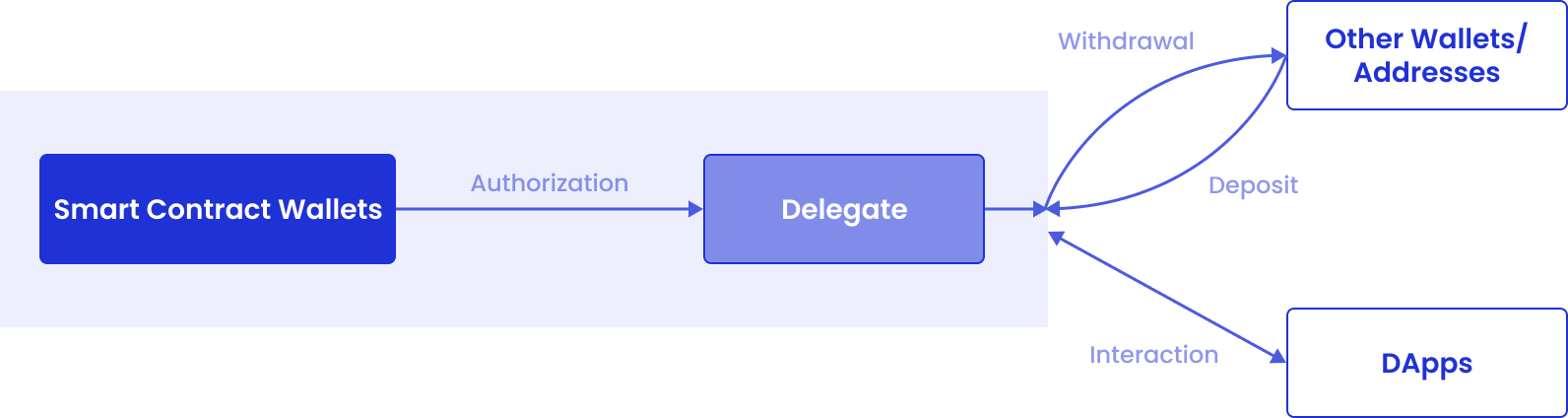 On Cobo Portal, you can set up Delegates by creating on-chain transaction policies for Smart Contract Wallets. The addresses entered during setup will automatically be designated as Delegates for performing single-signature operations.