> ## Documentation Index
> Fetch the complete documentation index at: https://manuals.cobo.com/llms.txt
> Use this file to discover all available pages before exploring further.
# Set up contract call policy
> Discover how to set up contract call policies in Cobo Portal, enhancing security and compliance for transactions.
Transaction policies are an important security measure for your organization. It is recommended to strictly configure these policies, especially for large withdrawal scenarios, to avoid high-risk situations such as having no transaction policies, having transactions that are not covered by a transaction policy, automatically approving all transactions, or allowing the same role to both withdraw and approve transactions.
## Create a contract call policy
1. Log into [Cobo Portal](https://portal.cobo.com/login).
2. Click **Transaction Policies** in the left sidebar.
3. Click **Create Policy** > **Contract Call.**
4. Enter a **Policy Name**. The name should not exceed 30 characters.
5. Select all the **Applicable Wallets** for the policy you are about to create. The following wallet types support contract call policies:
* Custodial Wallets
* Web3 Wallets
* MPC Wallets
* Organization-Controlled Wallets
* User-Controlled Wallets
* Smart Contract Wallets
6. Select an **Applicable Network** for the policy you are about to create. For Web3 wallets and MPC Wallets, the supported networks are **All EVM Networks** and **SOL**.
7. Under **If**, click **+ Add condition** to select a condition template. You can add one or more conditions to each policy. If multiple conditions are applied, the policy will be triggered only if the transaction satisfies all conditions. To learn more about conditions, see [Select condition template](/en/portal/risk-controls/off-chain-tx-set-contract-call#select-condition-template).
* You have the option to skip setting any conditions and proceed directly to the next step. This means that any transaction signing associated with the applicable wallets will trigger this policy.
8. Select the action to be taken if the policy is triggered (i.e., **Auto Approval**, **Auto Rejection**, and **Approval Quorum**), then click **Next**. To learn more about approval actions, see [Set approval action](/en/portal/risk-controls/off-chain-tx-set-contract-call#set-approval-action).
9. Review and confirm the policy, then click **Next**.
10. Adjust and review the priority of your policies. Transactions will be matched with policies in the list based on their priority order.
* Once a higher-priority policy is triggered, subsequent policies will no longer be triggered.
* By default, the newly created policy will be placed at the top of the policy list and highlighted. You can change the order by dragging and dropping.
11. Click **Submit** and, if required, complete the MFA verification.
#### Select condition template
The available condition templates vary depending on the applicable network you select:
* **Any network**: You can configure only **Initiators**.
* **All EVM networks**: You can configure **Initiators** + **Custom Contract Calls** (up to parameter-level).
* **Specific EVM network**: You can configure **Initiators** + **Token Approval** + **Token Transfers** + **Custom Contract Calls** (up to parameter-level).
* **Solana**: You can configure **Initiators** + **Custom Contract Calls** (program-level only).
* **Other networks**: You can configure only **Initiators**.
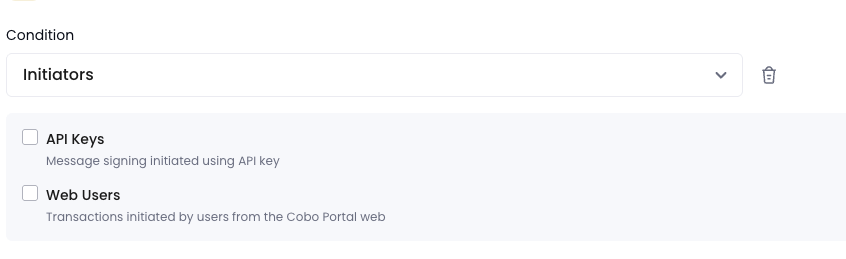
**Initiators**: The policy will be triggered only if the transaction is initiated by selected entities.
* API Keys: You can specify whether any team members, or only specific members, are allowed to initiate transactions via APIs.
* Web Users: You can specify whether any team members, or only specific members, are allowed to initiate transactions via the web console.
* Apps: You can specify whether any apps, or only specific apps, are allowed to initiate transactions.
 **Token Approval**: The policy will be triggered only if a token approval is associated with specific types of tokens, spenders, and amounts.
* **Token Types**: You can specify the types of tokens the spenders are allowed to spend.
* **Frequency**: Combined with **Amounts**, you can define the amount range per transaction or within a specified time window, denominated in hours.
* **Amounts**: You can specify the amount range for the spender to spend.
* **Approved Spenders**: You can specify the spender addresses associated with the token approval. Note that you can only select addresses already added to the address lists. To learn more about address lists, see [Create an address list](/en/portal/risk-controls/address-list).
**Token Approval**: The policy will be triggered only if a token approval is associated with specific types of tokens, spenders, and amounts.
* **Token Types**: You can specify the types of tokens the spenders are allowed to spend.
* **Frequency**: Combined with **Amounts**, you can define the amount range per transaction or within a specified time window, denominated in hours.
* **Amounts**: You can specify the amount range for the spender to spend.
* **Approved Spenders**: You can specify the spender addresses associated with the token approval. Note that you can only select addresses already added to the address lists. To learn more about address lists, see [Create an address list](/en/portal/risk-controls/address-list).
 **Token Transfers**: The policy will be triggered only if a token transfer is associated with specific token types, frequency, transfer amounts, and receiving addresses.
* **Token Types**: You can specify the types of tokens available for transactions.
* **Frequency**: Combined with **Transfer Amount**, you can define the amount range per transaction or within a specified time window, denominated in hours.
* **Transfer Amount**: You can specify the amount range for the spender to spend.
* **Receiving Address**: You can specify the receiving addresses for the transfer. Note that you can only select addresses already added to the address lists. Refer to the [Create an address list](/en/portal/risk-controls/address-list) section for more information.
**Token Transfers**: The policy will be triggered only if a token transfer is associated with specific token types, frequency, transfer amounts, and receiving addresses.
* **Token Types**: You can specify the types of tokens available for transactions.
* **Frequency**: Combined with **Transfer Amount**, you can define the amount range per transaction or within a specified time window, denominated in hours.
* **Transfer Amount**: You can specify the amount range for the spender to spend.
* **Receiving Address**: You can specify the receiving addresses for the transfer. Note that you can only select addresses already added to the address lists. Refer to the [Create an address list](/en/portal/risk-controls/address-list) section for more information.
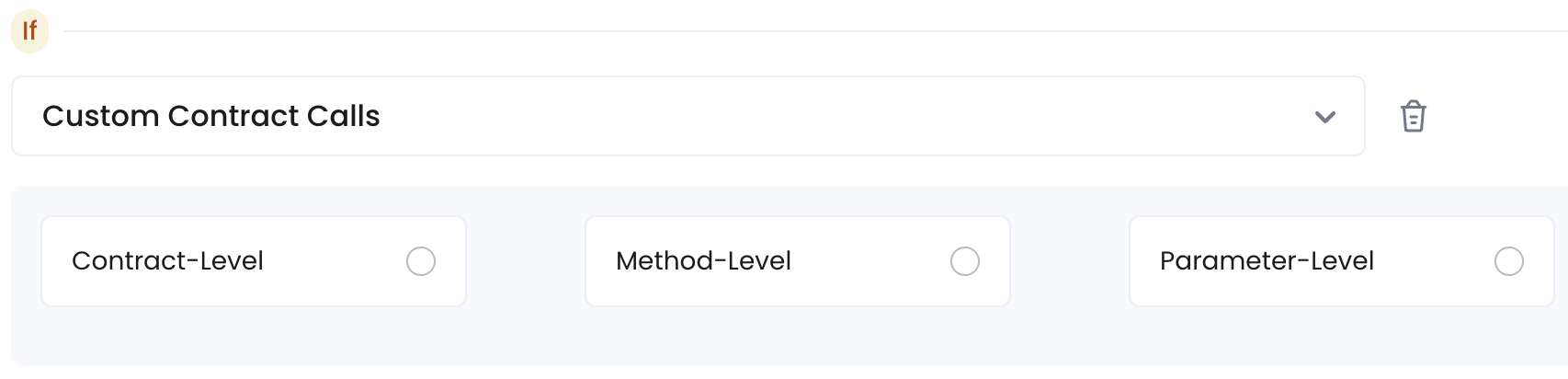
 **Custom Contract Calls:** The policy will be triggered only if a smart contract call meets the specified criteria. You can select granularity at the **Contract-level**, **Method-level**, or **Parameter-level**.
* **Contract-level**: You can specify the smart contract addresses for the call. The policy will be triggered when the **Target Contracts** of the contract call match one of the specified addresses. Please note that you will need to manually enter the contract addresses.
* **Method-level**: You can specify the smart contract address and methods for the call. The policy will be triggered if both the **Target Contracts** and one of the **Methods** match the specified criteria.
* If the displayed methods are incorrect, you can obtain the Contract Application Binary Interface (ABI) from the blockchain explorer or manually enter an ABI.
* **Parameter-level**: You can specify the **Target Contract**, **Method**, and **Parameters** for the call. The policy will be triggered only if the **Target Contract**'s smart contract address, **Method**, and **Parameters** match the specified criteria.
* To add one parameter, click **Create**.
* To add multiple parameters, click **+ Add parameter** in the pop-up window. If you would like to add a Boolean group, click **+ Add Group**.
* The relationship between parameters within the same group defaults to "And" and can be switched to "Or".
* The relationship between different groups defaults to "Or" and can be switched to "And".
* You can configure the parameters through the **Easy Mode** interface or manually enter condition expression statements by clicking **Expert Mode**.
**Custom Contract Calls:** The policy will be triggered only if a smart contract call meets the specified criteria. You can select granularity at the **Contract-level**, **Method-level**, or **Parameter-level**.
* **Contract-level**: You can specify the smart contract addresses for the call. The policy will be triggered when the **Target Contracts** of the contract call match one of the specified addresses. Please note that you will need to manually enter the contract addresses.
* **Method-level**: You can specify the smart contract address and methods for the call. The policy will be triggered if both the **Target Contracts** and one of the **Methods** match the specified criteria.
* If the displayed methods are incorrect, you can obtain the Contract Application Binary Interface (ABI) from the blockchain explorer or manually enter an ABI.
* **Parameter-level**: You can specify the **Target Contract**, **Method**, and **Parameters** for the call. The policy will be triggered only if the **Target Contract**'s smart contract address, **Method**, and **Parameters** match the specified criteria.
* To add one parameter, click **Create**.
* To add multiple parameters, click **+ Add parameter** in the pop-up window. If you would like to add a Boolean group, click **+ Add Group**.
* The relationship between parameters within the same group defaults to "And" and can be switched to "Or".
* The relationship between different groups defaults to "Or" and can be switched to "And".
* You can configure the parameters through the **Easy Mode** interface or manually enter condition expression statements by clicking **Expert Mode**.
 ## Set approval action
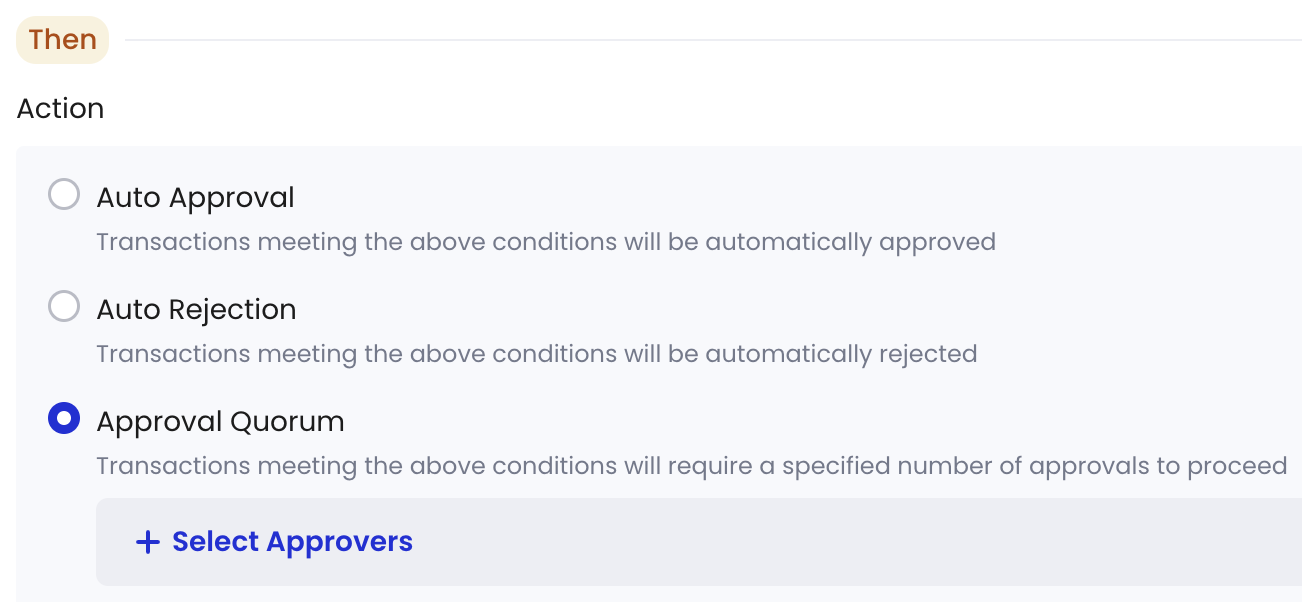
Currently, Cobo Portal supports four types of approval actions:
* **Auto Approval**: Transactions meeting the above conditions will be automatically approved.
* **Auto Rejection**: Transactions meeting the above conditions will be automatically rejected.
* **Approval Quorum**: Transactions meeting the above conditions will require a specified number of approvals to proceed. Please click **+ Select Approvers** to add one or more team members as approvers. You can choose by role types or member names. Then, set the approval quorum.
## Set approval action
Currently, Cobo Portal supports four types of approval actions:
* **Auto Approval**: Transactions meeting the above conditions will be automatically approved.
* **Auto Rejection**: Transactions meeting the above conditions will be automatically rejected.
* **Approval Quorum**: Transactions meeting the above conditions will require a specified number of approvals to proceed. Please click **+ Select Approvers** to add one or more team members as approvers. You can choose by role types or member names. Then, set the approval quorum.