> ## Documentation Index
> Fetch the complete documentation index at: https://manuals.cobo.com/llms.txt
> Use this file to discover all available pages before exploring further.
# Manage Emergency Policy
> Learn how to implement and manage emergency policies in Cobo Portal for immediate risk control.
Emergency policies are designed for contingency situations. When risks are detected, create an emergency policy to immediately tighten transaction controls, enforcing auto rejection or auto quorum for all transactions across your organization. While this provides immediate protection, be sure to investigate and address the underlying risks.
The emergency policy applies to all transactions initiated from Cobo Portal, except for transfers between Sub Accounts and associated Main Accounts of Exchange Wallets.
Prerequisite: By default, permission to manage the emergency policy is restricted to Admins.
## Create an emergency policy
1. Log into [Cobo Portal](https://portal.cobo.com/login).
2. Click **Transaction Policies** in the left sidebar.
3. Click **Manage Emergency Policy**.
4. In the pop-up window, select one of the following actions:
* **Auto Rejection**: Any transaction will be automatically rejected
* **Approval Quorum**: Any transaction will require a specified number of approvals to proceed
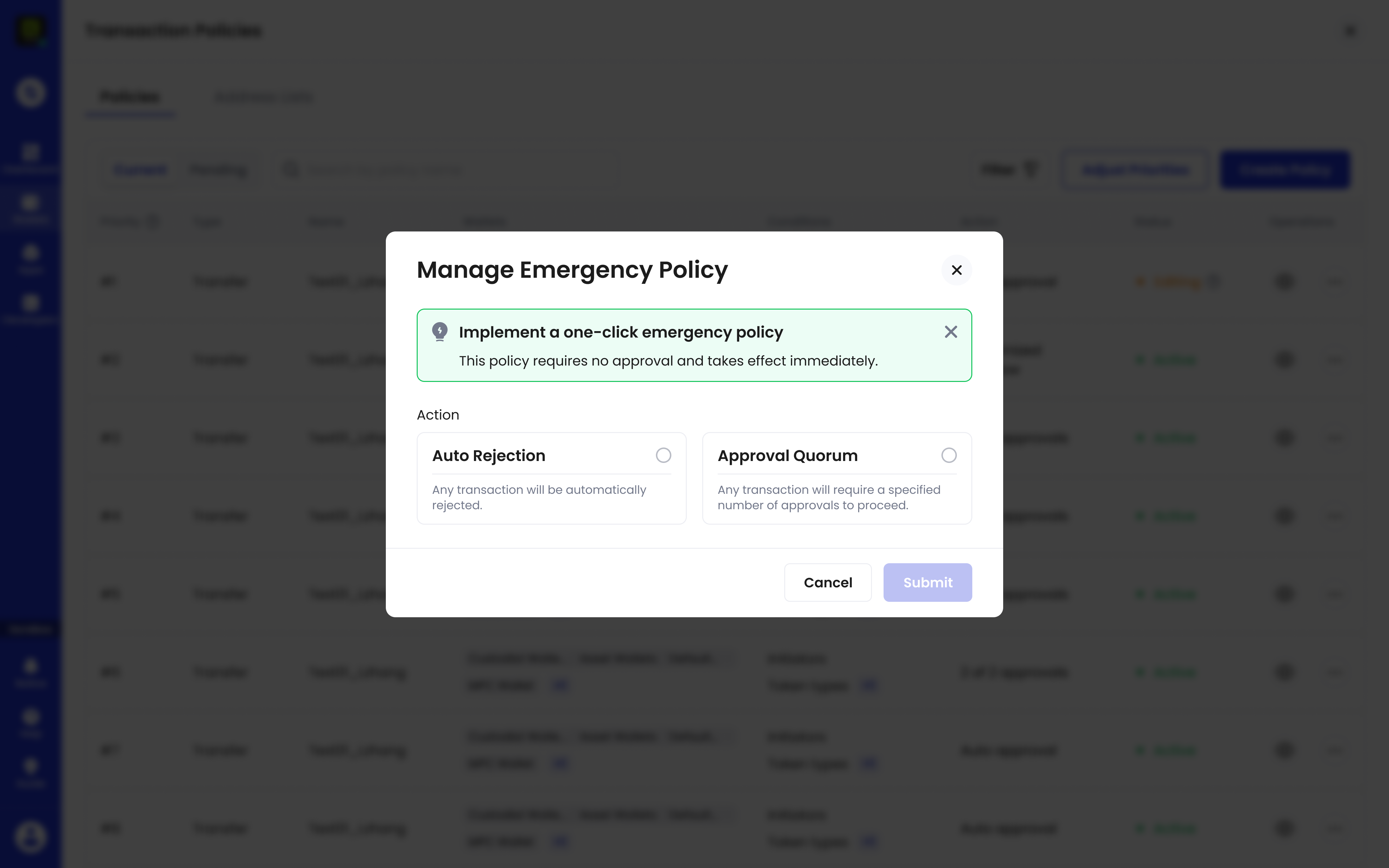 5. Click **Submit** to implement the policy.
6. Complete MFA verification when prompted.
7. Once created, the emergency policy will appear at the top of the **Transaction Policies** list with the highest priority.
The emergency policy requires no approval and takes effect immediately.
## Edit an emergency policy
You can edit an existing emergency policy in one of the following ways on the **Transaction Policies** page:
* Click the **Manage Emergency Policy** button
* Locate your emergency policy at the top of the list, click
5. Click **Submit** to implement the policy.
6. Complete MFA verification when prompted.
7. Once created, the emergency policy will appear at the top of the **Transaction Policies** list with the highest priority.
The emergency policy requires no approval and takes effect immediately.
## Edit an emergency policy
You can edit an existing emergency policy in one of the following ways on the **Transaction Policies** page:
* Click the **Manage Emergency Policy** button
* Locate your emergency policy at the top of the list, click  in the **Operations** column, and then click **Edit**
In the pop-up window, make your changes and submit.
* Switch from Auto Rejection to Approval Quorum (requires going through your organization's approval process)
* Switch from Approval Quorum to Auto Rejection (takes effect immediately)
* Modify Approval Quorum settings (requires going through your organization's approval process)
## Delete an emergency policy
1. On the **Transaction Policies** page, locate your emergency policy at the top of the list.
2. Click in the **Operations** column and click **Delete**.
3. The deletion requires going through your organization's approval process to complete.
in the **Operations** column, and then click **Edit**
In the pop-up window, make your changes and submit.
* Switch from Auto Rejection to Approval Quorum (requires going through your organization's approval process)
* Switch from Approval Quorum to Auto Rejection (takes effect immediately)
* Modify Approval Quorum settings (requires going through your organization's approval process)
## Delete an emergency policy
1. On the **Transaction Policies** page, locate your emergency policy at the top of the list.
2. Click in the **Operations** column and click **Delete**.
3. The deletion requires going through your organization's approval process to complete.