> ## Documentation Index
> Fetch the complete documentation index at: https://manuals.cobo.com/llms.txt
> Use this file to discover all available pages before exploring further.

# Edit governance policies

> Edit governance policies in Cobo Portal to enforce tailored approval rules, enhancing compliance and operational efficiency.

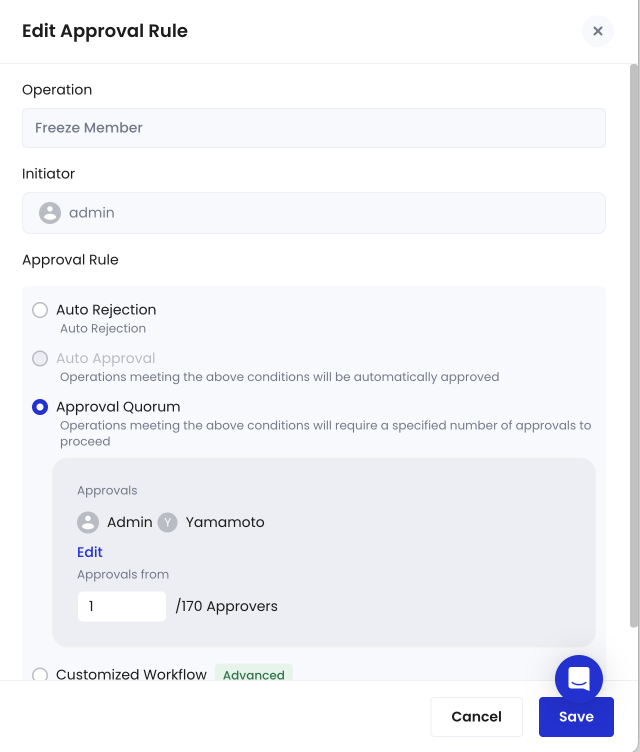
You can edit each governance policy to enforce customized approval rules. Below is a list of approval rules you can choose from for each governance policy.

<table class="table">
  <thead>
    <tr>
      <th>Approval Rule</th>
      <th>Description</th>
    </tr>
  </thead>

  <tbody>
    <tr>
      <td><strong>Auto Rejection</strong></td>
      <td>Operations are rejected immediately without needing approvals.</td>
    </tr>

    <tr>
      <td><strong>Auto Approval</strong></td>
      <td>Operations are processed immediately without needing approvals.</td>
    </tr>

    <tr>
      <td><strong>Approval Quorum</strong></td>
      <td>Select a list of approvers and set up a T out of N approval quorum. (e.g. 2 out of 3 approvers must approve for operations to be processed). <br /> <br /> Approvers can either be specific users or user roles.</td>
    </tr>

    <tr>
      <td><strong>Customized Workflow</strong></td>
      <td>Create a customized workflow to enhance the flexibility of your action strategies.</td>
    </tr>
  </tbody>
</table>

To edit a governance policy, follow these steps:

1. Log into [Cobo Portal](https://portal.cobo.com/login).

2. Click your profile avatar in the top-right corner, and choose **Organization**.

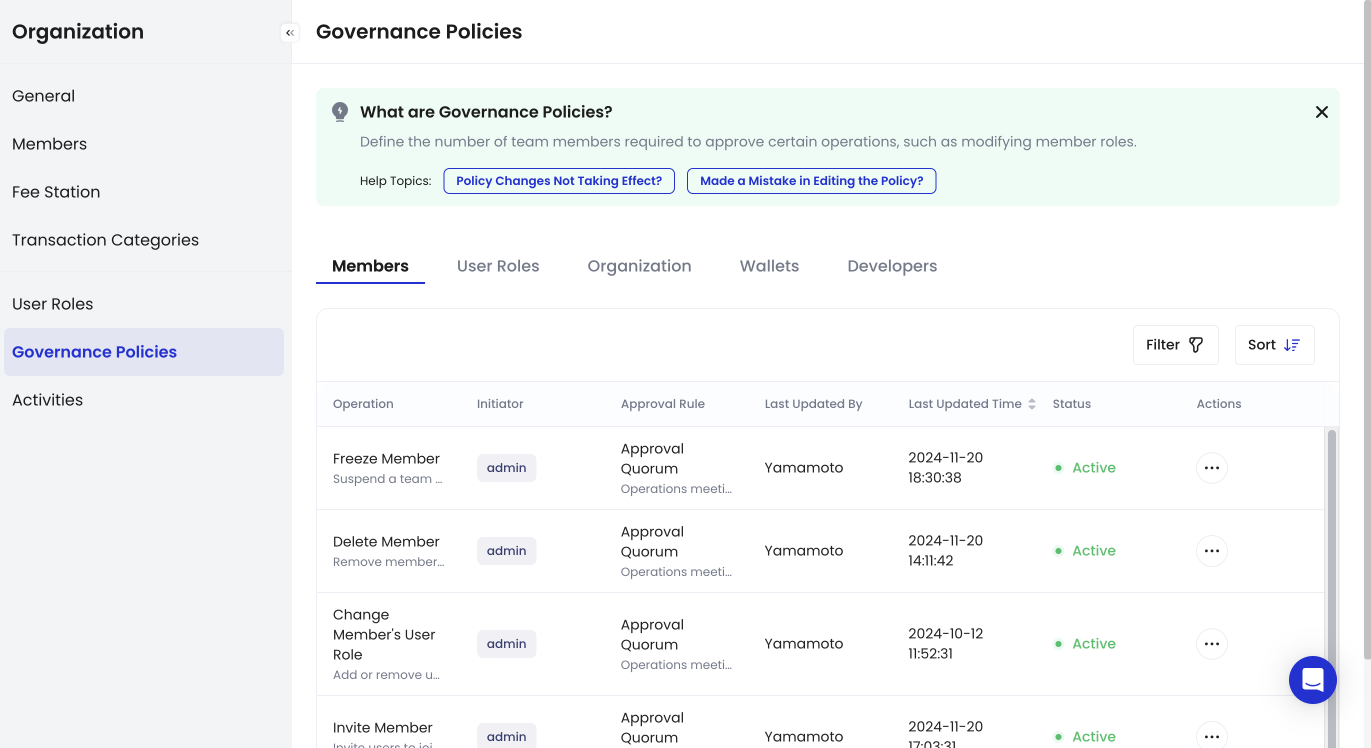
3. Click the **Governance Policies** tab.

   <img src="https://mintcdn.com/cobo-6/MQBHO3mmoAR5TXFg/en/images/organization/overview.png?fit=max&auto=format&n=MQBHO3mmoAR5TXFg&q=85&s=ff5673fb33d6872c5d28bc53144efe31" className="screenshot_full_screen" alt="The Governance Policies tab" width="1371" height="748" data-path="en/images/organization/overview.png" />

4. Hover over the more icon <img src="https://mintcdn.com/cobo-6/iUEIXAPu2nP-33wJ/en/images/common/icon_more.svg?fit=max&auto=format&n=iUEIXAPu2nP-33wJ&q=85&s=7e2cf2fb7a3615559ac4d87cd9606020" className="icon" alt="the more icon" width="34" height="34" data-path="en/images/common/icon_more.svg" /> in the **Action** column and select <img src="https://mintcdn.com/cobo-6/iUEIXAPu2nP-33wJ/en/images/common/icon_edit.svg?fit=max&auto=format&n=iUEIXAPu2nP-33wJ&q=85&s=7a29d417f8ab29d73a33b4f5adfd8571" className="icon" alt="the edit icon" width="34" height="34" data-path="en/images/common/icon_edit.svg" /> **Edit** to open the **Edit Approval Rule** pane.
   <img src="https://mintcdn.com/cobo-6/MQBHO3mmoAR5TXFg/en/images/organization/edit.png?fit=max&auto=format&n=MQBHO3mmoAR5TXFg&q=85&s=9bfe2e1ee13cc243541b6ac058125ea9" className="screenshot_full_screen" alt="The Edit Approval Rule pane" width="640" height="752" data-path="en/images/organization/edit.png" />

5. Update the approval rule.

6. Click **Save**.