> ## Documentation Index
> Fetch the complete documentation index at: https://manuals.cobo.com/llms.txt
> Use this file to discover all available pages before exploring further.
# Transfer (deposit / withdraw)
> Learn how to deposit and withdraw assets using your MPC Wallets, ensuring compliance with transaction policies.
## Prerequisites
* You have [set up your wallets](/en/portal/mpc-wallets/ocw/set-up) as instructed.
* Before making transfers using your MPC Wallets, ensure that transaction policies have been set up in your organization. To learn more about transaction policies, see Introduction to transaction policies.
* For more information on the number of confirmations required for deposits, see [Required confirmation for token deposits](/en/portal/supported-tokens-and-chains#required-confirmation-for-token-deposits).
## Deposit from external wallets
Follow the steps below to deposit from external wallets:
1. Log in to [Cobo Portal](https://portal.cobo.com/login).
2. Click **Wallets** in the left sidebar, then select **MPC Wallets**.
3. Select your vault.
4. Select your wallet.
5. Select the **Tokens** tab, then click **Add Tokens** to open the **Add Tokens** dialog.
6. On the **Add Tokens** dialog, click **All Chains** to select a chain, then search for your tokens by name or address. From the search results, check the checkboxes next to the tokens you want to add, then click **Confirm**.
7. On the **Activate Chains** dialog, check the details, then click **Activate**. On the **Security Verification** page, enter your 6-digit Google Authenticator code.
8. Select the **Addresses** tab, then click **Add Address** to open the **Create Address** dialog.
9. On the **Create Address** dialog, select a token for your address. If applicable, select address types. Then, click **Create**.
10. Select the **Address** tab or **Tokens** tab, navigate to the address or token you want to deposit into, and then click  .
.
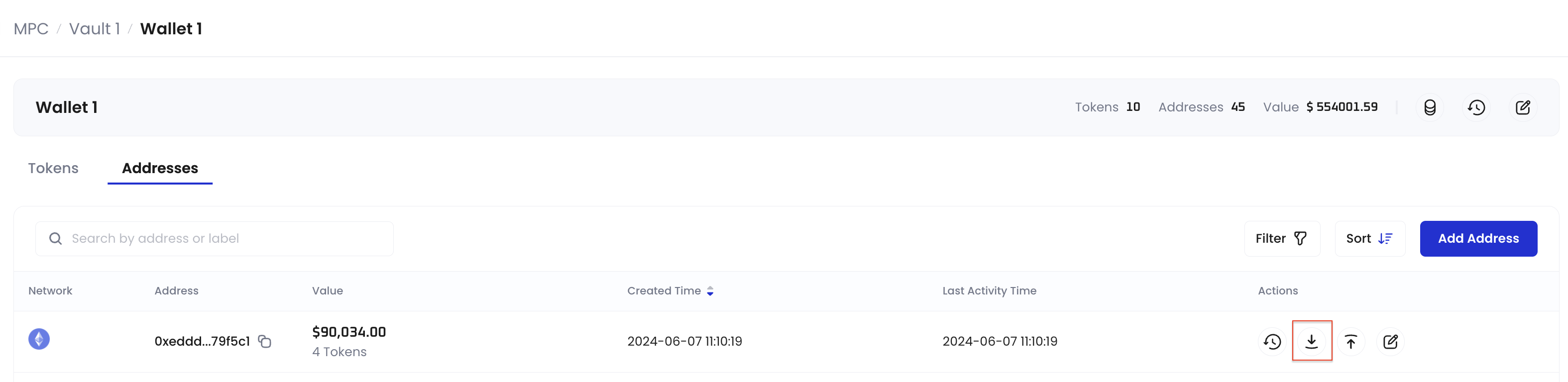 10. Copy the deposit address. Please ensure that the deposit address is accurate to prevent any transfer errors.
11. Proceed to your preferred external wallet to initiate the transfer to the deposit address you want to deposit into.
## Deposit from another wallet within Cobo Portal
To learn how to deposit into your MPC Wallets from another wallet created on Cobo Portal, see [Transfer](/en/portal/transfers/introduction).
## Withdraw from MPC Wallet
To learn how to make a transfer from your MPC Wallets, see [Transfer from MPC Wallets](/en/portal/transfers/from-mpc-wallets).
10. Copy the deposit address. Please ensure that the deposit address is accurate to prevent any transfer errors.
11. Proceed to your preferred external wallet to initiate the transfer to the deposit address you want to deposit into.
## Deposit from another wallet within Cobo Portal
To learn how to deposit into your MPC Wallets from another wallet created on Cobo Portal, see [Transfer](/en/portal/transfers/introduction).
## Withdraw from MPC Wallet
To learn how to make a transfer from your MPC Wallets, see [Transfer from MPC Wallets](/en/portal/transfers/from-mpc-wallets).