> ## Documentation Index
> Fetch the complete documentation index at: https://manuals.cobo.com/llms.txt
> Use this file to discover all available pages before exploring further.
# Verify key shares
> Understand the importance of key share verification in MPC Wallets and how to set it up effectively.
Currently, key share verification is only supported for Organization-Controlled Wallets. Regular verification of key shares in MPC Wallets is crucial to maintaining their integrity and security. This process helps detect issues like corruption, unauthorized modifications, or loss of key shares.
## Prerequisite
Cobo Portal supports both automated and manual key share verification. To use this feature, make sure that your TSS Node is updated to version 0.10.0 or later, or your Portal Mobile is updated to version 2.0.3 or later.
## Set up recurring key share verification
1. Log in to [Cobo Portal](https://portal.cobo.com/login) and click **Wallets** in the left sidebar, then select **MPC Wallets**.
2. Switch to **Organization-Controlled Wallets** and select the vault containing the key shares you want to verify.
3. Click  on the right-hand side.
4. Click **Key Share Verification** on the right-hand side.
5. Click
on the right-hand side.
4. Click **Key Share Verification** on the right-hand side.
5. Click  to locate the key shares you want to verify. You can filter by:
* Status: Options include All, Never Verified, Effective, Pending, and Verification Failed. For detailed definitions of each status, refer to the **Understand Key Share Verification Status** section below.
* Device Types: Options are Portal Mobile (your TSS Node is stored in Portal Mobile) and API (your TSS Node is deployed on a server).
* Key Types: Options include Main Key, Signing Key, and Recovery Key.
6. Click
to locate the key shares you want to verify. You can filter by:
* Status: Options include All, Never Verified, Effective, Pending, and Verification Failed. For detailed definitions of each status, refer to the **Understand Key Share Verification Status** section below.
* Device Types: Options are Portal Mobile (your TSS Node is stored in Portal Mobile) and API (your TSS Node is deployed on a server).
* Key Types: Options include Main Key, Signing Key, and Recovery Key.
6. Click  next to the key share you want to verify.
7. In the pop-up window, fill in the following details:
* Key Share Holder: Select the key share holder for whom you want to set up recurring verification.
* Verification Time: Select the start time for the recurring key share verification.
* Frequency: Select how often the recurring key share verification will occur. Options include Daily, Weekly, and Monthly.
* Apply to All Key Shares: If selected, your configuration will apply to all key shares associated with your selected MPC Wallet.
next to the key share you want to verify.
7. In the pop-up window, fill in the following details:
* Key Share Holder: Select the key share holder for whom you want to set up recurring verification.
* Verification Time: Select the start time for the recurring key share verification.
* Frequency: Select how often the recurring key share verification will occur. Options include Daily, Weekly, and Monthly.
* Apply to All Key Shares: If selected, your configuration will apply to all key shares associated with your selected MPC Wallet.
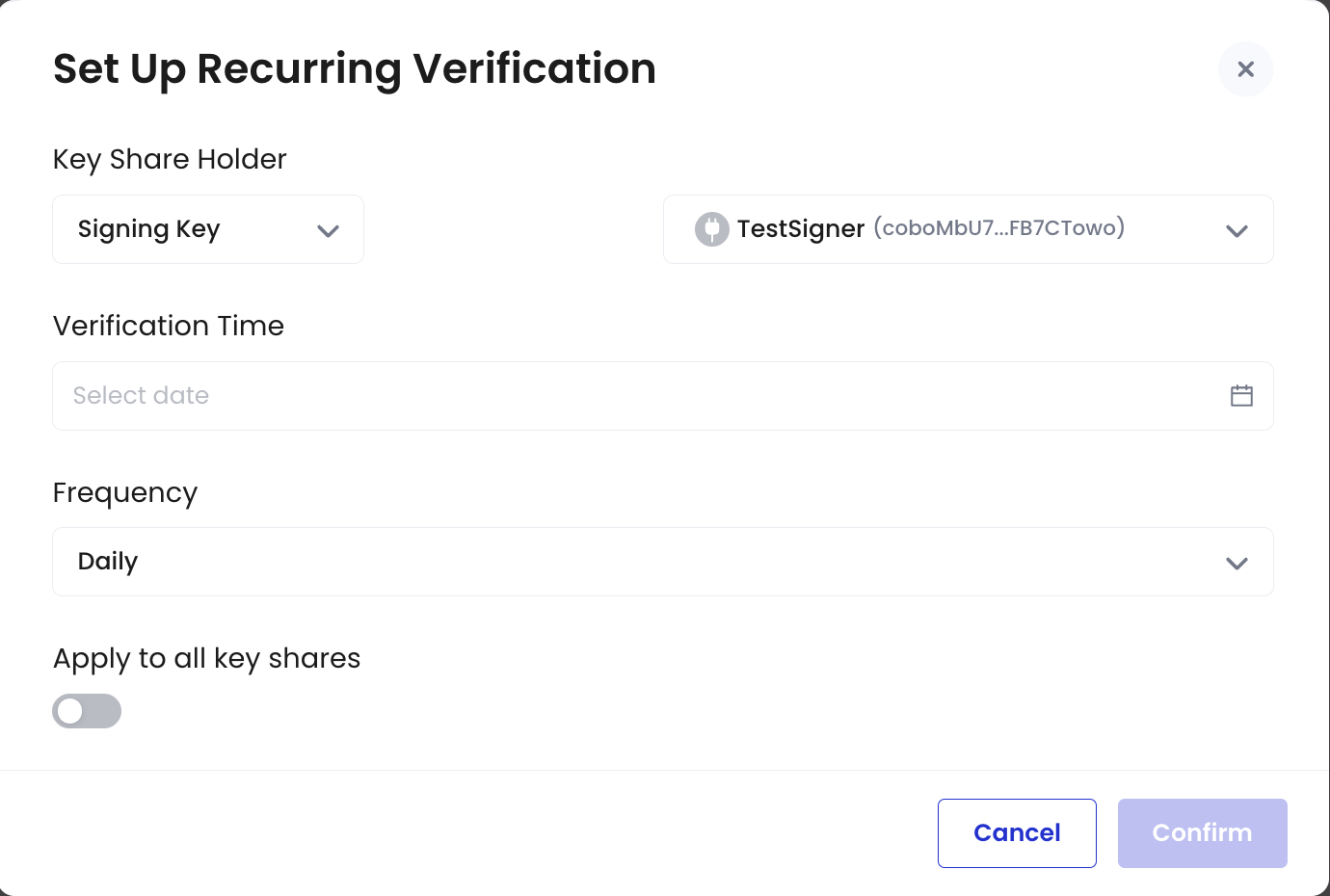 8. Complete a 2FA verification. Once done, your recurring key share verification will be successfully set up.
## Manage key share verification
Important Note: Only Admin and Operator roles can manually verify a key share, cancel a failed verification, or resend a verification message.
1. To view verification details, click
8. Complete a 2FA verification. Once done, your recurring key share verification will be successfully set up.
## Manage key share verification
Important Note: Only Admin and Operator roles can manually verify a key share, cancel a failed verification, or resend a verification message.
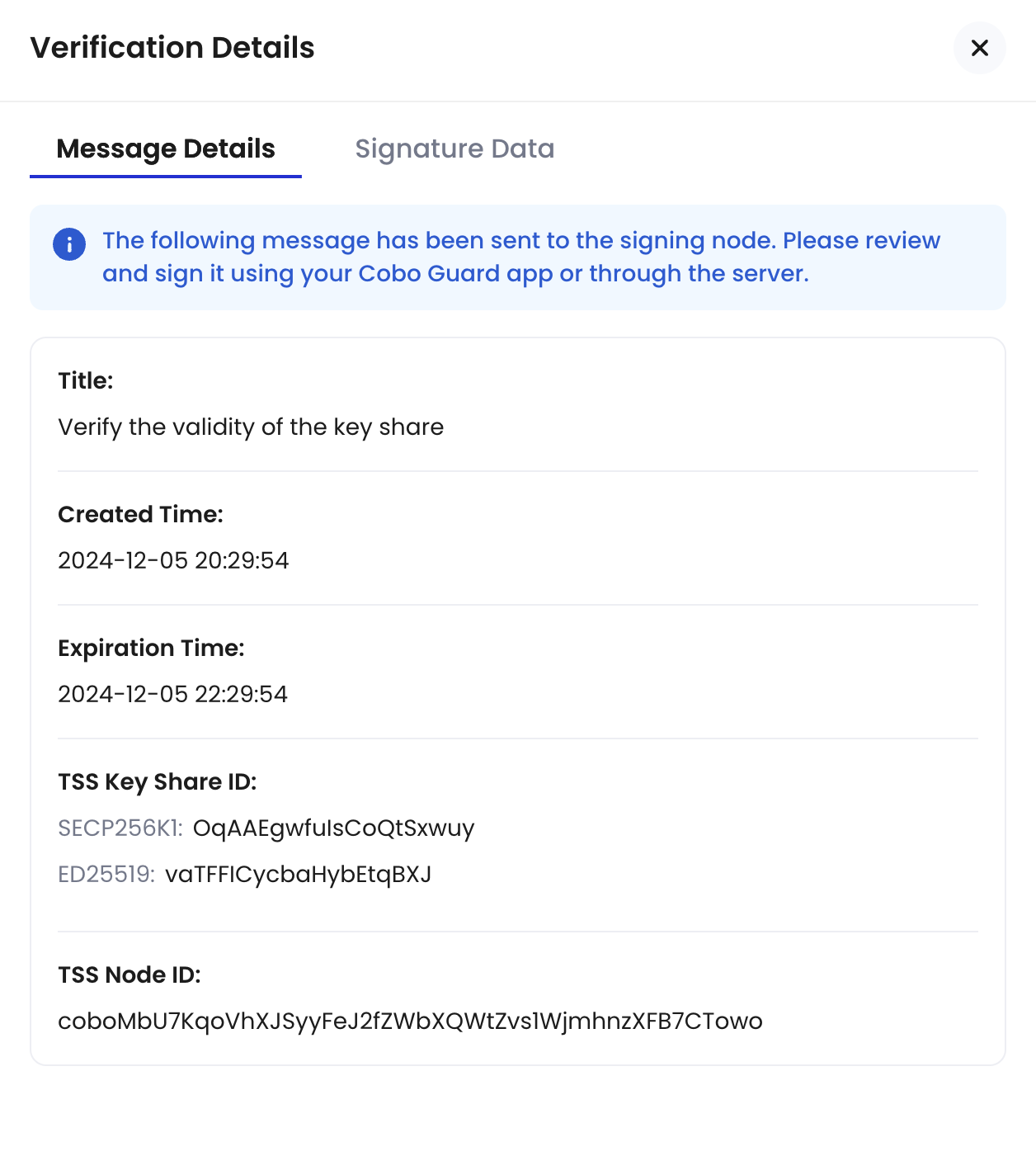
1. To view verification details, click  next to the key share you want to check.
 * Message Details: Displays the message sent to the key share holder's Portal Mobile for signing or the server where the TSS Node is deployed.
* Signature Data: Shows your signature details, which can also be verified using a third-party tool.
* Message Details: Displays the message sent to the key share holder's Portal Mobile for signing or the server where the TSS Node is deployed.
* Signature Data: Shows your signature details, which can also be verified using a third-party tool.
 2. To manually verify a key share, click
  and complete the 2FA verification process. Once done, the manual verification will start automatically.
3. To cancel a failed key share verification, click
and complete the 2FA verification process. Once done, the manual verification will start automatically.
3. To cancel a failed key share verification, click  and complete the 2FA verification process. Once done, the key share status will revert to the most recent state before the failed verification. Note that only failed verifications can be canceled.
4. To resend a verification message to the key share holder's Portal Mobile or the server where your TSS Node is deployed, click
and complete the 2FA verification process. Once done, the key share status will revert to the most recent state before the failed verification. Note that only failed verifications can be canceled.
4. To resend a verification message to the key share holder's Portal Mobile or the server where your TSS Node is deployed, click  and complete the 2FA verification process. Once done, a verification message will be sent to the selected destination.
## Understand key share verification status
The table below explains the possible key share verification statuses, their definitions, and the actions you can take for each status.
| Status | Definition | Available Actions |
| ------------------- | ----------------------------------------------------------------------------------------------------------------------------------------------------------------------------------------------------------------------------------------------------------------------------------------------------------------------------------------------------------------------------------------------------------------------------------------------------------------------------------------------------------------------------------------------------------------------------------------------------------------------------------------------------------------------------------------------------------------------------------------------------------------------------------------------------------------------------------------------------------------------------------------------------------------------------------------------------------------------------------------------------------------------------- | --------------------------------------------------------------------------------------------------------------------------------- |
| Never Verified | The key share has not been verified since its creation. | - Verify key share manually. |
| Effective | The key share has been successfully verified. | - View verification details and results.
and complete the 2FA verification process. Once done, a verification message will be sent to the selected destination.
## Understand key share verification status
The table below explains the possible key share verification statuses, their definitions, and the actions you can take for each status.
| Status | Definition | Available Actions |
| ------------------- | ----------------------------------------------------------------------------------------------------------------------------------------------------------------------------------------------------------------------------------------------------------------------------------------------------------------------------------------------------------------------------------------------------------------------------------------------------------------------------------------------------------------------------------------------------------------------------------------------------------------------------------------------------------------------------------------------------------------------------------------------------------------------------------------------------------------------------------------------------------------------------------------------------------------------------------------------------------------------------------------------------------------------------- | --------------------------------------------------------------------------------------------------------------------------------- |
| Never Verified | The key share has not been verified since its creation. | - Verify key share manually. |
| Effective | The key share has been successfully verified. | - View verification details and results.
- Verify key share manually. |
| Pending | A verification process has been initiated but is not yet completed.
- **Pending Signature**:
If the TSS Node is stored on Portal Mobile, this status indicates that the system is waiting for the key share holder to sign the verification message on their Portal Mobile device.
If the TSS Node is deployed on a server, this status indicates that the system is waiting for the key share holder to start their TSS Node, which will automatically sign the verification message.
- **Pending Verification**:
The message signing is complete and is awaiting final verification by Cobo. | - View verification details and results. |
| Verification Failed | - **Failed to Send Verification Message**:
The system could not send the key share verification message to the TSS Node due to an error.
- **Blocked by Policy**:
Applies only if your TSS Node is deployed on a server. This status means the message sent to the TSS Node did not meet the callback risk control policies.
- **Rejected By Key Share Holder**:
Applies only if your TSS Node is stored on Portal Mobile. This status indicates that the message sent to the key share holder was rejected.
- **Verification Message Expired**:
This status appears when the message sent to the server or Portal Mobile is not signed within 48 hours.
- **Signing Failed**:
The message signing process failed either on the server or on Portal Mobile.
- **Signature Verification Failed**:
The signature was received, but Cobo could not verify its validity. | - Cancel failed verification.
- View verification details and results.
- Resend verification message. |