> ## Documentation Index
> Fetch the complete documentation index at: https://manuals.cobo.com/llms.txt
> Use this file to discover all available pages before exploring further.
# Recovery Keys
> Understand the purpose of Recovery Keys in MPC Wallets and how to create them effectively.
## Recovery Key
Recovery Keys serve two main purposes: Recover the whole private key and create a new Main Key if your Main Key and backup copy are lost or compromised. To learn more about backup and recovery, see [Back up key shareas](/en/portal/mpc-wallets/ocw/back-up-key-share-groups) and [Recover key shares](/en/portal/mpc-wallets/ocw/restore-from-backup).
Similar to creating the Main Key and Signing Key, you have the option to choose either mobile signer or server signer when creating the Recovery Key. Make sure you understand the primary purposes and prerequisites of each signer type by referring to the table in [Create a Main Key](/en/portal/mpc-wallets/ocw/holder-group-main-group#create-a-main-key) before proceeding further.
After you've chosen a signer type and set up the prerequisites, follow the instructions below to create a Recovery Key.
Only the users who have been assigned the Operator, Manager, Admin [user roles](\(/en/portal/organization/roles-and-permissions\)) in the organization can create a Recovery Key.
### Create a Recovery Key
**Note:** You must first create the Main Key before creating a Recovery Key. Follow the instructions below to create a Recovery Key.
1. Log in to [Cobo Portal](https://portal.cobo.com/login).
2. Click **Wallets** in the left sidebar, then select **MPC Wallets**.
3. Select your vault and then click  on the upper right hand corner.
4. Click **Create Recovery Key**.
5. In the pop-up window, select a recovery method. Self Recovery requires key shares held by your Organization, while Third-Party Recovery requires key shares held by your Organization and your trusted third-party.
on the upper right hand corner.
4. Click **Create Recovery Key**.
5. In the pop-up window, select a recovery method. Self Recovery requires key shares held by your Organization, while Third-Party Recovery requires key shares held by your Organization and your trusted third-party.
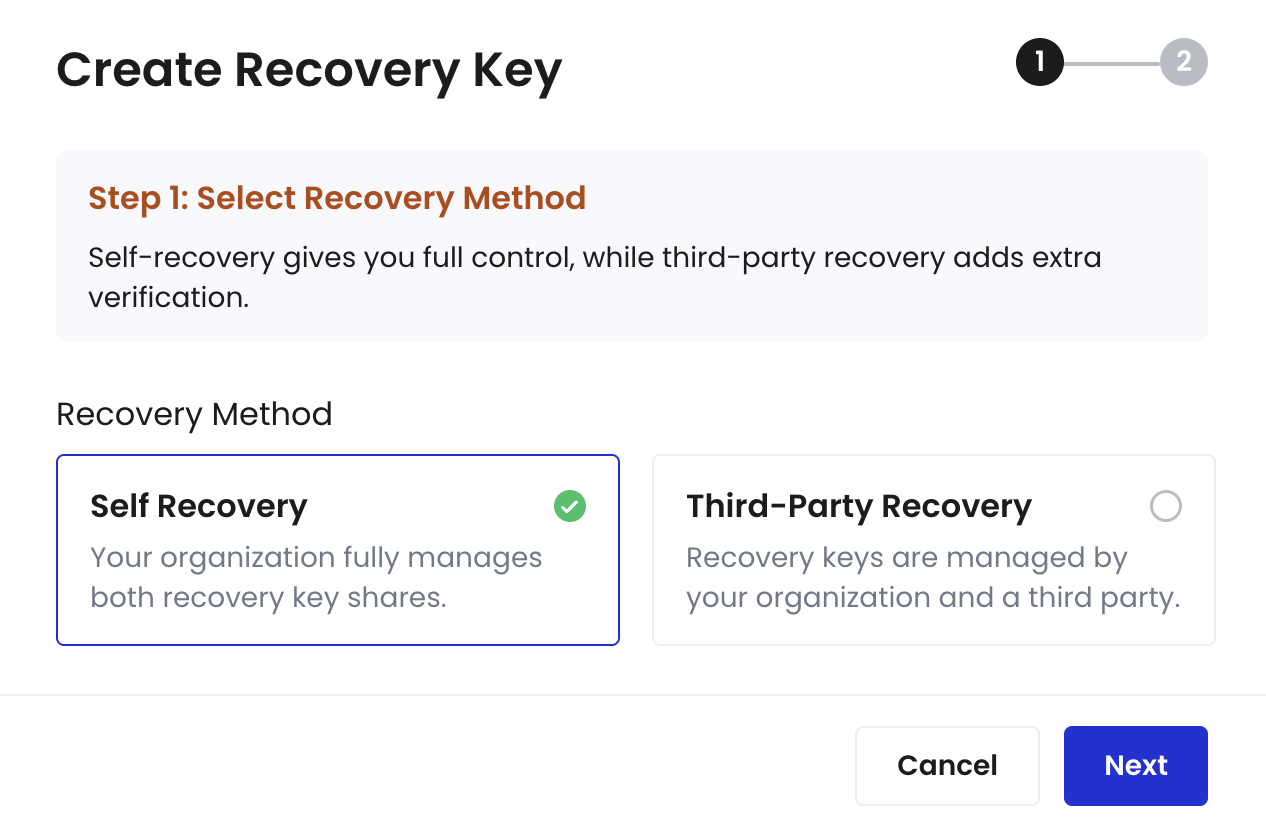 6. Select your key share holders.
* To use **Mobile Signer**, select a **Holder** (the **TSS Node ID** will be filled in automatically).
* To use **Server Signer**, enter a name, fill in the **TSS Node ID** generated using the TSS Node software package.
7. Click **Confirm**.
8. Once the request is approved, inform all key share holders to confirm on their ends. See [Generate and back up your key shares](/en/guard/generate-and-back-up-key-shares) for instructions on how key share holders can conduct this confirmation process.
9. Once all key share holders have confirmed on their Portal Mobile apps, wait for the key generation process to conclude, then the Recovery Key will be created.
### Delete a Recovery Key
Follow the instructions below if you want to delete a Recovery.
1. Log in to [Cobo Portal](https://portal.cobo.com/login).
2. Click **Wallets** in the left sidebar, then select **MPC Wallets**.
3. Select your vault and then click on the upper right hand corner.
4. On the **Key Share Management** page, click **Recovery Keys** and then select the Recovery Key to be deleted.
5. Click **Delete**.
6. Select your key share holders.
* To use **Mobile Signer**, select a **Holder** (the **TSS Node ID** will be filled in automatically).
* To use **Server Signer**, enter a name, fill in the **TSS Node ID** generated using the TSS Node software package.
7. Click **Confirm**.
8. Once the request is approved, inform all key share holders to confirm on their ends. See [Generate and back up your key shares](/en/guard/generate-and-back-up-key-shares) for instructions on how key share holders can conduct this confirmation process.
9. Once all key share holders have confirmed on their Portal Mobile apps, wait for the key generation process to conclude, then the Recovery Key will be created.
### Delete a Recovery Key
Follow the instructions below if you want to delete a Recovery.
1. Log in to [Cobo Portal](https://portal.cobo.com/login).
2. Click **Wallets** in the left sidebar, then select **MPC Wallets**.
3. Select your vault and then click on the upper right hand corner.
4. On the **Key Share Management** page, click **Recovery Keys** and then select the Recovery Key to be deleted.
5. Click **Delete**.
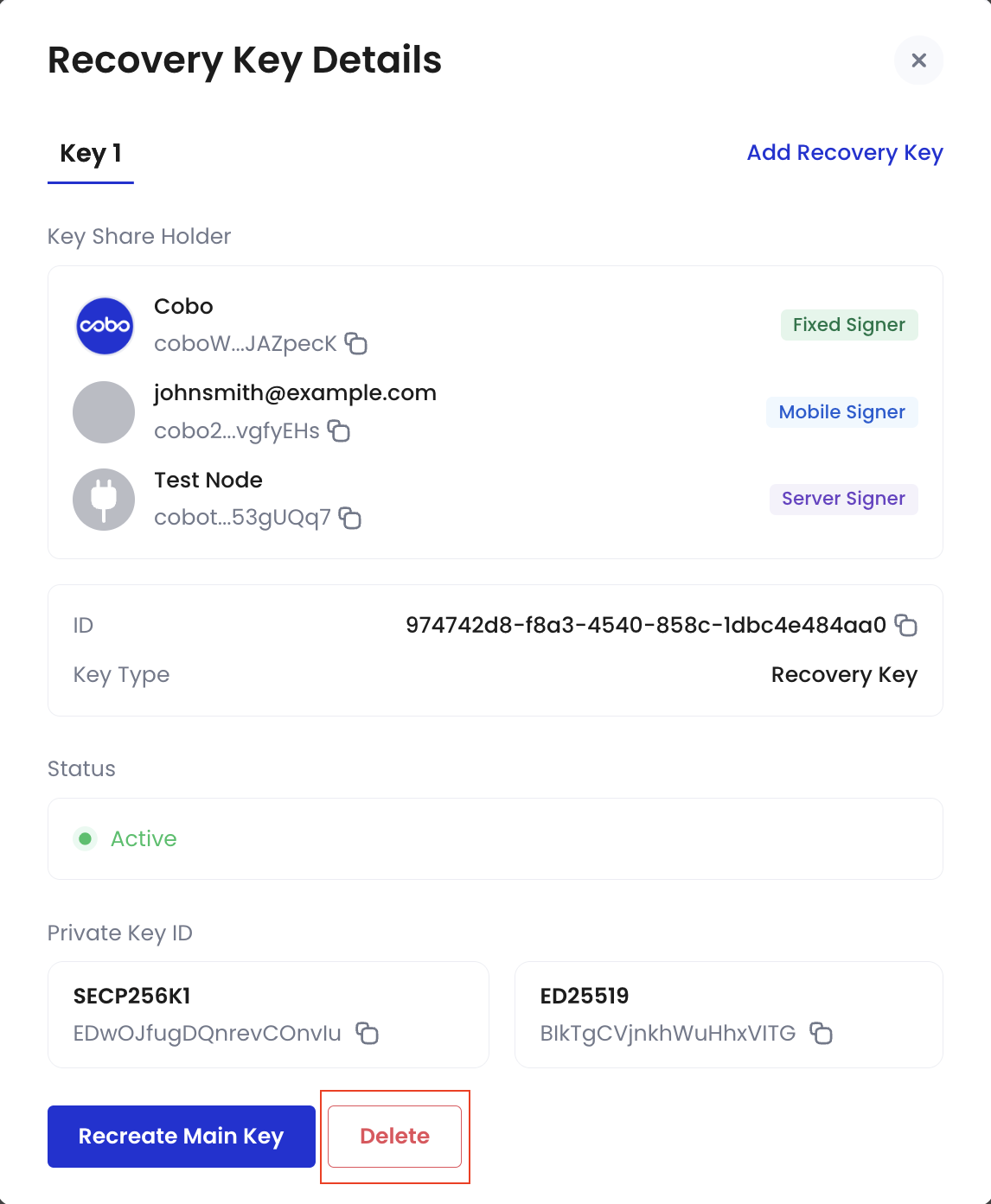 6. Click **Confirm** to delete the specified Recovery Key.
7. The specified Recovery Key is now deleted.
6. Click **Confirm** to delete the specified Recovery Key.
7. The specified Recovery Key is now deleted.