> ## Documentation Index
> Fetch the complete documentation index at: https://manuals.cobo.com/llms.txt
> Use this file to discover all available pages before exploring further.
# Create an MPC vault
> Follow the steps to create an MPC vault, a collection of wallets sharing the same root extended private key.
## Prerequisites
You have been assigned the [user role](/en/portal/organization/roles-and-permissions) of Operator, Manager, or Admin.
## Steps
A vault is a collection of wallets sharing the same root extended private key. A default vault will be created for you automatically. You need to [create your Main Key](/en/portal/mpc-wallets/ocw/holder-group-main-group) to complete the setup.
If you need to create additional vaults, follow these steps:
1. Log in to [Cobo Portal](https://portal.cobo.com/login).
2. Click  next to your default vault.
 3. In the pop-up dialog, click **Return to Vault List**.
4. Click **Create Vault** in the upper right corner.
5. Enter a name for your new vault. You can also set the vault as the default vault.
6. Click **Create**.
Now you have created a new vault. You need to [create your Main Key](/en/portal/mpc-wallets/ocw/holder-group-main-group) to complete the setup.
## Next steps
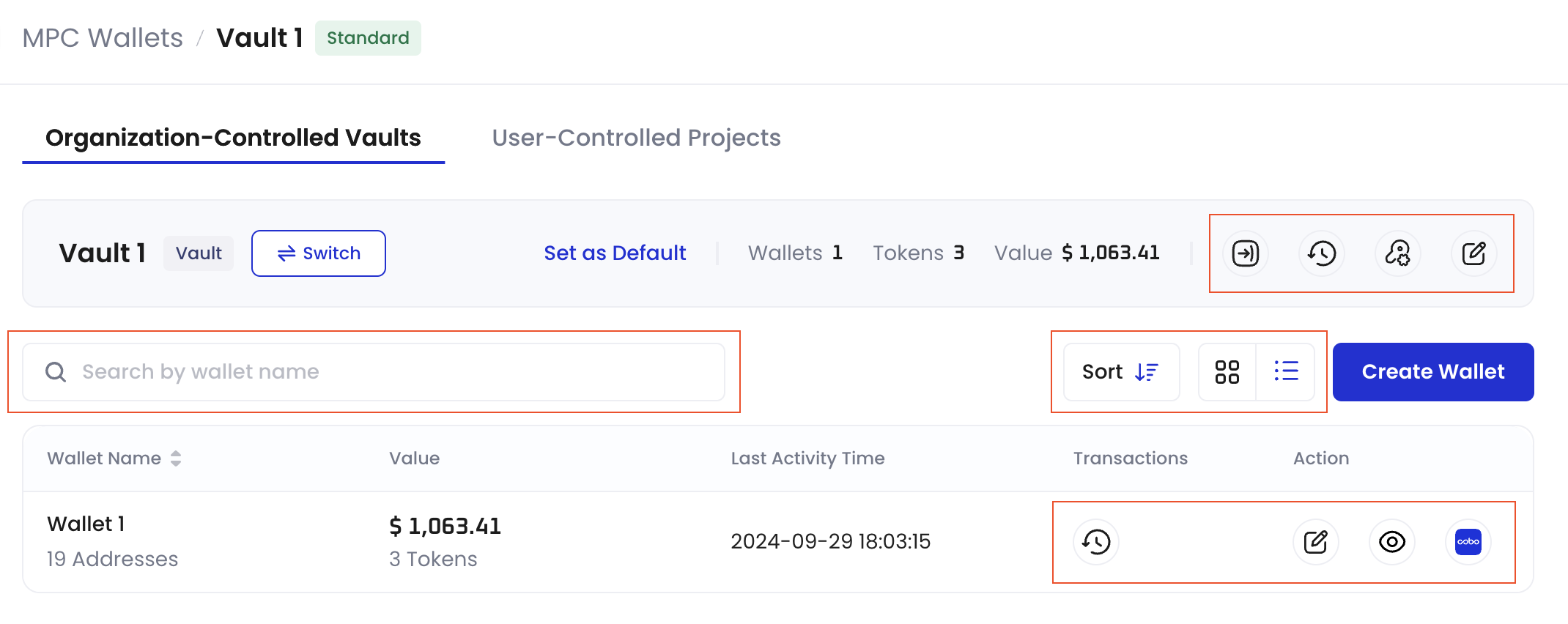
After creating a vault, you can:
* Set it as the default vault.
* Modify the name of your vault.
* Export details such as the list of addresses under your vault and their corresponding balances. The button will be visible only after the successful creation of the [Main Key](/en/portal/mpc-wallets/ocw/manage-key-share-groups).
* View all transactions associated with your vault. The button will be visible only after the successful creation of the [Main Key](/en/portal/mpc-wallets/ocw/manage-key-share-groups).
* View root extended public keys associated with each vault. Manage the Main Key, Signing Keys, and Recovery Keys. For more information, see [Manage private keys](/en/portal/mpc-wallets/ocw/manage-key-share-groups).
* Search for a wallet in the vault by wallet name.
* Sort the wallets in the vault by created time.
* Switch the vault display between grid view and list view.
3. In the pop-up dialog, click **Return to Vault List**.
4. Click **Create Vault** in the upper right corner.
5. Enter a name for your new vault. You can also set the vault as the default vault.
6. Click **Create**.
Now you have created a new vault. You need to [create your Main Key](/en/portal/mpc-wallets/ocw/holder-group-main-group) to complete the setup.
## Next steps
After creating a vault, you can:
* Set it as the default vault.
* Modify the name of your vault.
* Export details such as the list of addresses under your vault and their corresponding balances. The button will be visible only after the successful creation of the [Main Key](/en/portal/mpc-wallets/ocw/manage-key-share-groups).
* View all transactions associated with your vault. The button will be visible only after the successful creation of the [Main Key](/en/portal/mpc-wallets/ocw/manage-key-share-groups).
* View root extended public keys associated with each vault. Manage the Main Key, Signing Keys, and Recovery Keys. For more information, see [Manage private keys](/en/portal/mpc-wallets/ocw/manage-key-share-groups).
* Search for a wallet in the vault by wallet name.
* Sort the wallets in the vault by created time.
* Switch the vault display between grid view and list view.