> ## Documentation Index
> Fetch the complete documentation index at: https://manuals.cobo.com/llms.txt
> Use this file to discover all available pages before exploring further.
# How to use Fee Station
> Learn how to deposit tokens, track transaction records, and set up gas fee payment preferences in Fee Station.
This article introduces how to complete the following operations in Fee Station:
* Deposit USD or stablecoins
* Deposit gas tokens
* Set up gas fee payment preferences
## Deposit USD or stablecoins
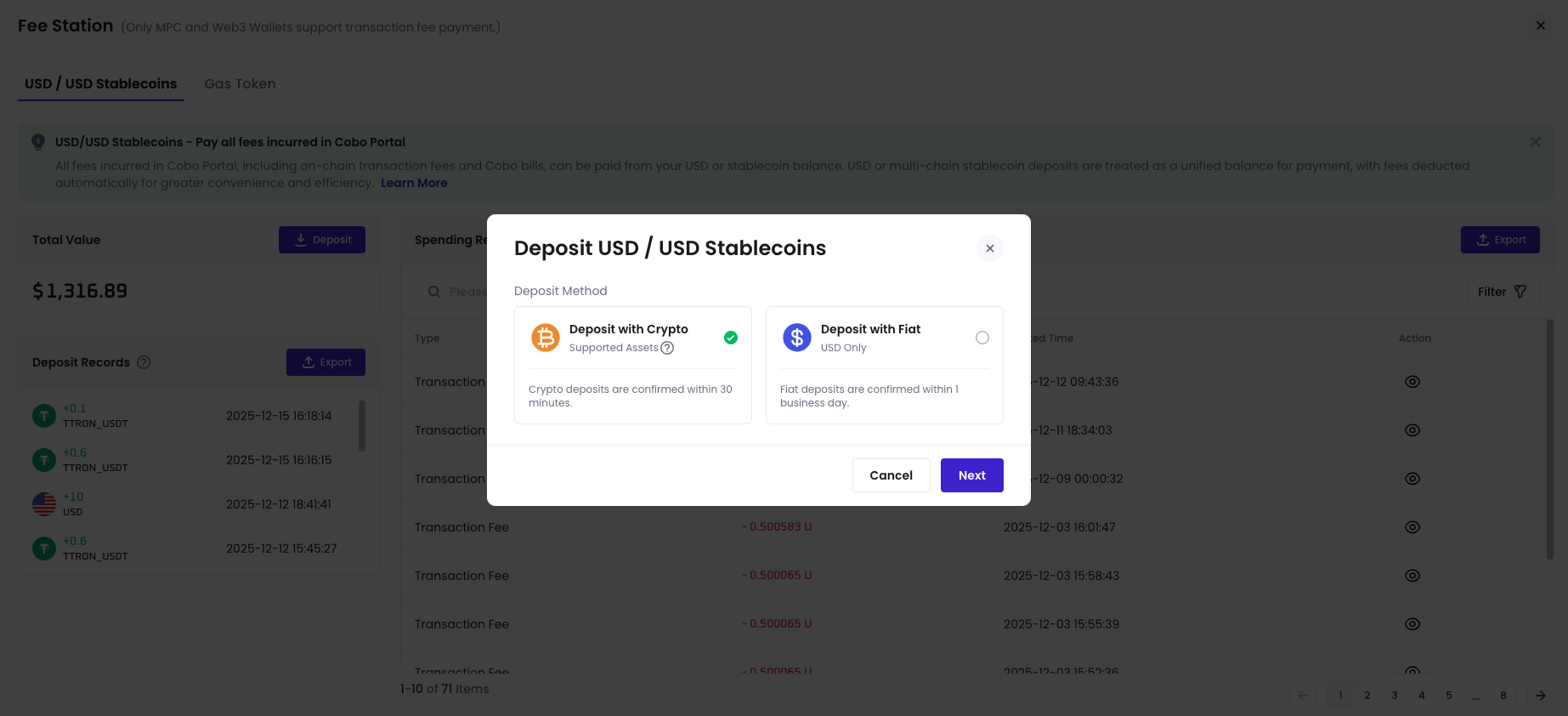
Fee Station supports deposits in fiat USD or USD stablecoins. After deposit, these funds can be used in Fee Station to pay for gas fees, platform service fees, and custody fees.
In the **USD / USD stablecoin** tab, you can view your current balance, deposit history, and spending records, and initiate new deposits. For supported stablecoin types, refer to [Supported Token Types](/en/portal/fee-station/introduction#supported-token-types).
1. Log into [Cobo Portal](https://portal.cobo.com/login).
2. You can access it by clicking **Fee Station** in the left sidebar.
3. In the **USD / USD stablecoin** tab, next to **Total Value**, click **Deposit**, choose a suitable deposit method, and follow the on-screen instructions to complete the deposit.
 ## Deposit gas tokens
You can also deposit native gas tokens on each supported chain, which can be used to cover gas fees on those chains.
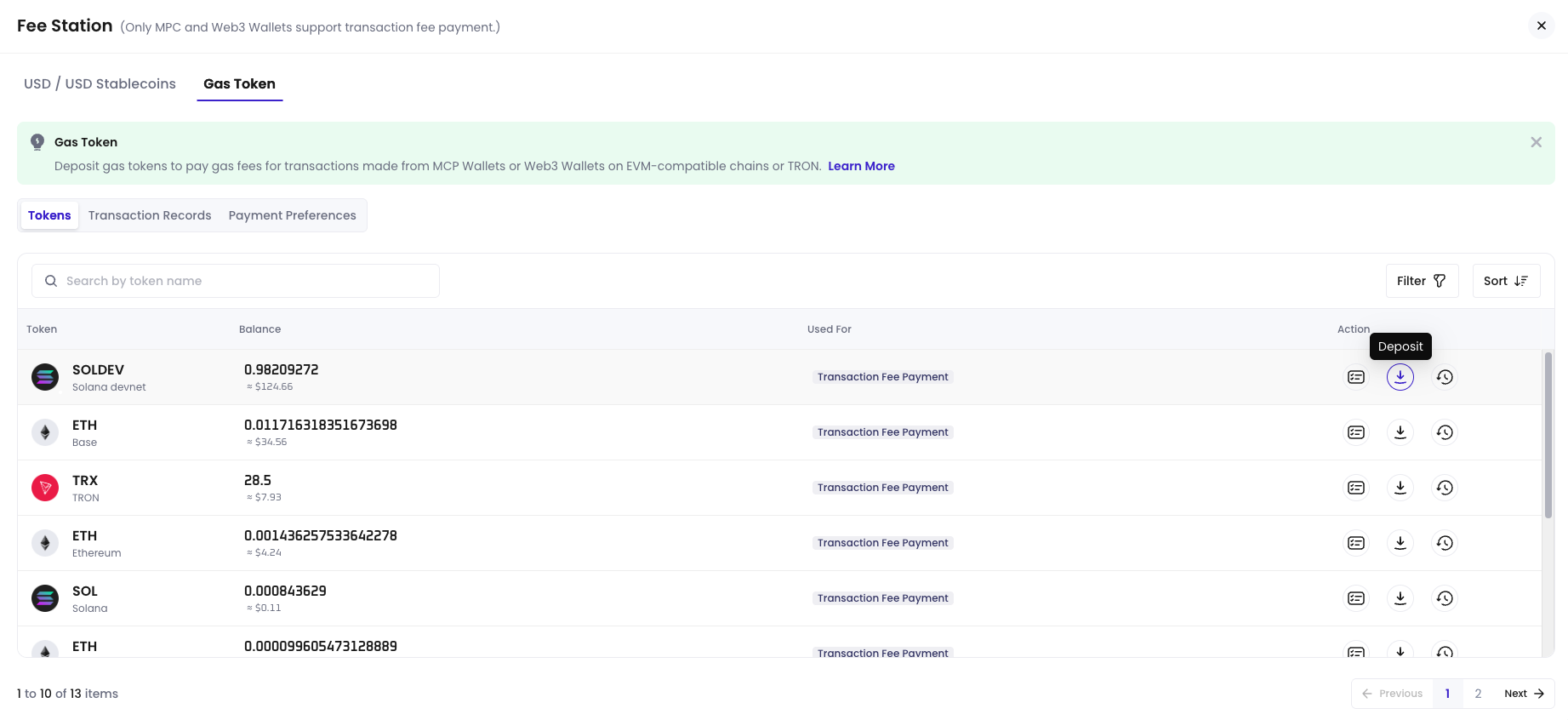
In the **Gas Token** tab, you can view the balance and transaction records of gas tokens on each chain and initiate deposits. For supported gas tokens, refer to [Supported Token Types](/en/portal/fee-station/introduction#supported-token-types).
1. Log into [Cobo Portal](https://portal.cobo.com/login).
2. You can access it by clicking **Fee Station** in the left sidebar.
3. Switch to the **Gas Token** tab and find the gas token for the target chain (for example, TRX, ETH, or MATIC).
4. Click the
## Deposit gas tokens
You can also deposit native gas tokens on each supported chain, which can be used to cover gas fees on those chains.
In the **Gas Token** tab, you can view the balance and transaction records of gas tokens on each chain and initiate deposits. For supported gas tokens, refer to [Supported Token Types](/en/portal/fee-station/introduction#supported-token-types).
1. Log into [Cobo Portal](https://portal.cobo.com/login).
2. You can access it by clicking **Fee Station** in the left sidebar.
3. Switch to the **Gas Token** tab and find the gas token for the target chain (for example, TRX, ETH, or MATIC).
4. Click the  deposit icon next to the gas token, and follow the instructions to complete the deposit.
 ## Configure payment preferences
In the **Gas Token > Payment Preferences** tab, you can configure on-chain transaction fee payment strategies for MPC Wallets and Web3 Wallets based on supported chains.
## Configure payment preferences
In the **Gas Token > Payment Preferences** tab, you can configure on-chain transaction fee payment strategies for MPC Wallets and Web3 Wallets based on supported chains.
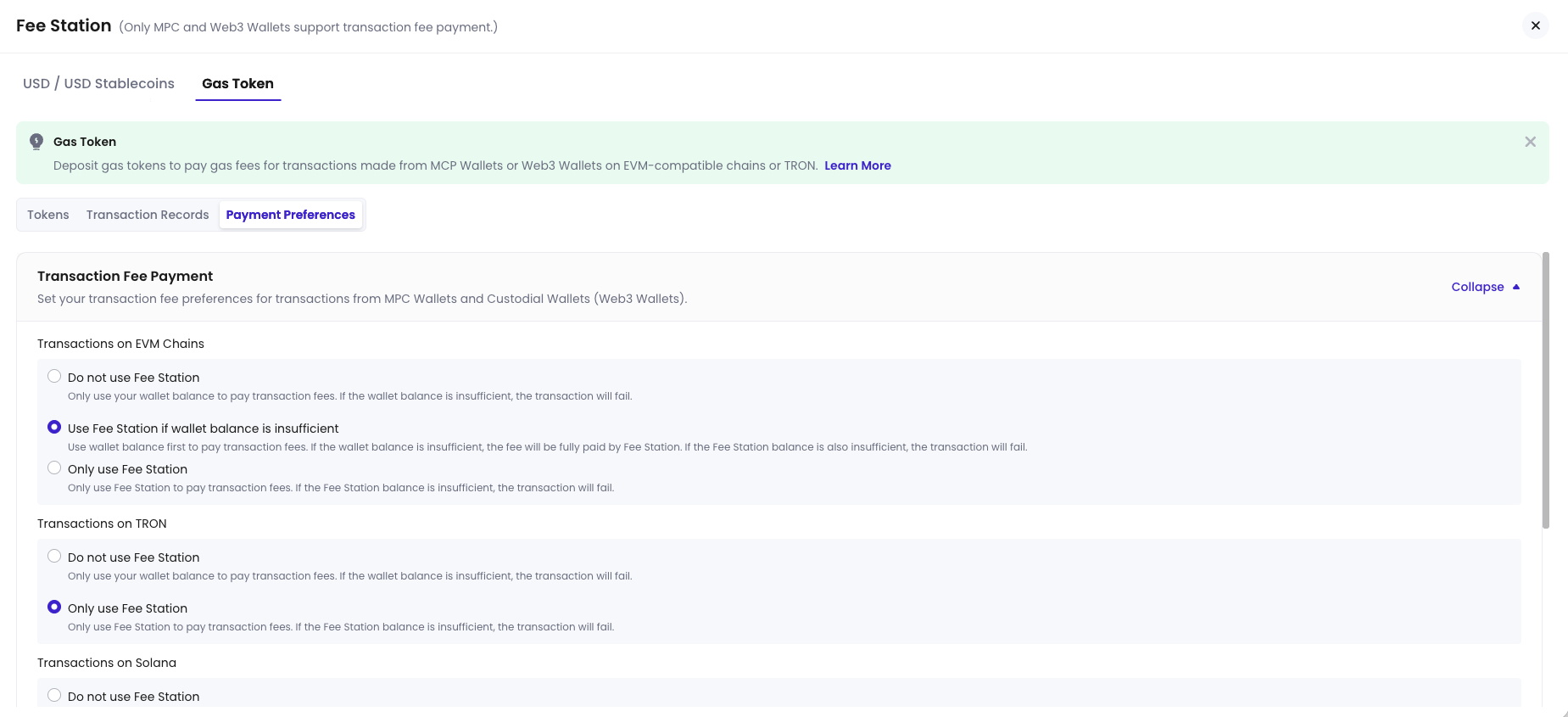 Each payment preference controls when Fee Station covers gas fees for an address: you can choose to cover fees only when the wallet balance is insufficient, or to always cover them. If you do not configure a preference for a chain, the system default applies.
Whitelist-based fee configurations may apply to specific addresses. As a result, the fee behavior for those addresses can differ from the preference you set here, and changing an address's whitelist membership can change which fee behavior applies.
## TRON fee payment
For TRON USDT transfers, Fee Station pays the on-chain fee in one of two ways:
* **Energy mode**: Fee Station uses available or rented energy on the sending address to cover the transfer, which avoids burning TRX and is the lower-cost option. Fee Station prioritizes this mode whenever energy can be applied.
* **TRX burn mode**: When energy cannot be applied to the transfer, Fee Station pays the fee by burning TRX, which costs more than energy mode.
The fee shown for a TRON transfer reflects the method actually used, so the displayed amount can differ between transfers depending on whether energy was applied.
If you have pre-rented energy on a TRON sending address but still see a TRON insufficient-energy or insufficient-fee error, confirm that Fee Station is enabled and funded for TRON and that a TRON payment preference is configured under **Gas Token** > **Payment Preferences**. If the error persists after the Fee Station balance is funded, the address may require additional account configuration before pre-rented energy can be applied.
Each payment preference controls when Fee Station covers gas fees for an address: you can choose to cover fees only when the wallet balance is insufficient, or to always cover them. If you do not configure a preference for a chain, the system default applies.
Whitelist-based fee configurations may apply to specific addresses. As a result, the fee behavior for those addresses can differ from the preference you set here, and changing an address's whitelist membership can change which fee behavior applies.
## TRON fee payment
For TRON USDT transfers, Fee Station pays the on-chain fee in one of two ways:
* **Energy mode**: Fee Station uses available or rented energy on the sending address to cover the transfer, which avoids burning TRX and is the lower-cost option. Fee Station prioritizes this mode whenever energy can be applied.
* **TRX burn mode**: When energy cannot be applied to the transfer, Fee Station pays the fee by burning TRX, which costs more than energy mode.
The fee shown for a TRON transfer reflects the method actually used, so the displayed amount can differ between transfers depending on whether energy was applied.
If you have pre-rented energy on a TRON sending address but still see a TRON insufficient-energy or insufficient-fee error, confirm that Fee Station is enabled and funded for TRON and that a TRON payment preference is configured under **Gas Token** > **Payment Preferences**. If the error persists after the Fee Station balance is funded, the address may require additional account configuration before pre-rented energy can be applied.