> ## Documentation Index
> Fetch the complete documentation index at: https://manuals.cobo.com/llms.txt
> Use this file to discover all available pages before exploring further.
# Link your exchange account
> Follow the steps to link your exchange account to Cobo's Exchange Wallets for seamless asset management.
This article describes how to set up your Exchange Wallets on Cobo Portal by linking your exchange accounts.
## Prerequisites
* Set up your Cobo Account as described in [Sign up for Cobo Accounts](/en/accounts/sign-up).
* Generate and set up the API key on the exchange that you use as described in the following guides:
* [Binance](/en/portal/exchange-wallets/generate-binance-api-key)
* [Bitget](/en/portal/exchange-wallets/generate-bitget-api-key)
* [Bitmart](/en/portal/exchange-wallets/generate-bitmart-api-key)
* [Bybit](/en/portal/exchange-wallets/generate-bybit-api-key)
* [Deribit](/en/portal/exchange-wallets/generate-deribit-api-key)
* [Gate.io](/en/portal/exchange-wallets/generate-gate-api-key)
* [OKX](/en/portal/exchange-wallets/generate-okx-api-key)
* You have been assigned the [Operator](/en/portal/organization/roles-and-permissions) role or a role with equivalent permissions.
## Steps
1. Log in to [Cobo Portal](https://portal.cobo.com/login).
2. Click **Wallets** in the left sidebar, then select **Exchange Wallets**.
3. Click the **+ Exchange Account** button.
4. On the **Select Exchange** dialog, select the exchange that you use and click **Continue**.
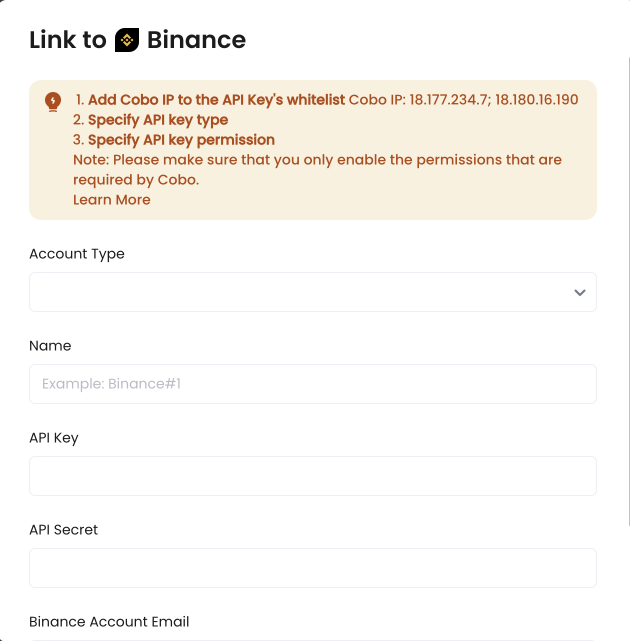
5. The required information varies by exchange. In most cases, you need to select the account type and provide a wallet name, an API key, and an API secret.
When linking a Main Account, you can link its Sub Accounts at the same time.
When linking a Sub Account, you need to link its Main Account first and select the Main Account as the **Associated Main Account**.
 6. Click **Link** to complete the setup.
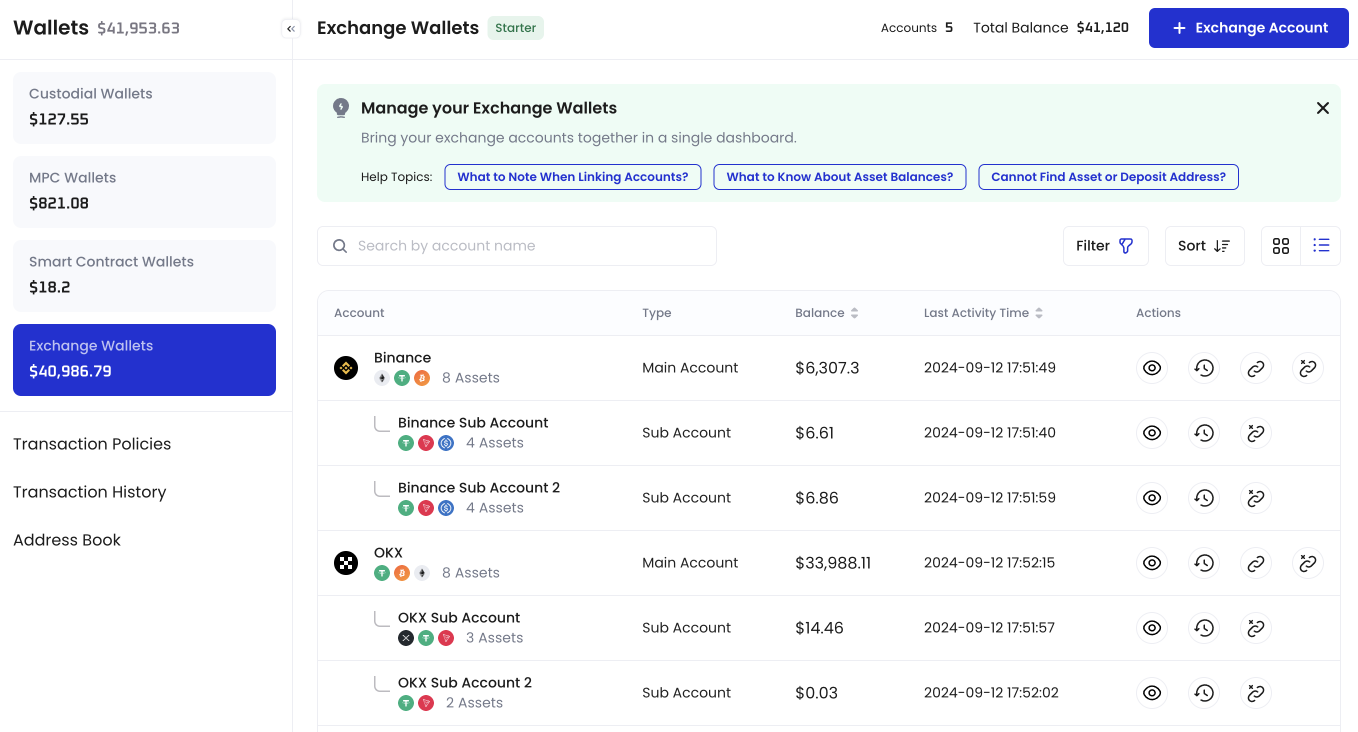
Once your exchange account is linked, it will display in your Exchange Wallets dashboard.
6. Click **Link** to complete the setup.
Once your exchange account is linked, it will display in your Exchange Wallets dashboard.
 ## Next steps
When you set up your Exchange Wallets on Cobo Portal, you can perform actions on the Exchange Wallets, or transfer assets from or to your Exchange Wallets. For more details, see [Deposit into an Exchange Wallet](/en/portal/exchange-wallets/transfers), [Withdraw from an Exchange Wallet](/en/portal/transfers/from-exchange-wallets), and [Transfer Within an Exchange Wallet](/en/portal/exchange-wallets/within-wallet).
## Next steps
When you set up your Exchange Wallets on Cobo Portal, you can perform actions on the Exchange Wallets, or transfer assets from or to your Exchange Wallets. For more details, see [Deposit into an Exchange Wallet](/en/portal/exchange-wallets/transfers), [Withdraw from an Exchange Wallet](/en/portal/transfers/from-exchange-wallets), and [Transfer Within an Exchange Wallet](/en/portal/exchange-wallets/within-wallet).