> ## Documentation Index
> Fetch the complete documentation index at: https://manuals.cobo.com/llms.txt
> Use this file to discover all available pages before exploring further.
# Generate an API key on Gate.io
> Learn how to generate an API key on Gate.io, including permissions and security settings.
When you link a Gate.io account to your Exchange Wallet, you will need to provide an API key and a secret key. Besides, you also need to include Cobo in the IP whitelist and assign specific permissions to the key.
This article explains how to generate an API key on Gate.io, including adding Cobo to the IP whitelist and setting permissions.
The content is subject to changes on Gate.io. For more details, refer to How to Utilize API.
1. Log in to your Gate.io account.
2. Navigate to **My Profile** > **API Management**.
3. Select **Create API Key** to open a **Create API Key** page.
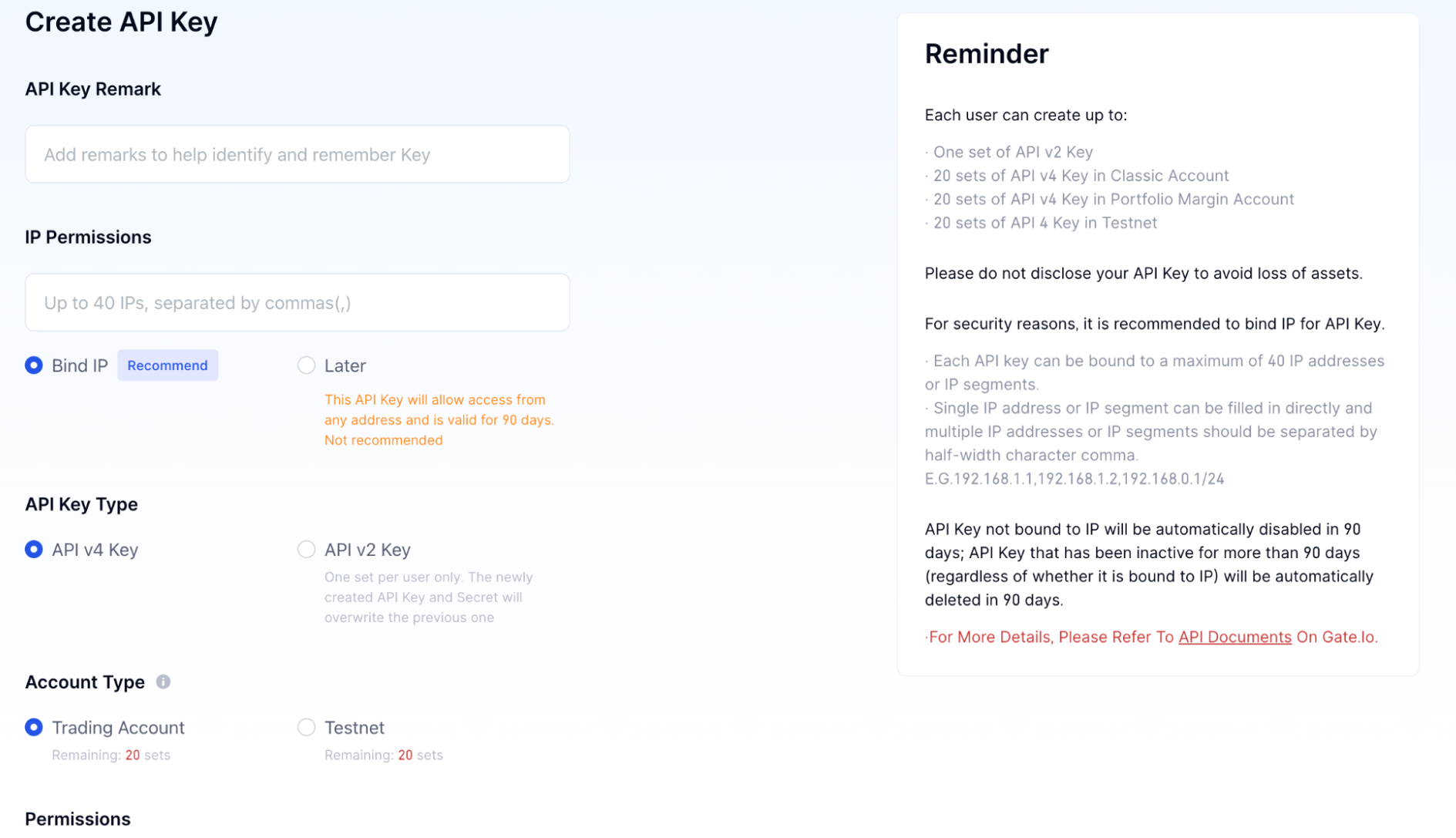 4. On the **Create API Key** page, enter a remark in the **API Key Remark** field.
5. In the **IP Permissions** section, select **Bind IP** and enter Cobo's IP address `54.201.57.0` in the text field.
6. In the **API Key Type** section, select **API v4 Key**.
7. In the **Account Type** section, select **Trading Account**.
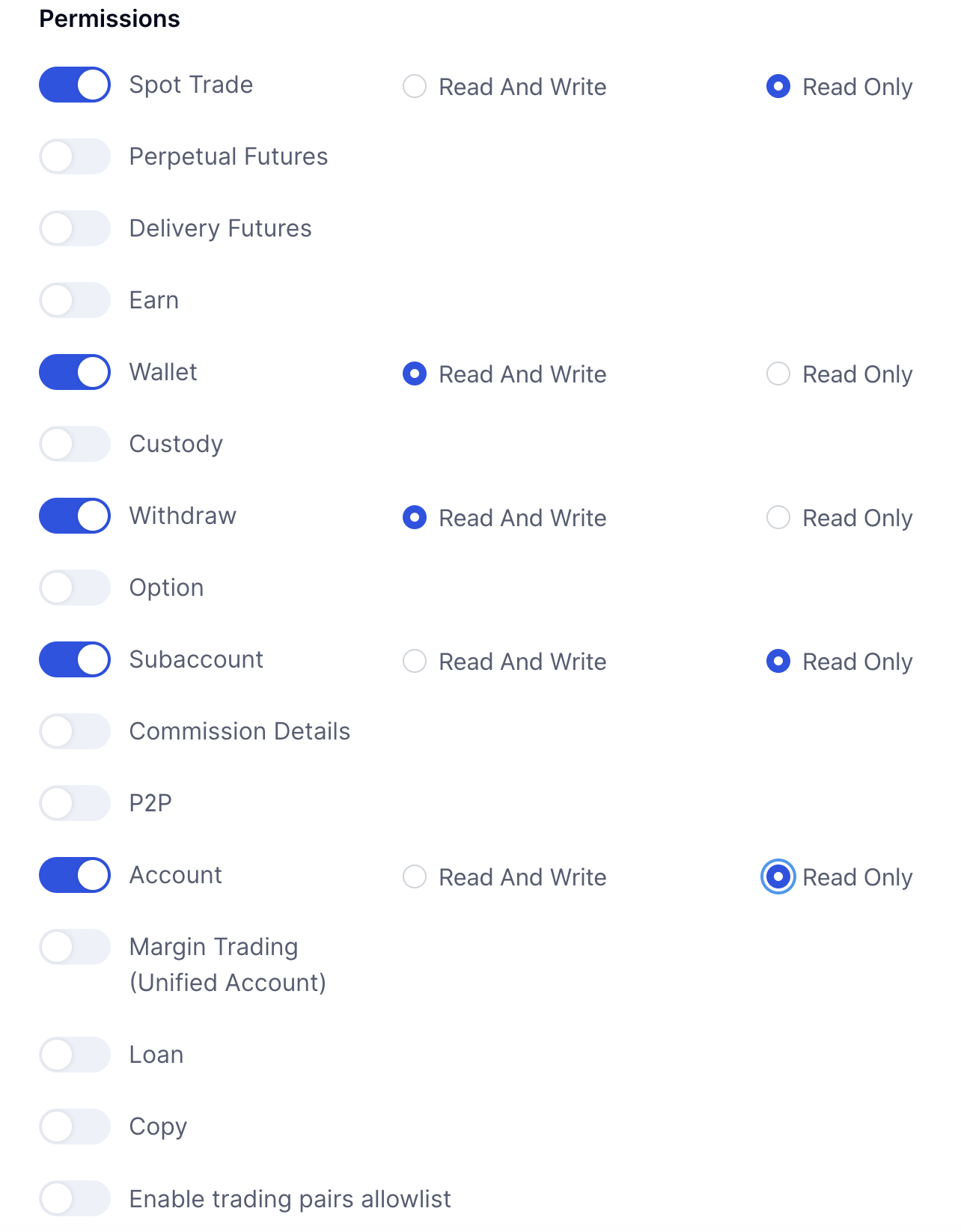
8. In the **Permissions** section, enable the following options:
* **Spot Trade**: **Read Only**
* **Wallet**: **Read And Write**
* **Withdraw**: **Read And Write**
* **Subaccount**: **Read Only**
* **Account**: **Read Only**
* **Perpetual Futures**: **Read Only**
* **Delivery Futures**: **Read Only**
* **Option**: **Read Only**
4. On the **Create API Key** page, enter a remark in the **API Key Remark** field.
5. In the **IP Permissions** section, select **Bind IP** and enter Cobo's IP address `54.201.57.0` in the text field.
6. In the **API Key Type** section, select **API v4 Key**.
7. In the **Account Type** section, select **Trading Account**.
8. In the **Permissions** section, enable the following options:
* **Spot Trade**: **Read Only**
* **Wallet**: **Read And Write**
* **Withdraw**: **Read And Write**
* **Subaccount**: **Read Only**
* **Account**: **Read Only**
* **Perpetual Futures**: **Read Only**
* **Delivery Futures**: **Read Only**
* **Option**: **Read Only**
 9. Click **Confirm** to generate the API key.
You have now generated and set up an API Key. You can go to Cobo Portal to link your Gate.io account with the API key and API secret key. To learn how to link your account, see [Set up Exchange Wallets](/en/portal/exchange-wallets/set-up).
9. Click **Confirm** to generate the API key.
You have now generated and set up an API Key. You can go to Cobo Portal to link your Gate.io account with the API key and API secret key. To learn how to link your account, see [Set up Exchange Wallets](/en/portal/exchange-wallets/set-up).