> ## Documentation Index
> Fetch the complete documentation index at: https://manuals.cobo.com/llms.txt
> Use this file to discover all available pages before exploring further.
# Generate an API key on Bybit
> Follow these steps to generate an API key on Bybit, including whitelisting and permission configurations.
When you link a Bybit account to your Exchange Wallet, you will need to provide an API key and an API secret. Besides, you also need to include Cobo in the IP whitelist and assign specific permissions to the key.
This article explains how to generate an API key on Bybit, including adding Cobo to the IP whitelist and setting permissions.
The content is subject to changes on Bybit. For more details, refer to How to Create Your API Key.
1. Log in to your Bybit account.
2. Navigate to **My Profile** > **Account & Security** > **API Management**.
3. Select **Create New Key**.
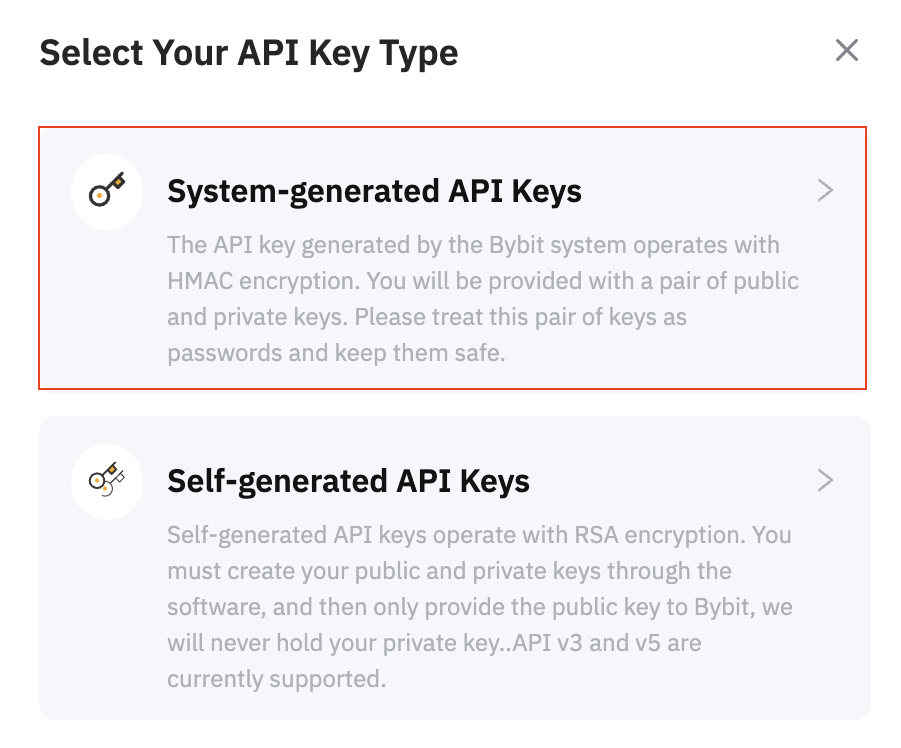
4. On the **Select Your API Key Type** dialog, select **System-generated API Keys** to open a **Create New Key** page.
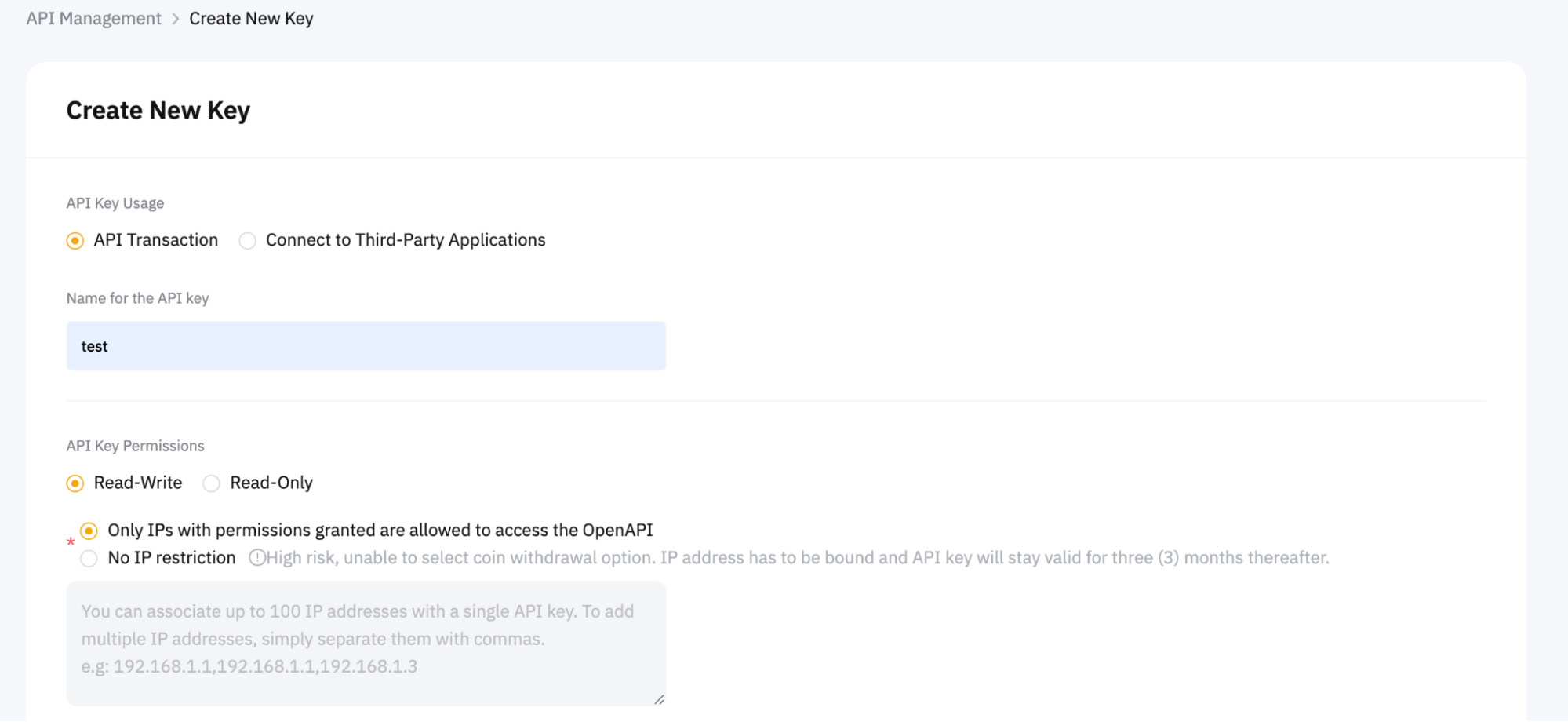
 5. On the **Create New Key** page, fill in all required fields as follows:
* In the **API Key Usage** section, select **API Transaction**.
* Enter a name for the API key.
* In the **API Key Permissions** section, select the options **Read-Write** and **Only IPs with permissions granted are allowed to access the OpenAPI**, and enter Cobo's IP address `18.177.234.7` and `18.180.16.190` in the underlying field.
5. On the **Create New Key** page, fill in all required fields as follows:
* In the **API Key Usage** section, select **API Transaction**.
* Enter a name for the API key.
* In the **API Key Permissions** section, select the options **Read-Write** and **Only IPs with permissions granted are allowed to access the OpenAPI**, and enter Cobo's IP address `18.177.234.7` and `18.180.16.190` in the underlying field.
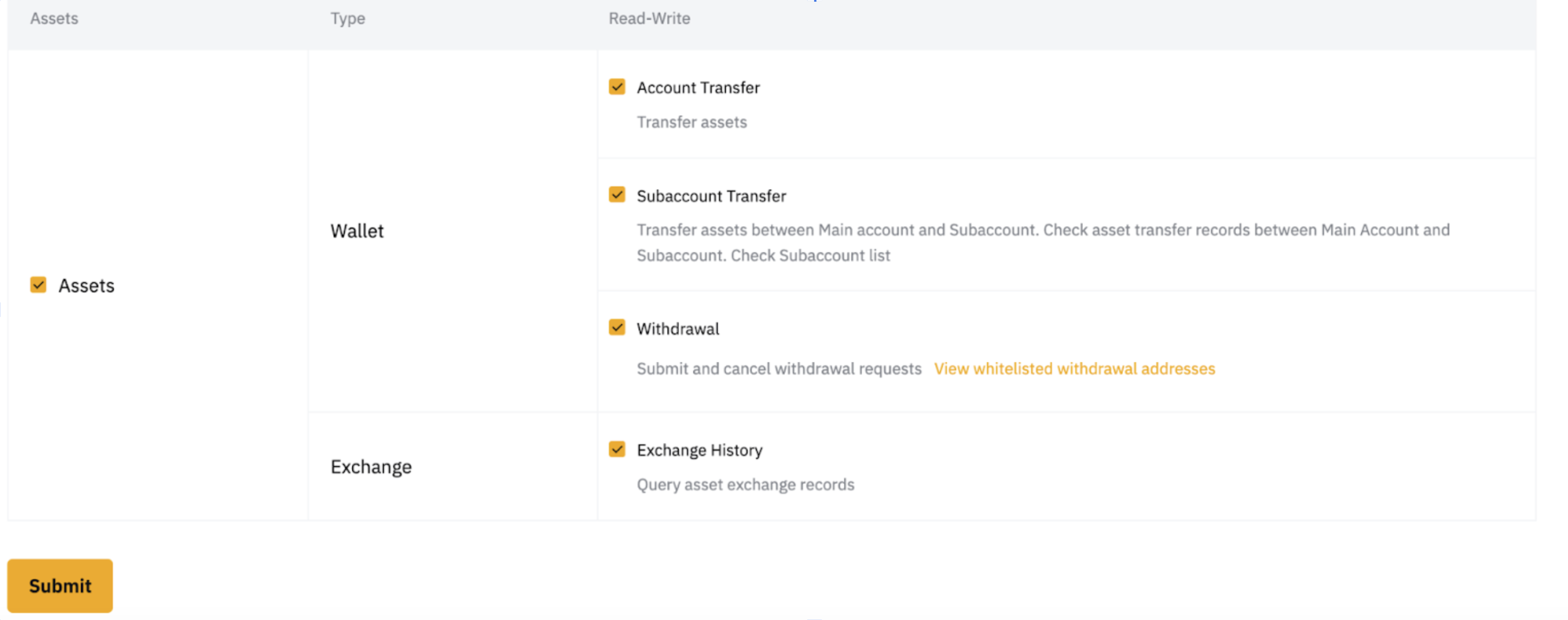
 6. In the **Asset** section, select the following options under **Read-Write**:
* **Account Transfer**
* **Subaccount Transfer**
* **Withdrawal**
* **Exchange History**
6. In the **Asset** section, select the following options under **Read-Write**:
* **Account Transfer**
* **Subaccount Transfer**
* **Withdrawal**
* **Exchange History**
 7. Click **Submit** to generate the API key.
You have now generated an API Key. You can go to Cobo Portal to link your Bybit account with the API key and API secret. To learn how to link your account, see [Set up Exchange Wallets](/en/portal/exchange-wallets/set-up).
7. Click **Submit** to generate the API key.
You have now generated an API Key. You can go to Cobo Portal to link your Bybit account with the API key and API secret. To learn how to link your account, see [Set up Exchange Wallets](/en/portal/exchange-wallets/set-up).