> ## Documentation Index
> Fetch the complete documentation index at: https://manuals.cobo.com/llms.txt
> Use this file to discover all available pages before exploring further.
# Enable auto token sweeping
> Learn how to enable auto token sweeping and explore the resulting updates to wallet features and transaction management.
This guide explains how to enable the auto token sweeping feature for MPC Wallets (Organization-Controlled Wallets) or Custodial Wallets (Web3 Wallets) on Cobo Portal. For more details about auto token sweeping, refer to [Overview](/en/portal/auto-sweep-overview).
## Prerequisites
* For MPC Wallets (Organization-Controlled Wallets):
* You have created an MPC Wallet (Organization-Controlled Wallet) and set it up as described in [Overview](/en/portal/mpc-wallets/ocw/set-up).
* Due to the high volume of consolidation transactions and their concentrated execution time, please ensure you have set up at least one [server signer](https://www.cobo.com/developers/v2/guides/mpc-wallets/server-co-signer/tss-node-overview) as a key share holder of your [Main Key](/en/portal/mpc-wallets/ocw/holder-group-main-group) or [Signing Key](/en/portal/mpc-wallets/ocw/holder-group-signing-group).
* If you use a TSS Node Callback server for risk control review, you can add the sweep-to address to the server's whitelist to automatically approve sweep transactions. For more details, refer to the sample project in [Auto token sweeping implementation](https://www.cobo.com/developers/v2/guides/mpc-wallets/server-co-signer/risk-control-best-practices#auto-sweeping-implementation).
* For Custodial Wallets (Web3 Wallets):
* You have created a Custodial Wallet and set it up as described in [Set up Web3 Wallets](/en/portal/custodial-wallets/web3-wallets/set-up).
* You have been assigned the [user role](/en/portal/organization/roles-and-permissions) of Admin, Operator, or Manager.
* Gas fees apply to the withdrawal part of the sweep transaction. It is recommended to enable [Fee Station](/en/portal/fee-station/introduction) to automatically supplement the gas fee when the deposit address balance is insufficient. Otherwise, you will need to ensure sufficient main chain coin balance at the deposit address.
For more details, refer to [How to use Fee Station](/en/portal/fee-station/set-up).
## Steps
The following steps use MPC Wallets (Organization-Controlled Wallets) as an example. The steps for Custodial Wallets (Web3 Wallets) are similar.
### For a new wallet
1. Log in to [Cobo Portal](https://portal.cobo.com/login).
2. Click **Wallets** in the left sidebar, then select **MPC Wallets**.
3. Select your vault.
4. Click **Create Wallet**.
5. Name your wallet, then enable the **Auto-Sweep** switch.
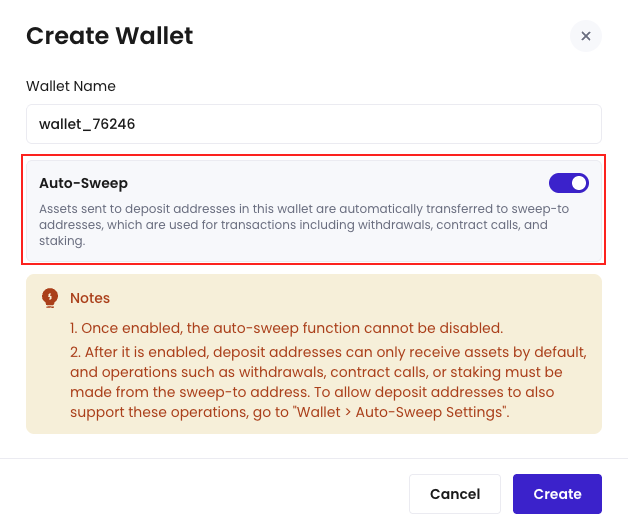 Currently, once enabled, the auto token sweeping feature cannot be disabled.
6. Click **Create**.
Now you have successfully created a new Organization-Controlled Wallet with auto token sweeping enabled. The wallet has a icon indicating that the feature is enabled as the following screenshot shows.
After auto-sweep is enabled, Cobo will follow the predefined sweep strategy and automatically scan deposit addresses for tokens that meet the sweep criteria whenever the strategy is triggered. Regardless of whether the tokens were deposited before or after auto-sweep was enabled, they will be swept automatically as long as they meet the required conditions. You can also adjust the sweep policy based on your specific business needs. For details, refer to [Sweep Poliy settings](/en/portal/auto-sweep-policy-edit).
### For an existing wallet
1. Log in to [Cobo Portal](https://portal.cobo.com/login).
2. Click **Wallets** in the left sidebar, then select **MPC Wallets**.
3. Select your vault.
4. Choose the wallet that you want to enable auto token sweeping for.
5. Click the **Turn On Auto-Sweep** icon
Currently, once enabled, the auto token sweeping feature cannot be disabled.
6. Click **Create**.
Now you have successfully created a new Organization-Controlled Wallet with auto token sweeping enabled. The wallet has a icon indicating that the feature is enabled as the following screenshot shows.
After auto-sweep is enabled, Cobo will follow the predefined sweep strategy and automatically scan deposit addresses for tokens that meet the sweep criteria whenever the strategy is triggered. Regardless of whether the tokens were deposited before or after auto-sweep was enabled, they will be swept automatically as long as they meet the required conditions. You can also adjust the sweep policy based on your specific business needs. For details, refer to [Sweep Poliy settings](/en/portal/auto-sweep-policy-edit).
### For an existing wallet
1. Log in to [Cobo Portal](https://portal.cobo.com/login).
2. Click **Wallets** in the left sidebar, then select **MPC Wallets**.
3. Select your vault.
4. Choose the wallet that you want to enable auto token sweeping for.
5. Click the **Turn On Auto-Sweep** icon  in the **Action** column.
6. In the **Turn On Auto-Sweep** dialog, click **Confirm**.
in the **Action** column.
6. In the **Turn On Auto-Sweep** dialog, click **Confirm**.
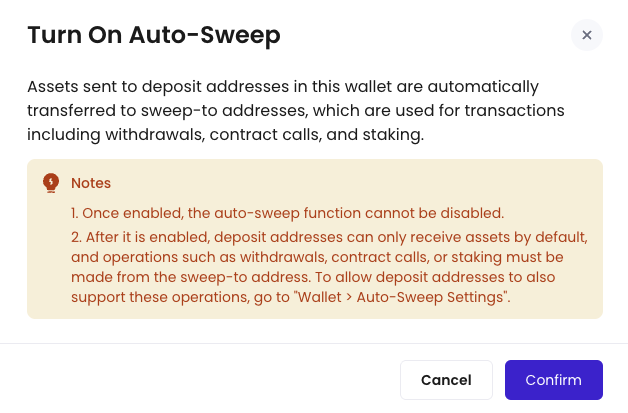 Currently, once enabled, the auto token sweeping feature cannot be disabled.
7. Verify your identify using an MFA method.
Now you have successfully enabled auto token sweeping for the wallet. The wallet has a icon indicating that the feature is enabled as the following screenshot shows.
After auto-sweep is enabled, Cobo will follow the predefined sweep strategy and automatically scan deposit addresses for tokens that meet the sweep criteria whenever the strategy is triggered. Regardless of whether the tokens were deposited before or after auto-sweep was enabled, they will be swept automatically as long as they meet the required conditions.
## Changes after enabling auto token sweeping
### Sweep-to addresses
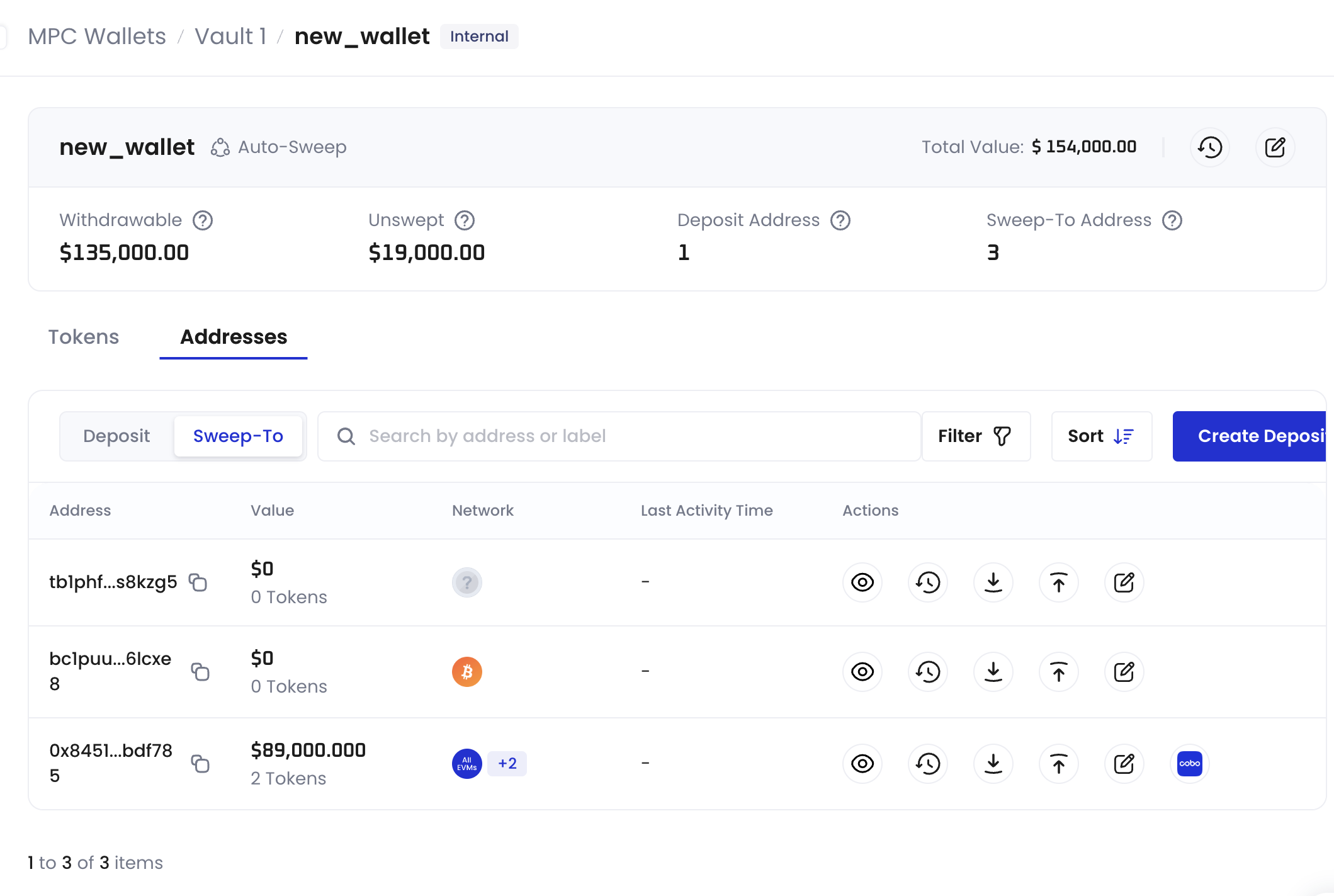
Once you enable auto token sweeping, Cobo automatically generates a dedicated sweep-to address for each enabled chain in the wallet. These addresses are system-assigned and cannot be manually specified. When any deposit address receives tokens, the system will automatically and periodically sweep these tokens to the corresponding sweep-to address through sweep transactions.
Gas fees apply to the withdrawal part of the sweep transaction. It is recommended to enable [Fee Station](/en/portal/fee-station/introduction) to automatically supplement the gas fee when the deposit address balance is insufficient. Otherwise, you will need to ensure sufficient main chain coin balance at the deposit address.
The wallet addresses are displayed under two tabs: the **Deposit** tab shows previously created deposit addresses, while the **Sweep-To** tab shows the sweep addresses.
Currently, once enabled, the auto token sweeping feature cannot be disabled.
7. Verify your identify using an MFA method.
Now you have successfully enabled auto token sweeping for the wallet. The wallet has a icon indicating that the feature is enabled as the following screenshot shows.
After auto-sweep is enabled, Cobo will follow the predefined sweep strategy and automatically scan deposit addresses for tokens that meet the sweep criteria whenever the strategy is triggered. Regardless of whether the tokens were deposited before or after auto-sweep was enabled, they will be swept automatically as long as they meet the required conditions.
## Changes after enabling auto token sweeping
### Sweep-to addresses
Once you enable auto token sweeping, Cobo automatically generates a dedicated sweep-to address for each enabled chain in the wallet. These addresses are system-assigned and cannot be manually specified. When any deposit address receives tokens, the system will automatically and periodically sweep these tokens to the corresponding sweep-to address through sweep transactions.
Gas fees apply to the withdrawal part of the sweep transaction. It is recommended to enable [Fee Station](/en/portal/fee-station/introduction) to automatically supplement the gas fee when the deposit address balance is insufficient. Otherwise, you will need to ensure sufficient main chain coin balance at the deposit address.
The wallet addresses are displayed under two tabs: the **Deposit** tab shows previously created deposit addresses, while the **Sweep-To** tab shows the sweep addresses.
 ### Balances
In a wallet with auto token sweeping enabled, token balances are separated into **balance** and **withdrawable balance** columns. Hover over a token's total balance to see the swept balance and the balances with sweeping in progress, and hover over a token's withdrawable balance to view the sweep-to address.
### Balances
In a wallet with auto token sweeping enabled, token balances are separated into **balance** and **withdrawable balance** columns. Hover over a token's total balance to see the swept balance and the balances with sweeping in progress, and hover over a token's withdrawable balance to view the sweep-to address.
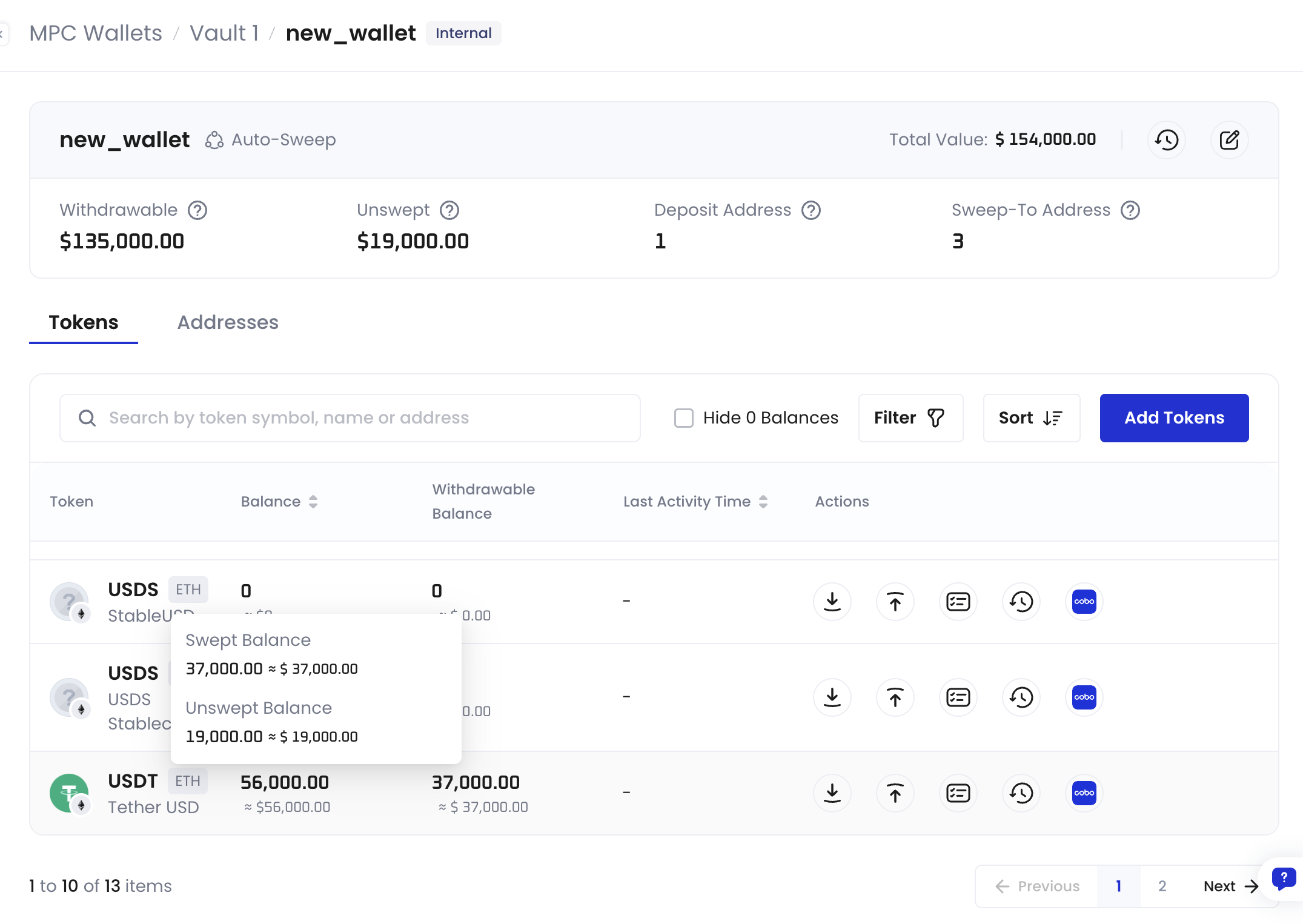 * Total balance: This represents the sum of your withdrawable balance and balance with sweeping in progress in your wallet.
* Withdrawable balance/Swept balance: This is the part of your balance located in the sweep-to address that is readily available for withdrawal, contract calls, and other transaction operations.
* Sweeping in progress: This refers to the part of your balance that has not yet been moved to the sweep-to address, meaning it is not currently available for withdrawal and other transaction operations. This includes tokens that are in the process of being swept and those that have not yet been initiated for sweeping.
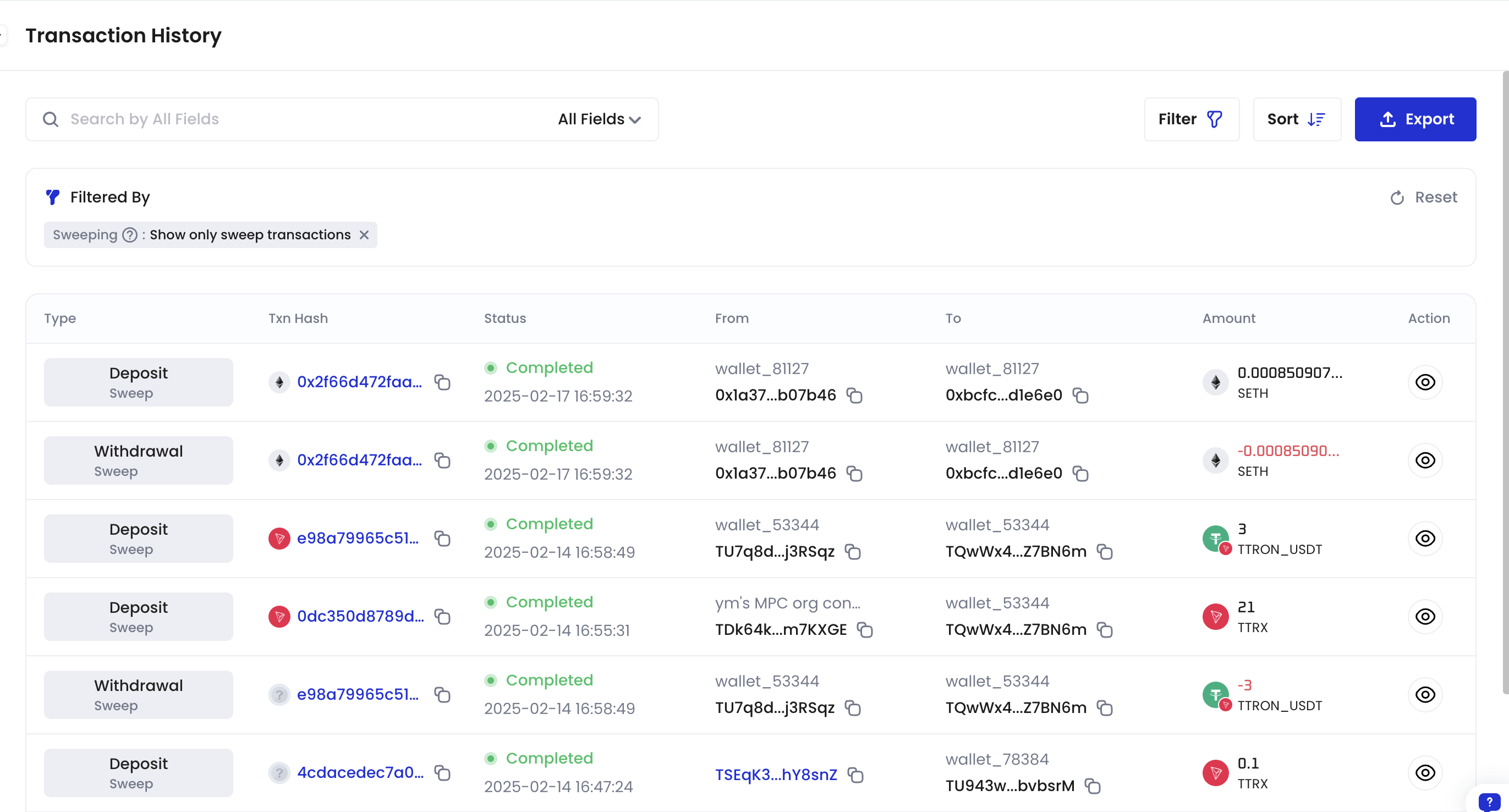
### Transaction record type
When sweeping occurs, two transaction records are generated:
* For deposit addresses: displayed as **Withdrawal-Sweep**.
* For sweep-to addresses: displayed as **Deposit-Sweep**.
* Total balance: This represents the sum of your withdrawable balance and balance with sweeping in progress in your wallet.
* Withdrawable balance/Swept balance: This is the part of your balance located in the sweep-to address that is readily available for withdrawal, contract calls, and other transaction operations.
* Sweeping in progress: This refers to the part of your balance that has not yet been moved to the sweep-to address, meaning it is not currently available for withdrawal and other transaction operations. This includes tokens that are in the process of being swept and those that have not yet been initiated for sweeping.
### Transaction record type
When sweeping occurs, two transaction records are generated:
* For deposit addresses: displayed as **Withdrawal-Sweep**.
* For sweep-to addresses: displayed as **Deposit-Sweep**.
 ## Optional next steps
### Modify sweep strategy
By default, two sweep strategies are enabled: single transaction threshold sweep and balance sweep. You can adjust the parameters of the sweep strategy as needed or add other sweep strategies. For detailed configuration steps, refer to [Sweep policy settings](/en/portal/auto-sweep-policy-edit).
### Change sweep-to addresses
If your setup changes, switch networks, or the current address is compromised or tainted by suspicious funds, you can [change sweep-to addresses](/en/portal/change-sweep-address) as needed.
### Enable deposit address transactions
By default, deposit addresses cannot initiate withdrawals, contract calls, staking, OTC trades, or smart contract delegations. To manually enable these capabilities for deposit addresses, follow these steps in [Auto token sweeping settings](/en/portal/auto-sweep-settings).
### Configure network fee limits for sweep transactions
You can configure network fee limits for BTC and ETH sweep transactions to avoid excessive fees during periods of network congestion. For detailed configuration steps, see [Auto token sweeping settings](/en/portal/auto-sweep-settings).
### Enable automatic RBF for sweep transactions
If a sweep transaction is not confirmed within a specified time, you can enable automatic RBF to speed up confirmation. For detailed configuration steps, see [Auto token sweeping settings](/en/portal/auto-sweep-settings).
### Set minimum sweep amount
To avoid unnecessary network fees caused by small assets triggering sweeps, you can set a minimum sweep amount for sweep transactions. The system will only initiate a sweep transaction when the sweepable amount reaches this minimum value. For detailed configuration steps, refer to [Sweep strategy settings](/en/portal/auto-sweep-policy-edit).
### Pause/Resume sweeping
When encountering unexpected situations (such as network congestion, fee fluctuations, risk control checks, or temporary business adjustments), you can pause sweeping. After conditions return to normal, you can resume sweeping to continue executing according to the established strategy. For more details, refer to [Pause/Resume sweeping](/en/portal/auto-sweep-pause-resume).
### Filter wallets by feature status
You can filter wallets by their **Auto-Sweep Enabled** status in the wallet list to quickly identify which wallets have the feature enabled.
## Optional next steps
### Modify sweep strategy
By default, two sweep strategies are enabled: single transaction threshold sweep and balance sweep. You can adjust the parameters of the sweep strategy as needed or add other sweep strategies. For detailed configuration steps, refer to [Sweep policy settings](/en/portal/auto-sweep-policy-edit).
### Change sweep-to addresses
If your setup changes, switch networks, or the current address is compromised or tainted by suspicious funds, you can [change sweep-to addresses](/en/portal/change-sweep-address) as needed.
### Enable deposit address transactions
By default, deposit addresses cannot initiate withdrawals, contract calls, staking, OTC trades, or smart contract delegations. To manually enable these capabilities for deposit addresses, follow these steps in [Auto token sweeping settings](/en/portal/auto-sweep-settings).
### Configure network fee limits for sweep transactions
You can configure network fee limits for BTC and ETH sweep transactions to avoid excessive fees during periods of network congestion. For detailed configuration steps, see [Auto token sweeping settings](/en/portal/auto-sweep-settings).
### Enable automatic RBF for sweep transactions
If a sweep transaction is not confirmed within a specified time, you can enable automatic RBF to speed up confirmation. For detailed configuration steps, see [Auto token sweeping settings](/en/portal/auto-sweep-settings).
### Set minimum sweep amount
To avoid unnecessary network fees caused by small assets triggering sweeps, you can set a minimum sweep amount for sweep transactions. The system will only initiate a sweep transaction when the sweepable amount reaches this minimum value. For detailed configuration steps, refer to [Sweep strategy settings](/en/portal/auto-sweep-policy-edit).
### Pause/Resume sweeping
When encountering unexpected situations (such as network congestion, fee fluctuations, risk control checks, or temporary business adjustments), you can pause sweeping. After conditions return to normal, you can resume sweeping to continue executing according to the established strategy. For more details, refer to [Pause/Resume sweeping](/en/portal/auto-sweep-pause-resume).
### Filter wallets by feature status
You can filter wallets by their **Auto-Sweep Enabled** status in the wallet list to quickly identify which wallets have the feature enabled.