> ## Documentation Index
> Fetch the complete documentation index at: https://manuals.cobo.com/llms.txt
> Use this file to discover all available pages before exploring further.
# Register an API key
> Follow the steps to register an API key in Cobo Portal, including configuration of user roles and callback endpoints.
## Prerequisites
You have been assigned the [user role](/en/portal/risk-controls/roles-and-permissions) of a Operator, Manager, or Admin in Cobo Portal.
## Steps
### Register an API key on Cobo Portal
It is recommended to use permanent API key, set up the IP whitelist and configure the callback endpoint as described in the following steps.
1. Log in to [Cobo Portal](https://portal.cobo.com/login).
2. Click **Developer** in the left sidebar.
3. Click the **WaaS 2.0** tab and then switch to the **API Keys** tab.
4. Click **Register API Key** to display the **Register API key** dialog.
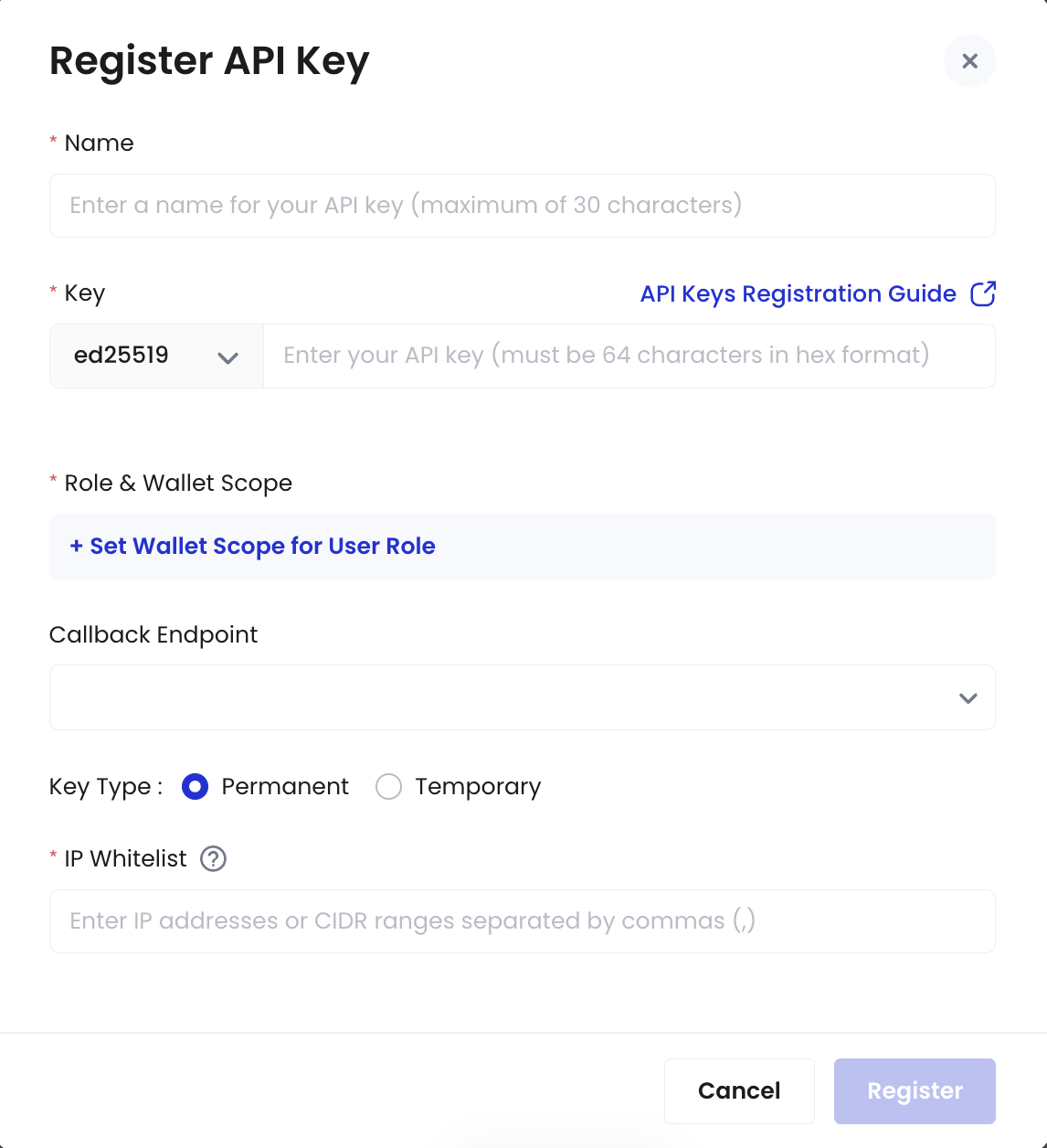 5. Enter the API key name (maximum 30 characters).
6. Enter the API key and select its cryptographic algorithm. The API key is the public key in the cryptographic key pair, and must be 64 characters long, containing only numbers 0 to 9 and alphabets A to F. To learn how to generate an API key using the Ed25519 algorithm, see [Generate an API key and an API secret](https://www.cobo.com/developers/v2/guides/overview/cobo-auth#generate-an-api-key-and-an-api-secret).
7. In the **Role & Wallet Scope** section, click **Set Wallet Scope for User Role** to set user roles for this API key and the wallet scope that the API key can access.
8. Select user roles and wallet scope from the corresponding dropdown lists.
5. Enter the API key name (maximum 30 characters).
6. Enter the API key and select its cryptographic algorithm. The API key is the public key in the cryptographic key pair, and must be 64 characters long, containing only numbers 0 to 9 and alphabets A to F. To learn how to generate an API key using the Ed25519 algorithm, see [Generate an API key and an API secret](https://www.cobo.com/developers/v2/guides/overview/cobo-auth#generate-an-api-key-and-an-api-secret).
7. In the **Role & Wallet Scope** section, click **Set Wallet Scope for User Role** to set user roles for this API key and the wallet scope that the API key can access.
8. Select user roles and wallet scope from the corresponding dropdown lists.
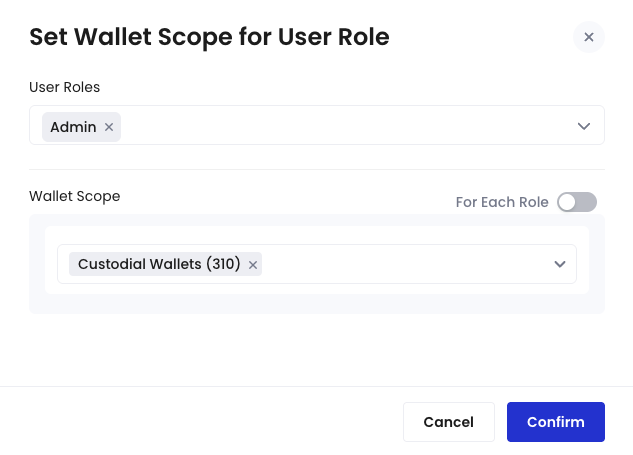 You can click **For Each Role** to select different wallet scope for each user role.
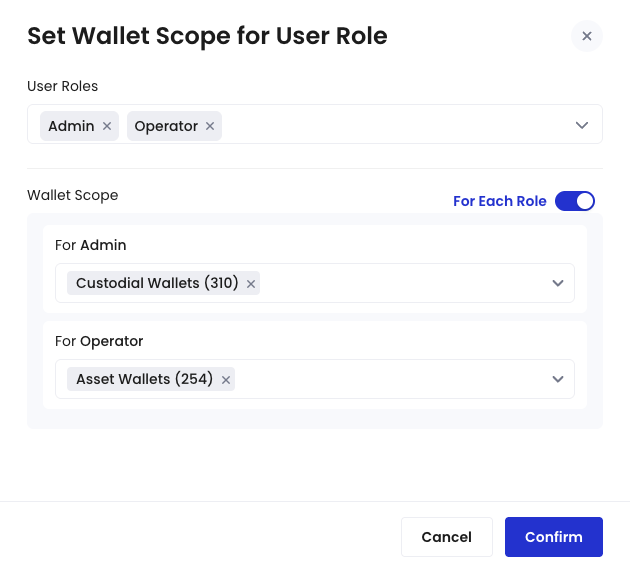 The API key will obtain the permissions listed under the user roles you select and have access to the selected wallets. Assign the wallet scope carefully, and avoid selecting **any type wallet**.
Click **Confirm** to complete the configuration.
9. Select the callback endpoint this API key uses, or register a new one. The selected callback endpoint will receive messages triggered by the API key. For more information, see [Register a callback endpoint](/en/portal/developer-console/callbacks-register).
10. Select the key type.
* **Permanent**: This key type requires IP address whitelisting for enhanced security. You must specify the static IP addresses or CIDR ranges from which API requests will be sent. If you provide multiple entries, separate them with English commas (,).
Avoid using permanent keys for testing with the [API Playground](https://www.cobo.com/developers/v2/api-references/playground), as requests are sent from the API Playground, not your specified IP addresses.
* **Temporary**: A temporary key expires in 30 days. This option is suitable if you do not have a static IP address ready.
11. Follow the instructions on the screen to confirm the registration.
12. In the **Security Verification** dialog, verify your identity using multi-factor authentication (MFA).
The API key will obtain the permissions listed under the user roles you select and have access to the selected wallets. Assign the wallet scope carefully, and avoid selecting **any type wallet**.
Click **Confirm** to complete the configuration.
9. Select the callback endpoint this API key uses, or register a new one. The selected callback endpoint will receive messages triggered by the API key. For more information, see [Register a callback endpoint](/en/portal/developer-console/callbacks-register).
10. Select the key type.
* **Permanent**: This key type requires IP address whitelisting for enhanced security. You must specify the static IP addresses or CIDR ranges from which API requests will be sent. If you provide multiple entries, separate them with English commas (,).
Avoid using permanent keys for testing with the [API Playground](https://www.cobo.com/developers/v2/api-references/playground), as requests are sent from the API Playground, not your specified IP addresses.
* **Temporary**: A temporary key expires in 30 days. This option is suitable if you do not have a static IP address ready.
11. Follow the instructions on the screen to confirm the registration.
12. In the **Security Verification** dialog, verify your identity using multi-factor authentication (MFA).
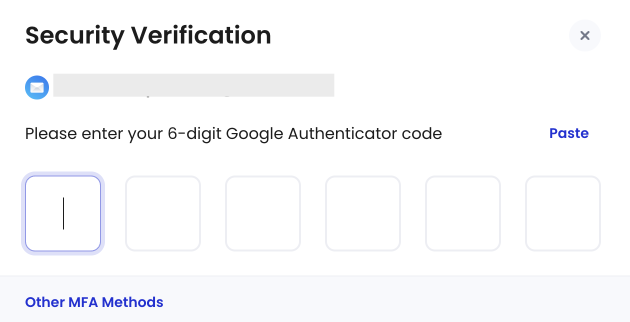 Once identity verification is successful, your API key registration request is submitted.
### Approve the request on Portal Mobile
According to your organization's [governance policies](/en/portal/organization/governance-intro) settings, this request may require approval from a specific number of organization admins in Portal Mobile. You can view the approval rules for registering an API key by clicking your profile avatar in the top-right corner > **Organization** > **Governance Policies** > **Developers**.
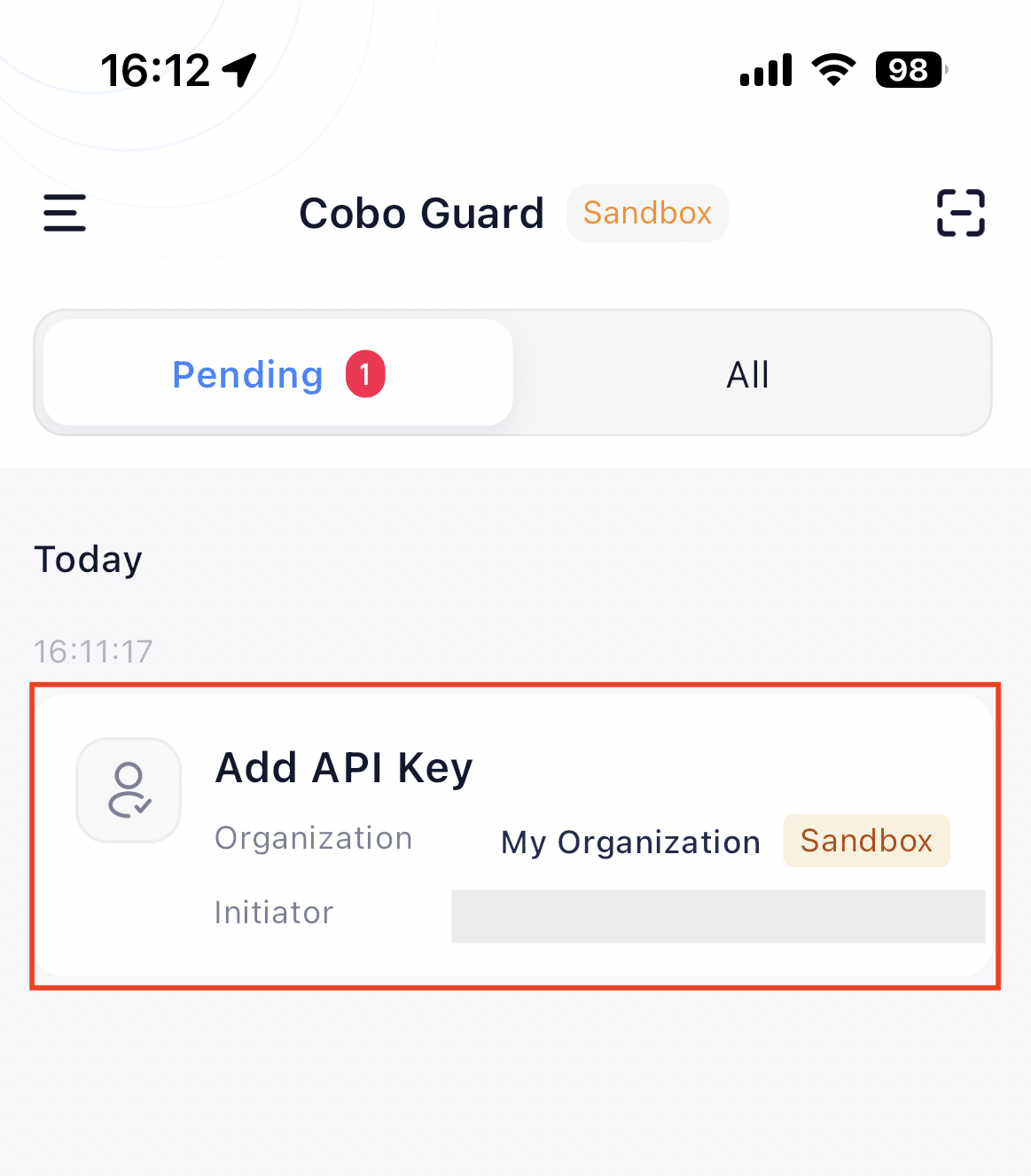
Admins need to open Portal Mobile, find the notification corresponding to the request, and tap **Approve**.
Once identity verification is successful, your API key registration request is submitted.
### Approve the request on Portal Mobile
According to your organization's [governance policies](/en/portal/organization/governance-intro) settings, this request may require approval from a specific number of organization admins in Portal Mobile. You can view the approval rules for registering an API key by clicking your profile avatar in the top-right corner > **Organization** > **Governance Policies** > **Developers**.
Admins need to open Portal Mobile, find the notification corresponding to the request, and tap **Approve**.
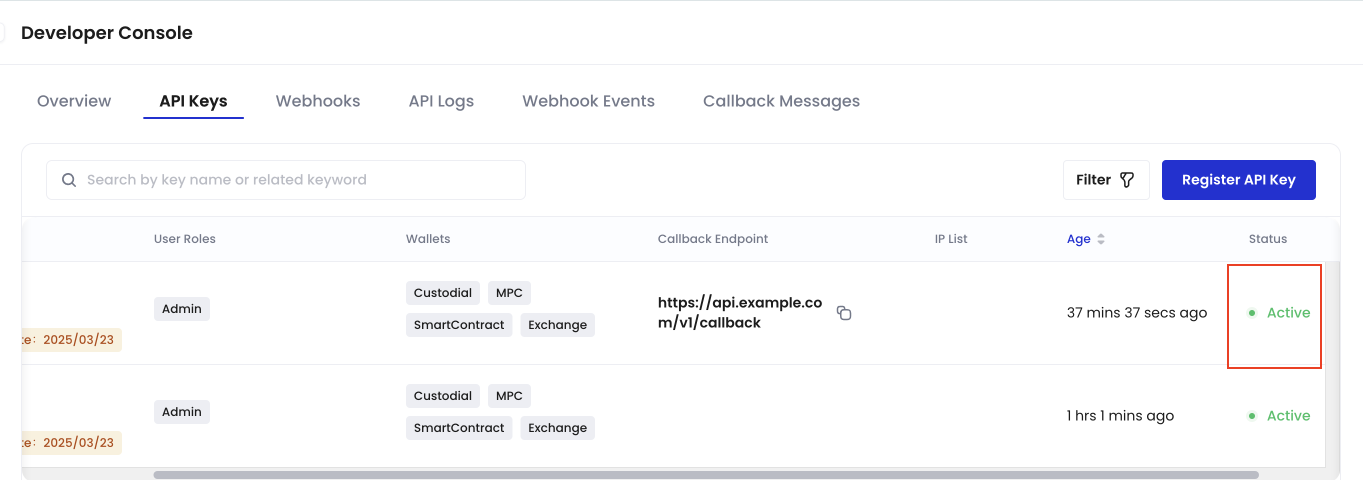
 Once approved, the API key registration is successful, and you will see the API key status change to **Active**.
 ## Next steps
After registering an API key, you can:
* Edit the API key's name or related callback endpoint.
* Revoke the key to disable all future API access associated with it.
* Filter the API key list, for example, by status or type.
API Key status includes:
* Active: The API key is active and work normally.
* Revoked: The API key has been revoked and cannot be used to access the WaaS 2.0 service.
* Pending Approval (Create): The operation of creating the API key has not been approved.
* Pending Approval (Revoke): The operation of revoking the API key has not been approved.
* Pending Approval (Update): The operation of updating the API key has not been approved.
* Search for specific API keys using names or keywords.
## Next steps
After registering an API key, you can:
* Edit the API key's name or related callback endpoint.
* Revoke the key to disable all future API access associated with it.
* Filter the API key list, for example, by status or type.
API Key status includes:
* Active: The API key is active and work normally.
* Revoked: The API key has been revoked and cannot be used to access the WaaS 2.0 service.
* Pending Approval (Create): The operation of creating the API key has not been approved.
* Pending Approval (Revoke): The operation of revoking the API key has not been approved.
* Pending Approval (Update): The operation of updating the API key has not been approved.
* Search for specific API keys using names or keywords.