> ## Documentation Index
> Fetch the complete documentation index at: https://manuals.cobo.com/llms.txt
> Use this file to discover all available pages before exploring further.
# Manage your bills
> Understand how to manage your bills in Cobo, including viewing, settling, and handling overage charges effectively.
Every pricing plan has its billing cycle starting from the day of purchase, and a bill is generated at the end of the billing cycle.
Your total amount payable is composed of three parts:
* The costs of pricing plans you have purchased.
* The costs of add-on packages you have purchased.
* Overage charges for any usage not covered by the pricing plans and add-on packages.
It is important to settle your bill within 14 days from the date it is generated. Failure to do so may result in the suspension of your service. If you have set up automatic renewal for a pricing plan, the corresponding bill will be settled automatically.
## View your bills
To view your bills, follow the steps below:
1. Log into [Cobo Portal](https://portal.cobo.com/login).
2. Click your profile avatar in the top-right corner, and choose **Pricing Plans**.
3. Click **Bills** tab.
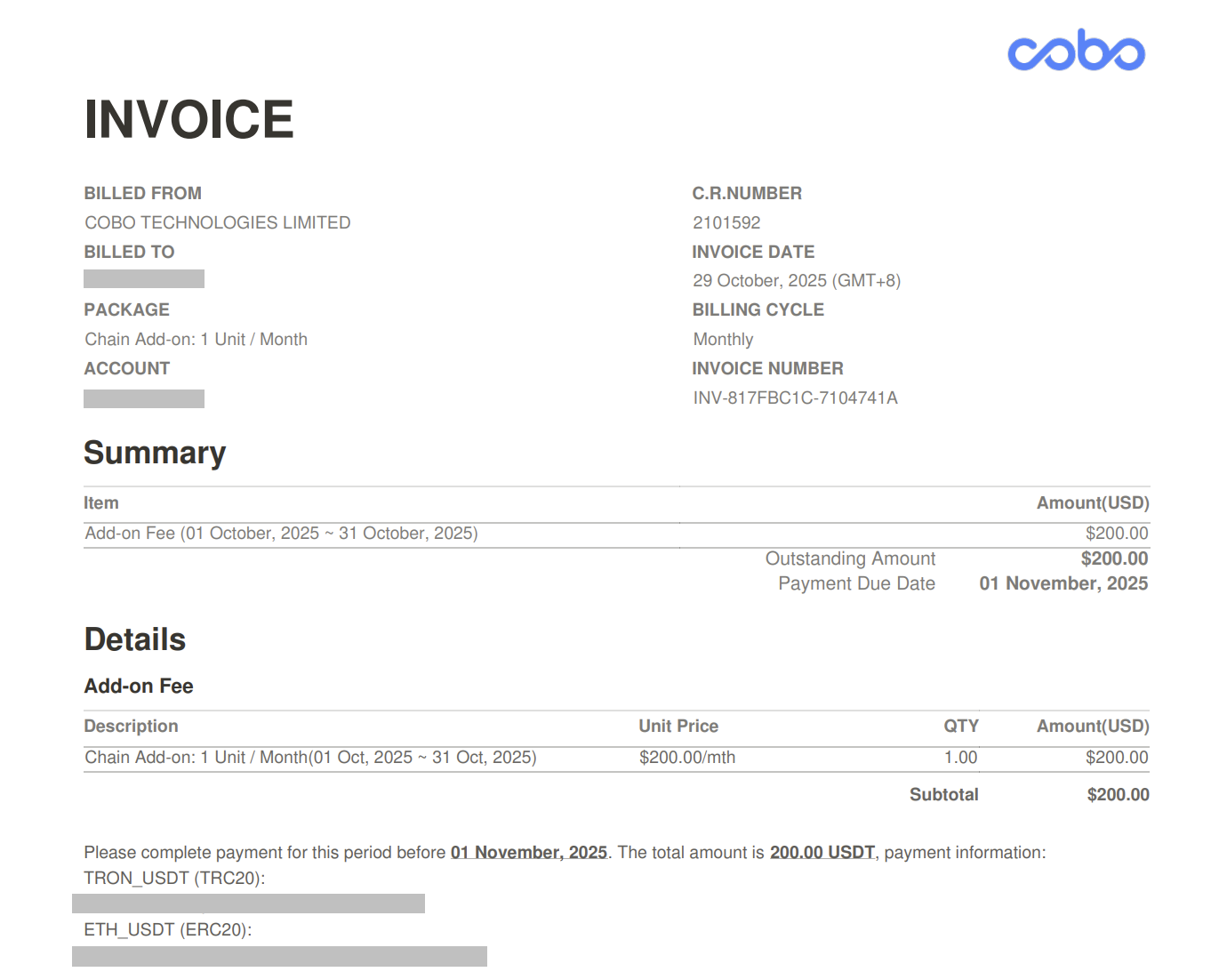
4. Click the view icon  to view the bill details in a PDF file, which includes a payment link.
 ## Pay your bills
To manually pay your bills, follow the steps below:
1. Log into [Cobo Portal](https://portal.cobo.com/login).
2. Click your profile avatar in the top-right corner, and choose **Pricing Plans**.
3. Click **Bills** tab.
4. Navigate to the bill you want to pay and click the
## Pay your bills
To manually pay your bills, follow the steps below:
1. Log into [Cobo Portal](https://portal.cobo.com/login).
2. Click your profile avatar in the top-right corner, and choose **Pricing Plans**.
3. Click **Bills** tab.
4. Navigate to the bill you want to pay and click the  icon.
5. Review the bill information and click **Pay**.
6. In the **Payment Details** dialog, you can use Fee Station to complete the payment. For more details, refer to [Fee Station](/en/portal/fee-station/introduction).
## Add a billing email
You can add new email addresses as billing emails at any time. To do so, follow the steps below:
1. Log into [Cobo Portal](https://portal.cobo.com/login).
2. Click your profile avatar in the top-right corner, and choose **Pricing Plans**.
3. Click **Bills** tab.
4. Click **Bill Management** on the top right, and then click **Add Emails**.
5. Enter your email address, and then click **Confirm**.
icon.
5. Review the bill information and click **Pay**.
6. In the **Payment Details** dialog, you can use Fee Station to complete the payment. For more details, refer to [Fee Station](/en/portal/fee-station/introduction).
## Add a billing email
You can add new email addresses as billing emails at any time. To do so, follow the steps below:
1. Log into [Cobo Portal](https://portal.cobo.com/login).
2. Click your profile avatar in the top-right corner, and choose **Pricing Plans**.
3. Click **Bills** tab.
4. Click **Bill Management** on the top right, and then click **Add Emails**.
5. Enter your email address, and then click **Confirm**.