> ## Documentation Index
> Fetch the complete documentation index at: https://manuals.cobo.com/llms.txt
> Use this file to discover all available pages before exploring further.
# Generate and back up your key shares
> Learn to generate and back up key shares securely with Cobo Guard, ensuring your digital assets are protected during device changes.
To demonstrate how Cobo Guard functions as a key share manager, this section guides you through the key share generation and backup processes from the perspective of a key share holder operating on a Cobo Guard app.
The key share generation process is initiated on the Cobo Portal by an Admin. The members selected by the Admin as key share holders will receive a notification on their Cobo Guard apps to become key share holders. All selected members must confirm to become key share holders before the key generation process can start.
After the key shares have been generated, key share holders can back up their key shares to iCloud using Cobo Guard. During the backup process, the key shares are encrypted, and a recovery passphrase is set to ensure security when restoring the backup from iCloud. This backup can be particularly useful in situations such as device loss or replacement.
Before starting the operation, we recommend watching the 2-minute video below to build a basic understanding of key shares and backups, including why key shares and their backups are critical and the key requirements for correct backups. This will help you avoid asset risks caused by misoperations.
After that, please follow the steps in this document to complete the operations.
## Generate your key share
The key share generation process is initiated by Admins on the Cobo Portal. Key shares jointly form keys, and there are three types of keys: Main Key, Signing Key, and Recovery Key. We will use the Main Key to illustrate the process.
1. On the Cobo Portal, the Admin navigates to **MPC Wallets**, selects the target vault, and clicks **Create Main Key**.
2. In the pop-up window, the Admin selects members to become key share holders.
Selected members' Cobo Guard must already be linked to the Admin’s organization for them to be eligible for selection as a key share holder.
3. Once the Admin submits the Main Key creation request, selected members will be notified on their Cobo Guard. Simply tap the **1 key share needs to be generated** banner.
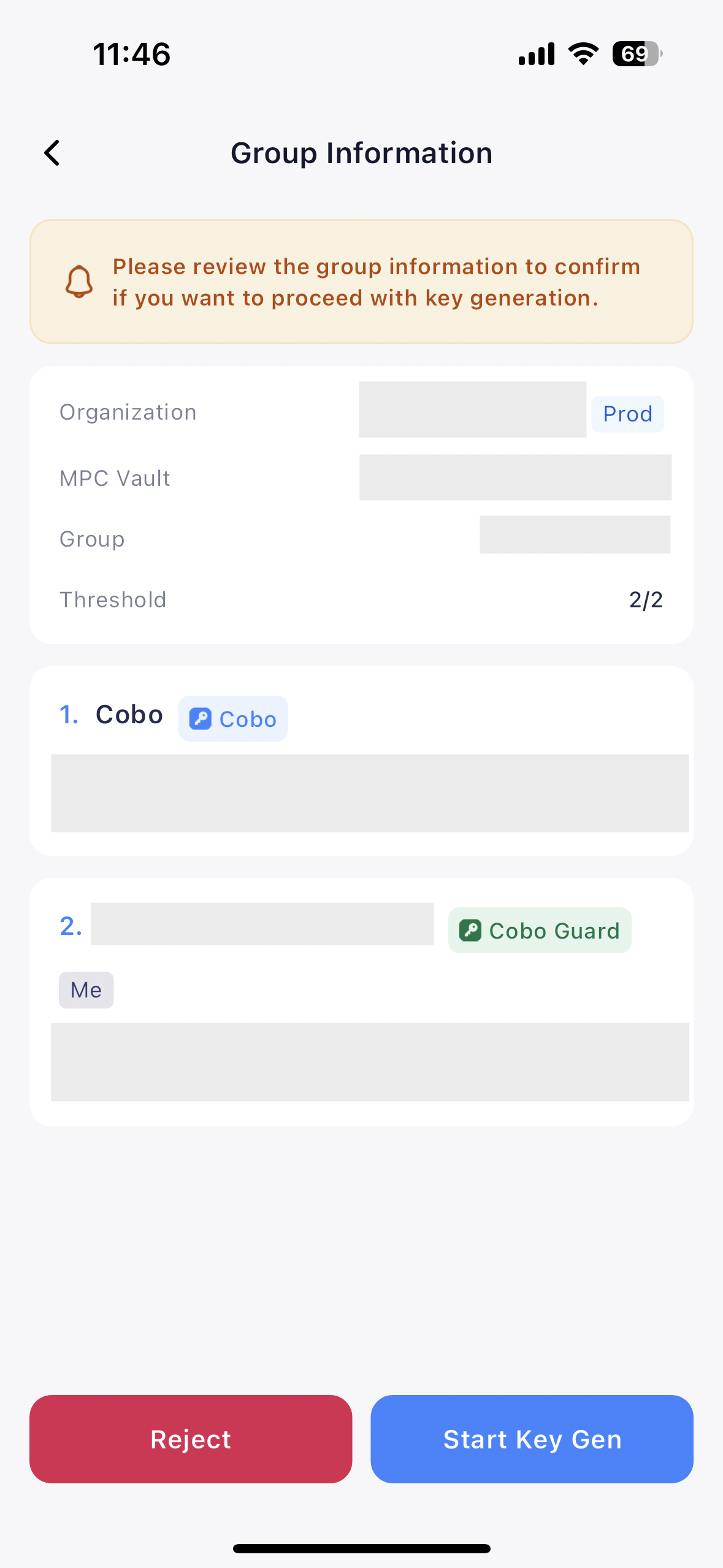
4. On the **Group Information** page, review the key share generation request, and tap **Start Key Gen** to start generating the key share.
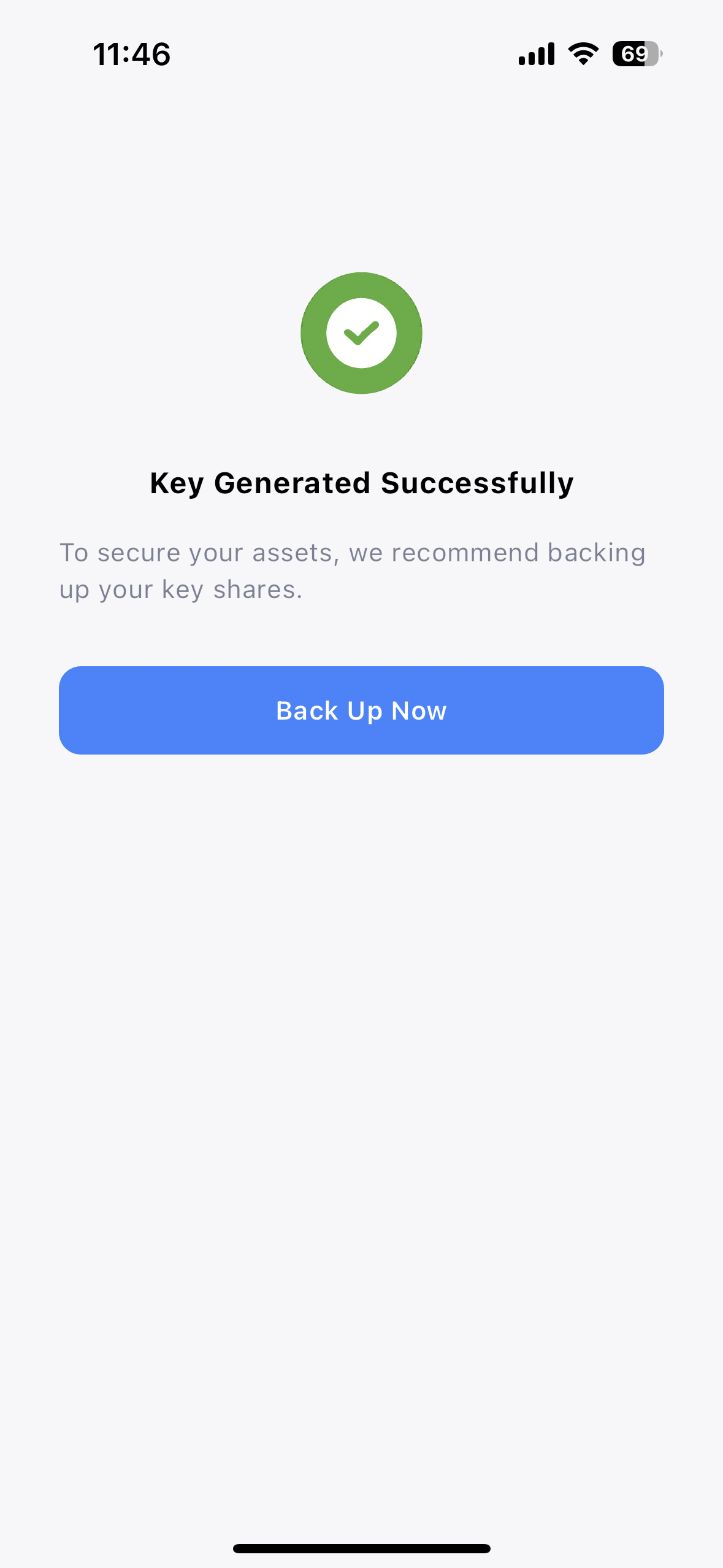
5. The process takes about 30 seconds. When you see the **Key Generated Successfully** message, tap **Back Up Now**.
6. Tap **Start** to [back up the key share now](#back-up-your-key-share).
## Back up your key share
1. Return to the home screen of Cobo Guard. Access My Accounts by tapping and then **My Accounts**.
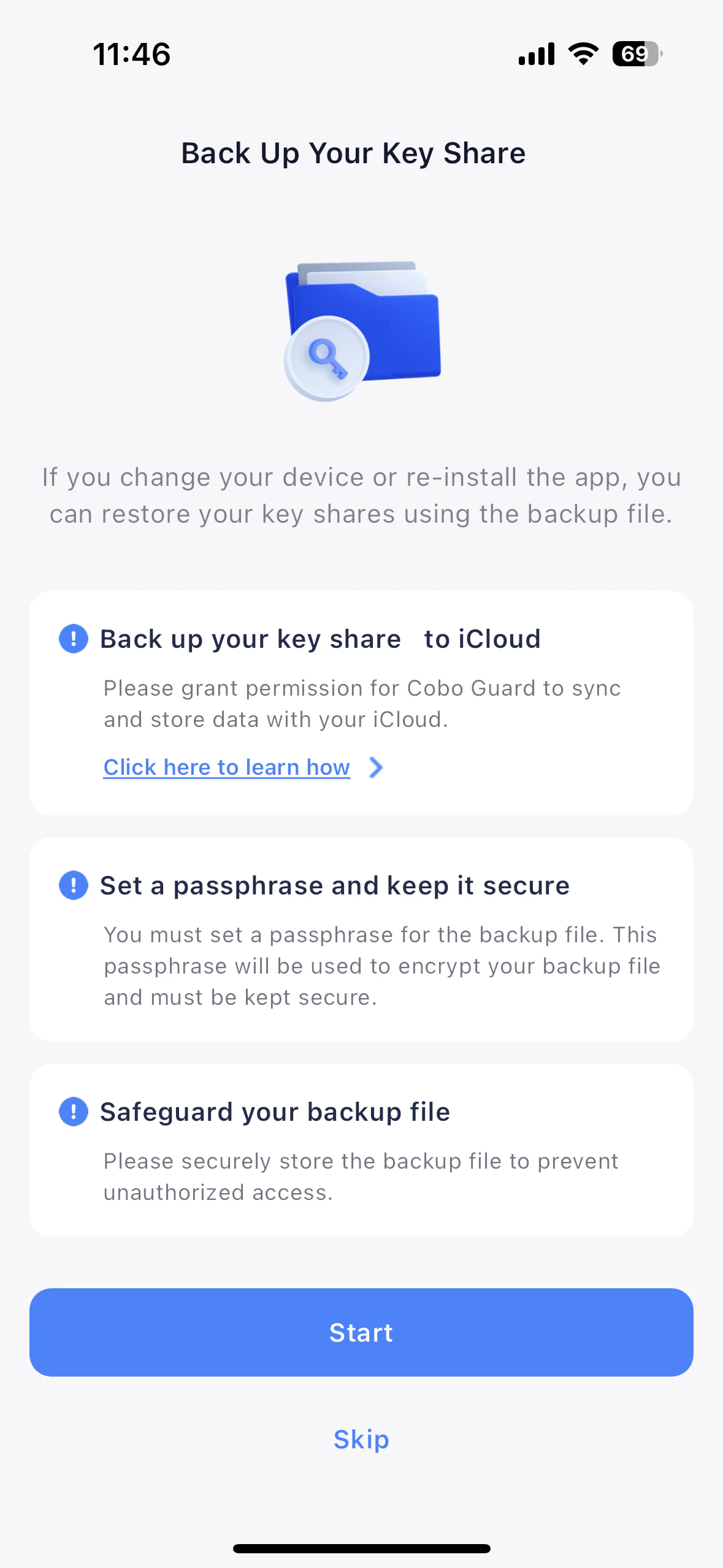
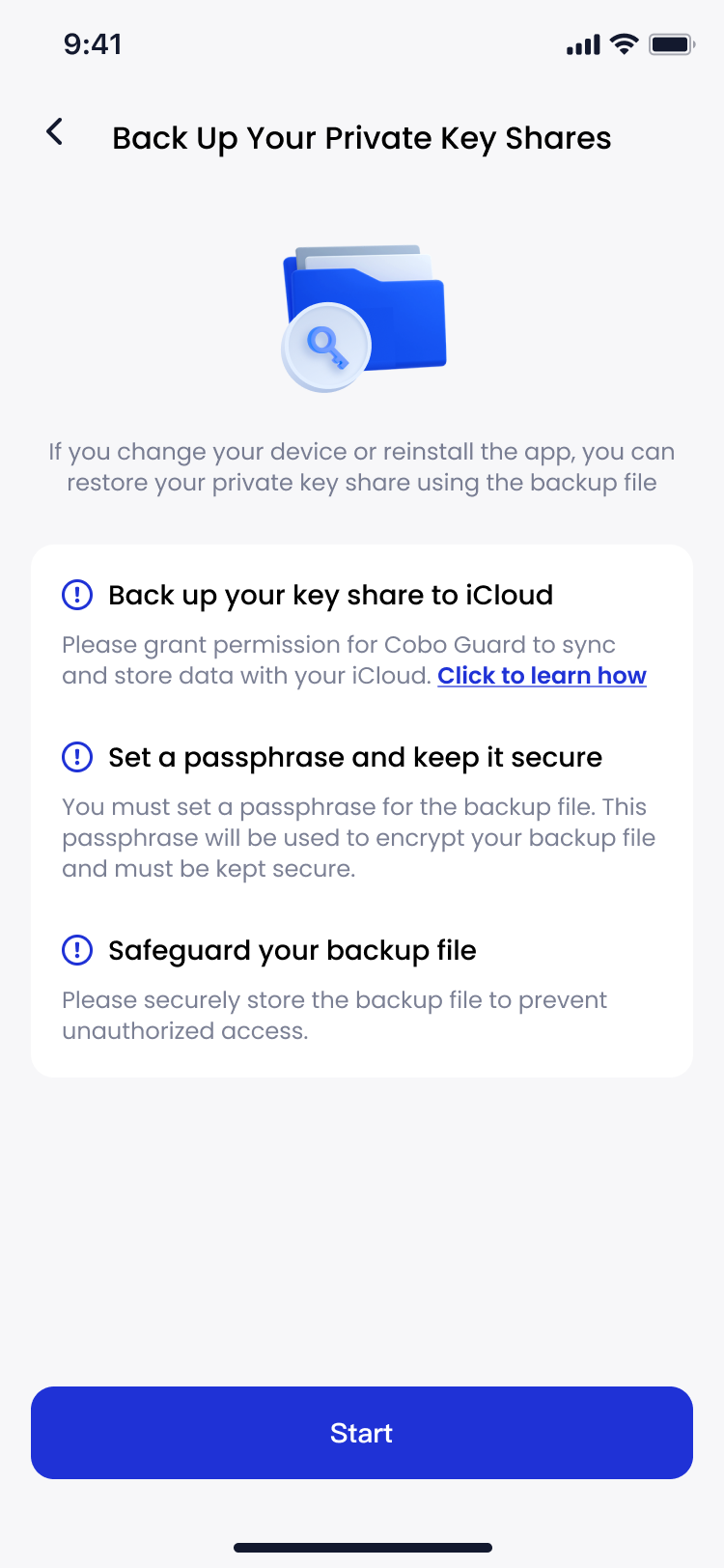
2. Tap the icon on the upper right corner to enter the **Back Up Your Private Key Share** screen.
If you have recently generated a key share, you can also tap **Back Up Now** instead.
3. On the **Back Up Your Private Key Share** screen, tap **Start**, then authenticate yourself using Face ID.
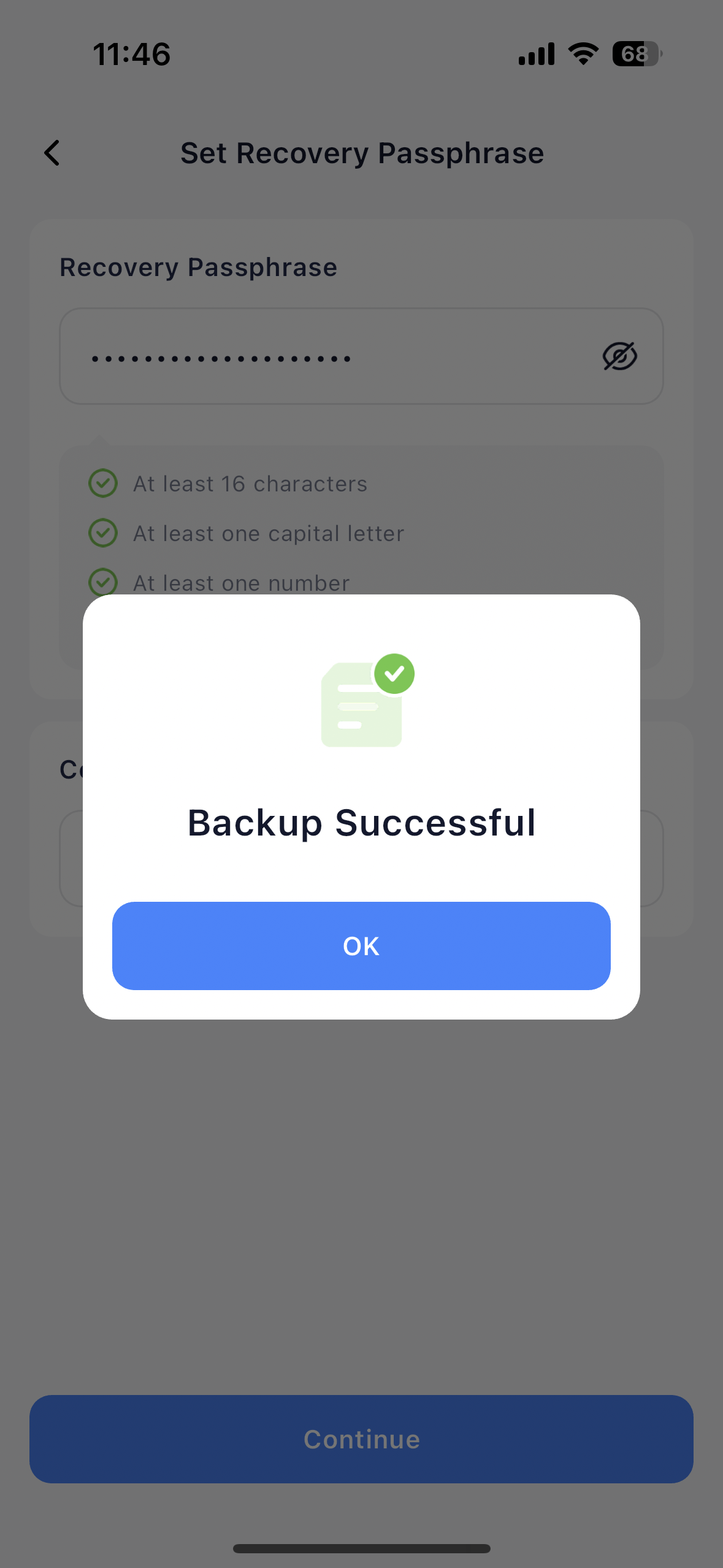
4. On the **Set Recovery Passphrase** screen, set a recovery passphrase that will grant access to your backup when restoring your key share from iCloud, then tap **Continue**.
Please save the passphrase securely; losing it will prevent you from restoring your key share.
5. On the **Backup Successful** dialog, tap **OK** to complete the backup process.
You can find the backup file on your phone by navigating to **Files** > **iCloud Drive** > **Cobo Guard** > **Backup** folder. The file name starts with `recovery-secrets-cobo`.
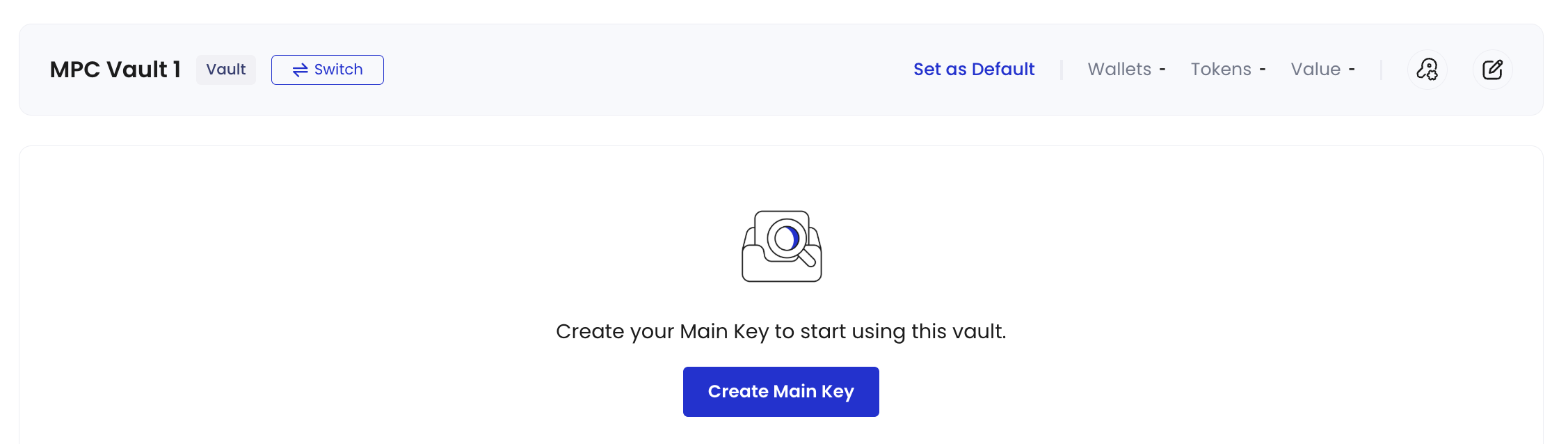 2. In the pop-up window, the Admin selects members to become key share holders.
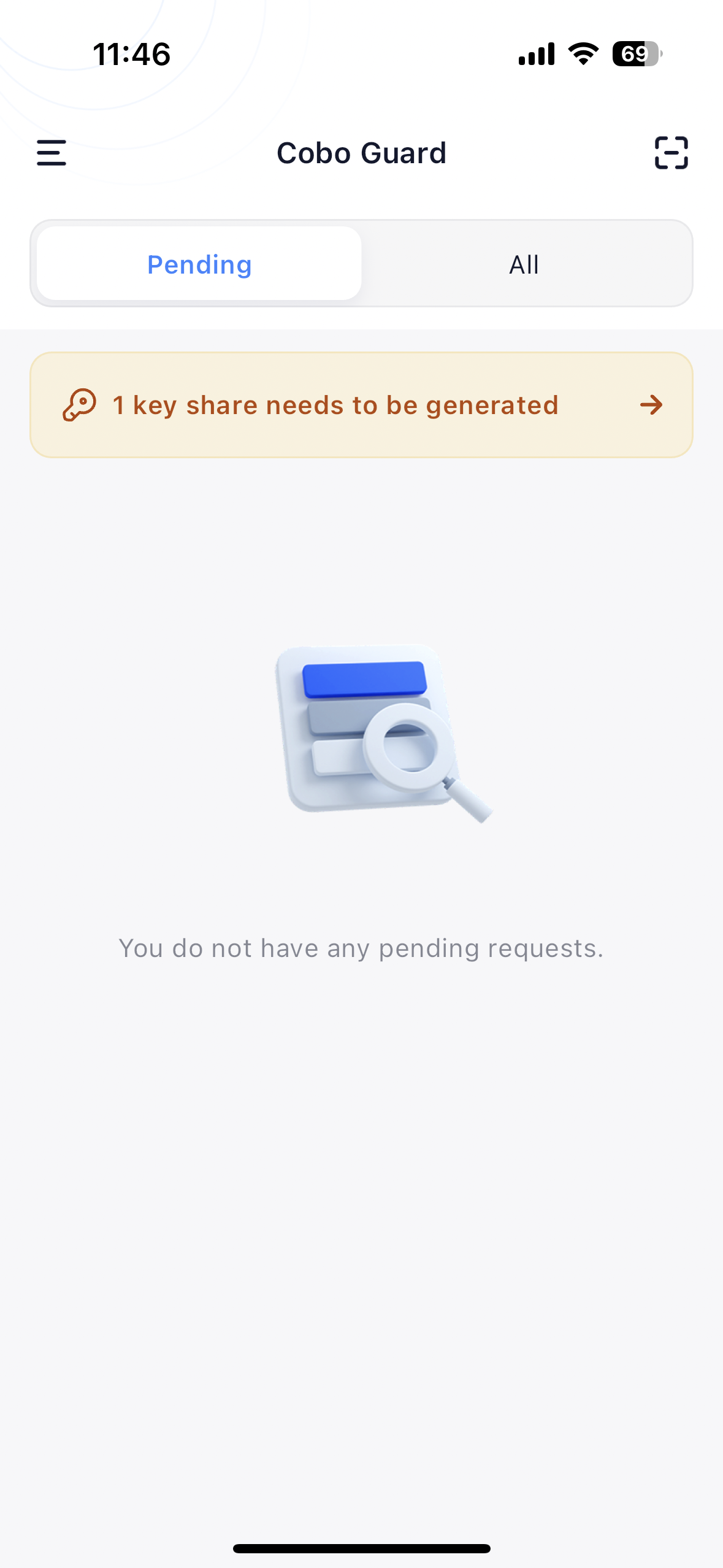 4. On the **Group Information** page, review the key share generation request, and tap **Start Key Gen** to start generating the key share.
 5. The process takes about 30 seconds. When you see the **Key Generated Successfully** message, tap **Back Up Now**.
 6. Tap **Start** to [back up the key share now](#back-up-your-key-share).
 ## Back up your key share
1. Return to the home screen of Cobo Guard. Access My Accounts by tapping
## Back up your key share
1. Return to the home screen of Cobo Guard. Access My Accounts by tapping  and then
  **My Accounts**.
2. Tap the
**My Accounts**.
2. Tap the  icon on the upper right corner to enter the **Back Up Your Private Key Share** screen.
 4. On the **Set Recovery Passphrase** screen, set a recovery passphrase that will grant access to your backup when restoring your key share from iCloud, then tap **Continue**.
 You can find the backup file on your phone by navigating to **Files** > **iCloud Drive** > **Cobo Guard** > **Backup** folder. The file name starts with `recovery-secrets-cobo`.