> ## Documentation Index
> Fetch the complete documentation index at: https://manuals.cobo.com/llms.txt
> Use this file to discover all available pages before exploring further.
# View and update approval workflows
This article describes how to view and update approval workflows of Cobo Portal Apps.
## Context
In the context of Cobo Portal Apps, an approval workflow consists of specific operations on the app that will trigger certain approval rules. For example, if you make a batch payout in the [Batch Payout](/en/apps/batch-payouts/introduction) app, you might trigger an approval workflow in which the batch payout requires approval from organization admin, the payout request will be in the Pending Approval status until the admin approves or rejects.
When you install an app, the app will be automatically configured with default approval workflows, which is defined in the [app manifest file](https://www.cobo.com/developers/v2/apps/build-app#configure-the-manifest-file) by app developers.
## Prerequisites
You have been assigned the [Admin](/en/portal/organization/roles-and-permissions) role or a role with equivalent permissions.
## Steps
1. Log into [Cobo Portal](https://portal.cobo.com/login).
2. Click **Apps** in the left sidebar to open the **Apps** page.
3. In the **All Apps** section or the **Installed Apps** section, click  on an app to open the **App Management** page.
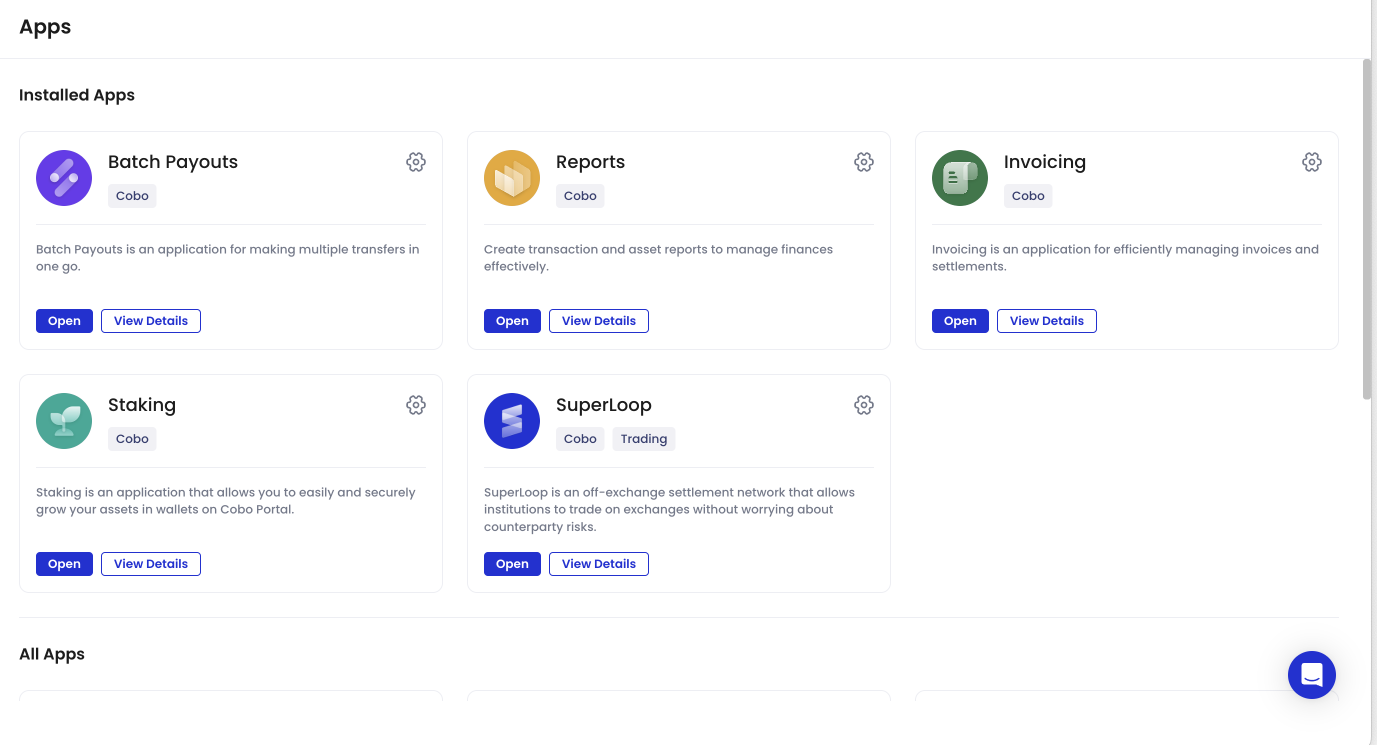 4. On the **App Management** page, switch to the **Workflow** tab.
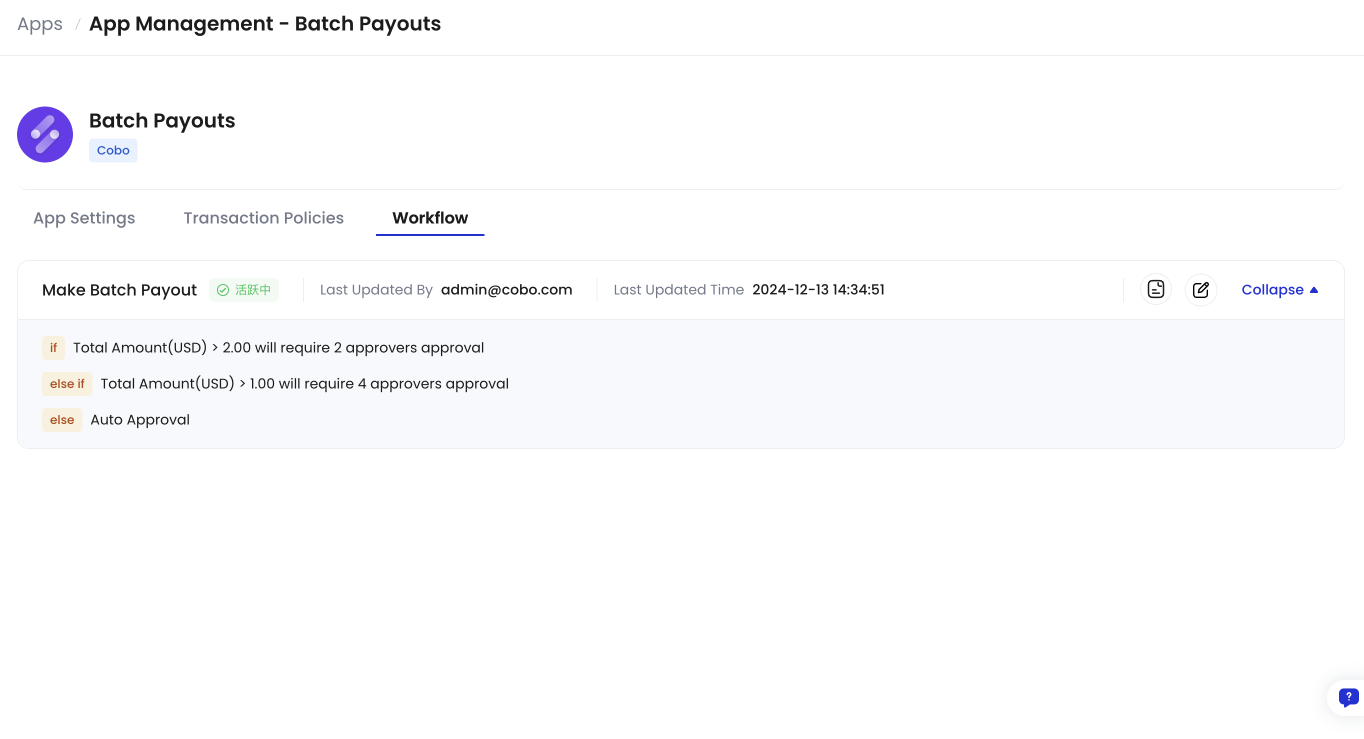 Now you can view the default approval workflows that apply to this app.
The tab will be invisible if the app does not have any default approval workflow.
5. To view the instances of an approval workflow (the operations that triggers the approval workflow), click the history icon
Now you can view the default approval workflows that apply to this app.
The tab will be invisible if the app does not have any default approval workflow.
5. To view the instances of an approval workflow (the operations that triggers the approval workflow), click the history icon  to display the **Approval History** dialog.
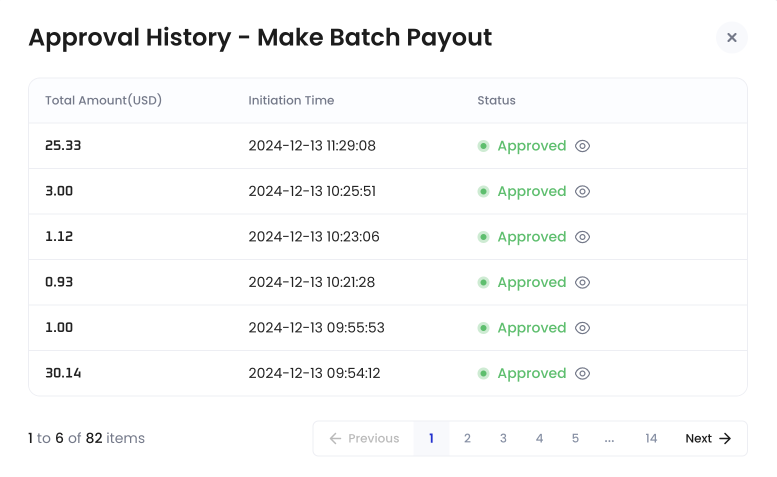 6. To update an approval workflow, click the
  icon on the **Workflows** tab to open the **Edit Approval Workflow** dialog.
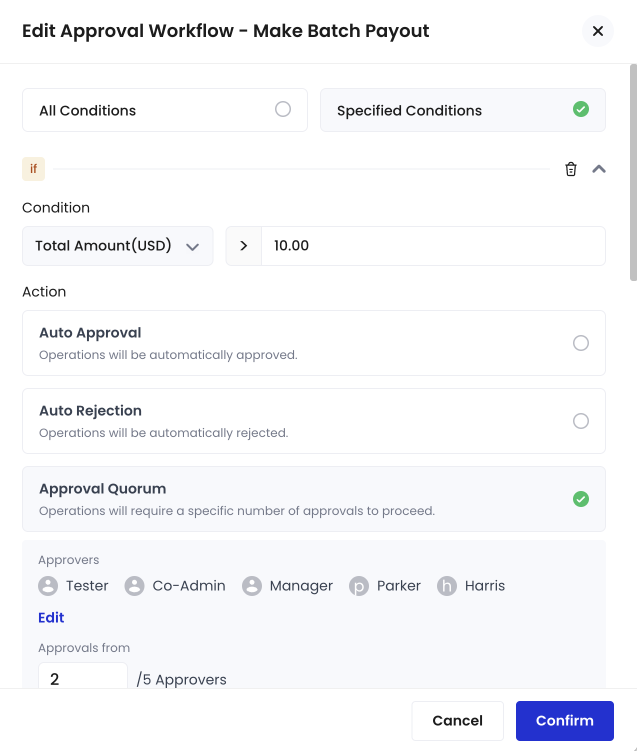 7. In the **Edit Approval Workflow** dialog, you can update the trigger condition and the triggered action, and click **Confirm** to proceed.
8. Enter the verification code from your Portal Mobile or other MFA methods to approve the workflow changes.
## Next steps
Now the approval workflow's status becomes **Pending Approval**. This is because change approval workflows, similar to other operations in Cobo Portal, will be subject to [Governance policies](/en/portal/risk-controls/governance-policies), which means the changes might require approval from your organization admin. After the approval, the approval workflow's status will change to **Active**, and will apply to all the operations that trigger the approval workflow.
You can edit the related governance policies in the **Organization** > **Governance Policies** > **Organization** > **Change App Permissions and Settings**.
7. In the **Edit Approval Workflow** dialog, you can update the trigger condition and the triggered action, and click **Confirm** to proceed.
8. Enter the verification code from your Portal Mobile or other MFA methods to approve the workflow changes.
## Next steps
Now the approval workflow's status becomes **Pending Approval**. This is because change approval workflows, similar to other operations in Cobo Portal, will be subject to [Governance policies](/en/portal/risk-controls/governance-policies), which means the changes might require approval from your organization admin. After the approval, the approval workflow's status will change to **Active**, and will apply to all the operations that trigger the approval workflow.
You can edit the related governance policies in the **Organization** > **Governance Policies** > **Organization** > **Change App Permissions and Settings**.