> ## Documentation Index
> Fetch the complete documentation index at: https://manuals.cobo.com/llms.txt
> Use this file to discover all available pages before exploring further.
# Manage an exchange account
> Learn how to manage your exchange accounts in SuperLoop, including accessing account features and information.
To manage an exchange account, click **Apps** in the left sidebar of Cobo Portal, find **SuperLoop**, and click **Open**. Then, click **Manage**  under **Action** on the targeted exchange account to access the exchange account management page as shown below.
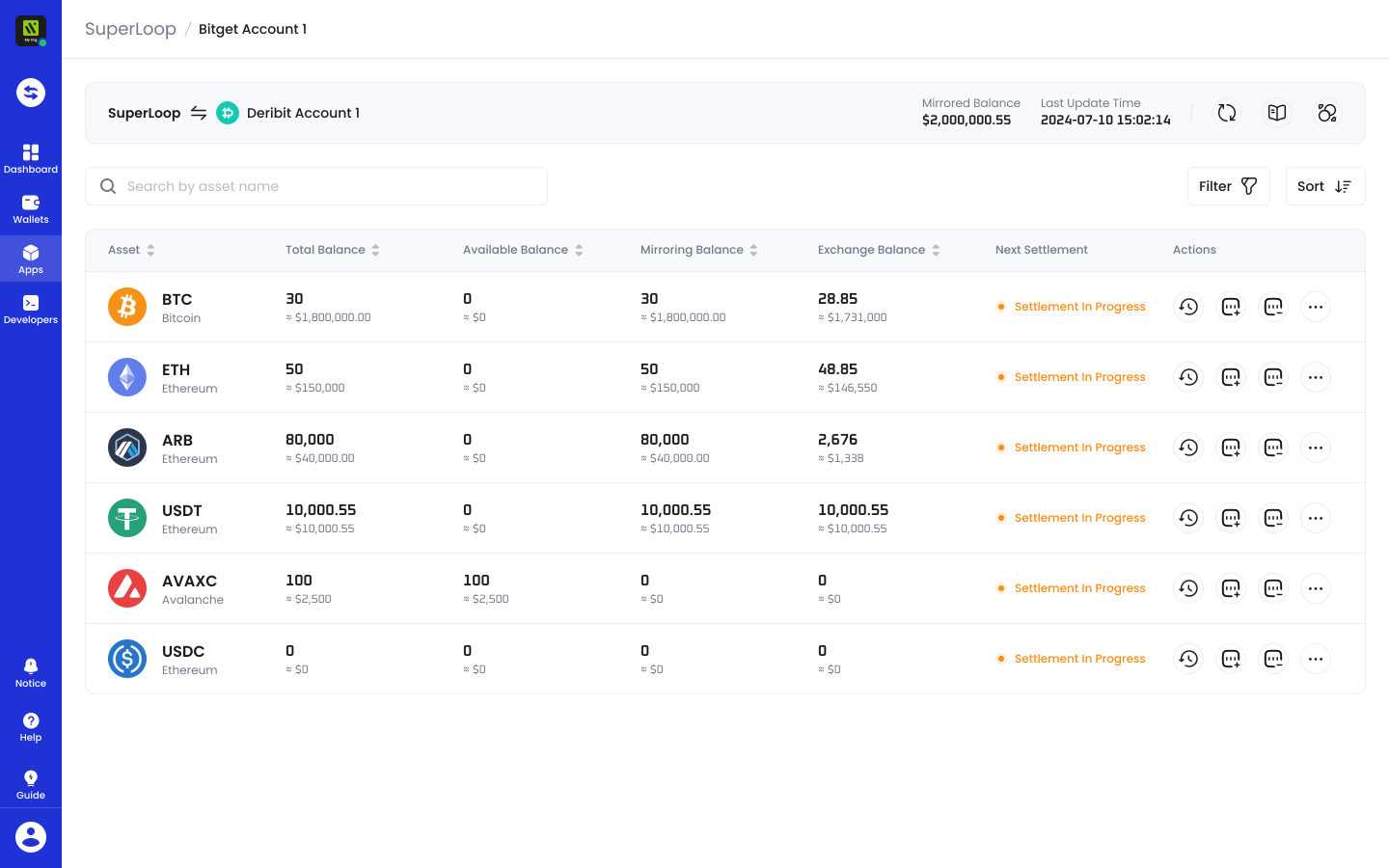 On the exchange account page, you will find features and information relevant to this exchange account, such as **Mirrored Balance**, **Last Update Time**, **Refresh**
  , **Settlement Details**
  , **Settlement History**
  , a search bar, **Filter**, **Sort**, **Asset** name, **Total Balance**, **Available Balance**, **Mirroring Balance**, **Exchange Balance**, **Next Settlement** time and status, **Action History**
  , **Mirror**
  , **Un-mirror**
  , **Incoming Settlement Method**
  (under
  ), and **Withdraw**
  (under ).
**Notes:**
* **Mirrored Balance** is the total amount of all mirrored assets in the current exchange account.
* **Settlement Details** allow you to see settlement details of the linked exchange, such as **Settlement Model**, **Settlement Time**, **Settlement Detail**, **Outgoing Settlement**, and **Incoming Settlement**.
* **Settlement History** displays details of all settlement history related to this exchange account such as **Settlement Time**, **Direction** (Incoming or Outgoing), **Settlement Method**, **Settlement Amount, Designated Wallet & Address**, and **Settlement Transaction Fee**.
* **Action History** displays a history of your mirroring, un-mirroring, and withdrawal details such as **Created Time**, **Type** (Mirror, Un-mirror, or Withdraw), **Amount**, **Designated Wallet & Address**, **Status**, and **Initiator**.
* **Total Balance** is the exchange account's total balance of assets in SuperLoop, including funds locked in mirroring and available balance.
* **Available Balance** is the exchange account's available balance of assets in SuperLoop, which is the total asset balance minus the mirrored amount. Any amount held by SuperLoop as available balance after settlement can be mirrored or withdrawn to your [Custodial Wallets](/en/portal/custodial-wallets/introduction) or [MPC Wallets](/en/portal/mpc-wallets/introduction).
* **Mirroring Balance** - The total balance of assets currently mirrored in the exchange account.
* **Exchange Balance** - The total balance as reported by the exchange account.
* **Mirror** allows you to choose a [Custodial Wallets](/en/portal/custodial-wallets/introduction), [MPC Wallets (Organization-Controlled Wallets)](/en/portal/mpc-wallets/ocw/introduction), or available balance in SuperLoop as the source to transfer funds into SuperLoop, which will then be mirrored to the exchanges and become available to trade after the exchanges have confirmed the funds. To mirror funds, choose an **Asset**, **Resource Wallet & Address**, and **Mirror Amount**, then click **Confirm**. Note that you won't be able to mirror funds if you have a negative balance in the [Fee Reserve](/en/apps/superloop/manage-fee-reserve).
* **Un-mirror** allows you to un-mirror funds already mirrored in the exchanges. The un-mirrored funds will show up as **Available Balance** and be kept in SuperLoop. To un-mirror funds, choose an **Asset** and an **Un-mirror Amount**, then click **Confirm**.
* **Withdraw** allows you to withdraw funds from SuperLoop to your [Custodial Wallets](/en/portal/custodial-wallets/introduction) or [MPC Wallets](/en/portal/mpc-wallets/introduction). Any incurred on-chain transaction fees will be deducted from your [Fee Reserve](/en/apps/superloop/manage-fee-reserve). The withdrawn amount will be deducted from the **Available Balance** in SuperLoop. Note that you will not be able to initiate a withdrawal if you have a negative balance in the Fee Reserve. To make a withdrawal, choose an **Asset**, **Destinated Address,** and **Withdraw Amount**, then click **Confirm**.
* **Incoming Settlement Method** allows you to choose an **Asset** and an **Incoming Settlement Method**. For **Incoming Settlement Method**, there are two options:
* If you choose **Leave in SuperLoop**, any amount SuperLoop receives from the exchanges after settlement will be kept in SuperLoop as **Available Balance**. You can then choose to withdraw or mirror the funds.
* If you choose **Auto Transfer**, any amount SuperLoop receives from the exchanges after settlement will be automatically transferred to your designated Custodial or MPC Wallets.
(under ).
**Notes:**
* **Mirrored Balance** is the total amount of all mirrored assets in the current exchange account.
* **Settlement Details** allow you to see settlement details of the linked exchange, such as **Settlement Model**, **Settlement Time**, **Settlement Detail**, **Outgoing Settlement**, and **Incoming Settlement**.
* **Settlement History** displays details of all settlement history related to this exchange account such as **Settlement Time**, **Direction** (Incoming or Outgoing), **Settlement Method**, **Settlement Amount, Designated Wallet & Address**, and **Settlement Transaction Fee**.
* **Action History** displays a history of your mirroring, un-mirroring, and withdrawal details such as **Created Time**, **Type** (Mirror, Un-mirror, or Withdraw), **Amount**, **Designated Wallet & Address**, **Status**, and **Initiator**.
* **Total Balance** is the exchange account's total balance of assets in SuperLoop, including funds locked in mirroring and available balance.
* **Available Balance** is the exchange account's available balance of assets in SuperLoop, which is the total asset balance minus the mirrored amount. Any amount held by SuperLoop as available balance after settlement can be mirrored or withdrawn to your [Custodial Wallets](/en/portal/custodial-wallets/introduction) or [MPC Wallets](/en/portal/mpc-wallets/introduction).
* **Mirroring Balance** - The total balance of assets currently mirrored in the exchange account.
* **Exchange Balance** - The total balance as reported by the exchange account.
* **Mirror** allows you to choose a [Custodial Wallets](/en/portal/custodial-wallets/introduction), [MPC Wallets (Organization-Controlled Wallets)](/en/portal/mpc-wallets/ocw/introduction), or available balance in SuperLoop as the source to transfer funds into SuperLoop, which will then be mirrored to the exchanges and become available to trade after the exchanges have confirmed the funds. To mirror funds, choose an **Asset**, **Resource Wallet & Address**, and **Mirror Amount**, then click **Confirm**. Note that you won't be able to mirror funds if you have a negative balance in the [Fee Reserve](/en/apps/superloop/manage-fee-reserve).
* **Un-mirror** allows you to un-mirror funds already mirrored in the exchanges. The un-mirrored funds will show up as **Available Balance** and be kept in SuperLoop. To un-mirror funds, choose an **Asset** and an **Un-mirror Amount**, then click **Confirm**.
* **Withdraw** allows you to withdraw funds from SuperLoop to your [Custodial Wallets](/en/portal/custodial-wallets/introduction) or [MPC Wallets](/en/portal/mpc-wallets/introduction). Any incurred on-chain transaction fees will be deducted from your [Fee Reserve](/en/apps/superloop/manage-fee-reserve). The withdrawn amount will be deducted from the **Available Balance** in SuperLoop. Note that you will not be able to initiate a withdrawal if you have a negative balance in the Fee Reserve. To make a withdrawal, choose an **Asset**, **Destinated Address,** and **Withdraw Amount**, then click **Confirm**.
* **Incoming Settlement Method** allows you to choose an **Asset** and an **Incoming Settlement Method**. For **Incoming Settlement Method**, there are two options:
* If you choose **Leave in SuperLoop**, any amount SuperLoop receives from the exchanges after settlement will be kept in SuperLoop as **Available Balance**. You can then choose to withdraw or mirror the funds.
* If you choose **Auto Transfer**, any amount SuperLoop receives from the exchanges after settlement will be automatically transferred to your designated Custodial or MPC Wallets.