> ## Documentation Index
> Fetch the complete documentation index at: https://manuals.cobo.com/llms.txt
> Use this file to discover all available pages before exploring further.
# Generate and share reports
> Learn how to generate reports and securely share them.
## Transaction Reports
1. Log into [Cobo Portal](https://portal.cobo.com/login).
2. Click  , find Reports, then click **Open**.
3. Make sure you're on the **Transactions** tab.
, find Reports, then click **Open**.
3. Make sure you're on the **Transactions** tab.
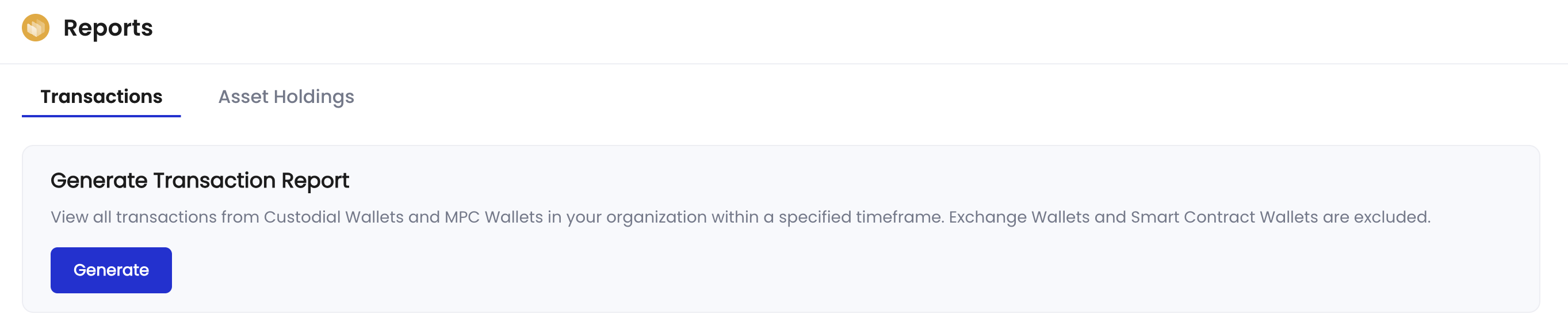 4. Click **Generate** to open the report configuration window.
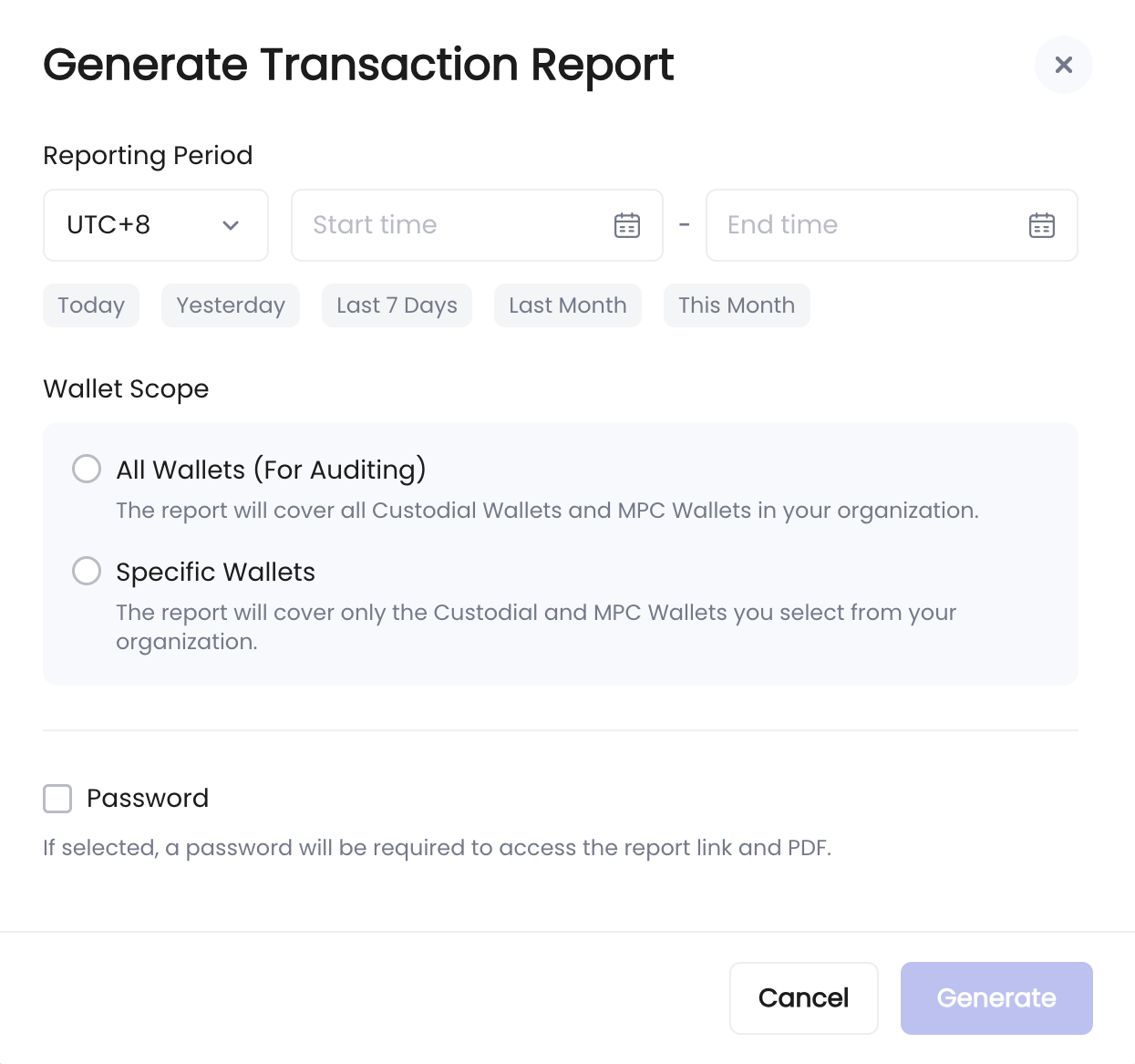 1. Set the **Reporting Period**:
* Choose a timezone (for example, UTC+8)
* Set the timeframe (for example, from 2024-09-09 13:00 to 2024-09-10 15:00)
2. Specify the **Wallet Scope**:
* Select all wallets for auditing purposes, or
* Select one or more specific wallets
3. Check the **Password** box if you want to enable password protection.
4. Click **Generate** to create the report. Sample transaction report:
1. Set the **Reporting Period**:
* Choose a timezone (for example, UTC+8)
* Set the timeframe (for example, from 2024-09-09 13:00 to 2024-09-10 15:00)
2. Specify the **Wallet Scope**:
* Select all wallets for auditing purposes, or
* Select one or more specific wallets
3. Check the **Password** box if you want to enable password protection.
4. Click **Generate** to create the report. Sample transaction report:
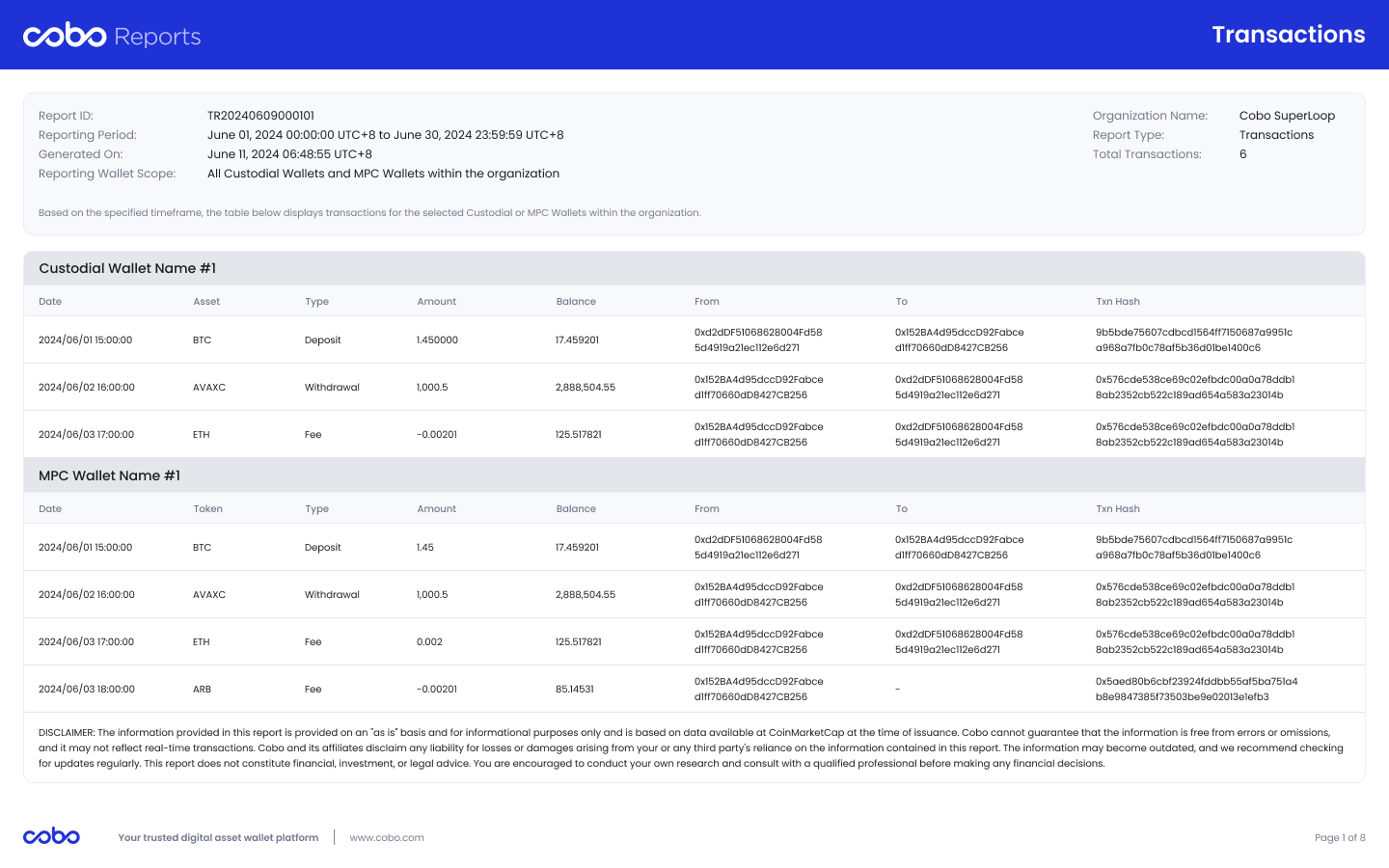 5. In the **Report Logs** section, you can:
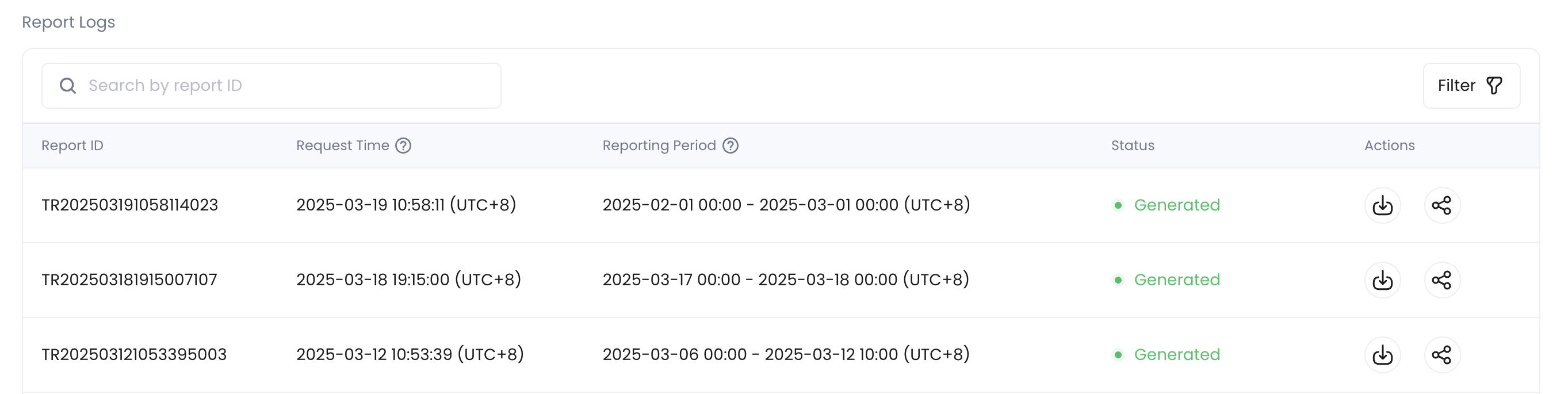 * View report generation status
* Download reports in PDF format
* Share reports online:
* View report generation status
* Download reports in PDF format
* Share reports online:
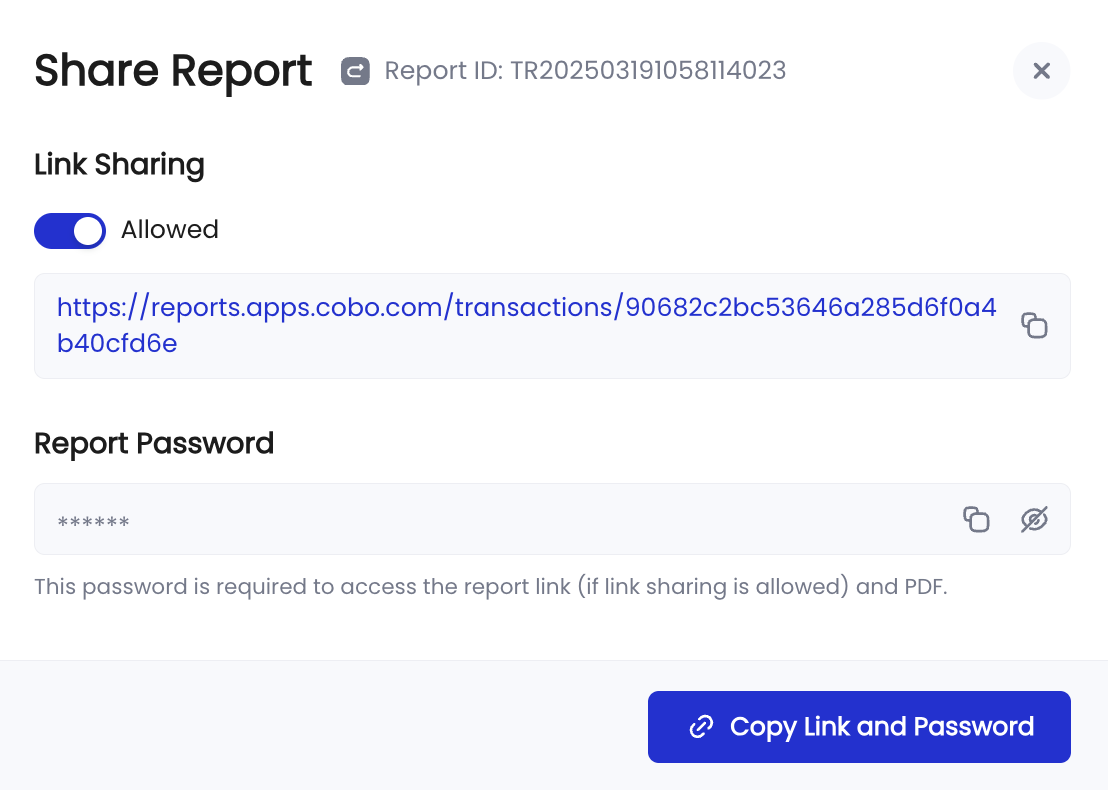 * Generate secure links for recipients to view and download reports online
* Require password authentication if password protection was enabled when generating the report
* Control access by enabling or disabling link sharing at any time
## Asset Holdings Reports
1. Log into [Cobo Portal](https://portal.cobo.com/login).
2. Click , find Reports, then click **Open**.
3. Switch to the **Asset Holdings** tab.
* Generate secure links for recipients to view and download reports online
* Require password authentication if password protection was enabled when generating the report
* Control access by enabling or disabling link sharing at any time
## Asset Holdings Reports
1. Log into [Cobo Portal](https://portal.cobo.com/login).
2. Click , find Reports, then click **Open**.
3. Switch to the **Asset Holdings** tab.
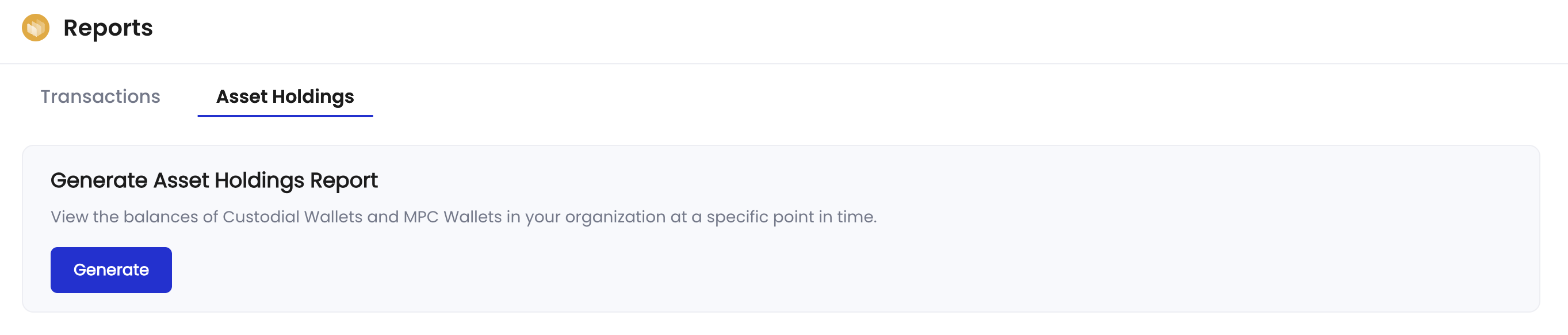 4. Click **Generate** to open the report configuration window.
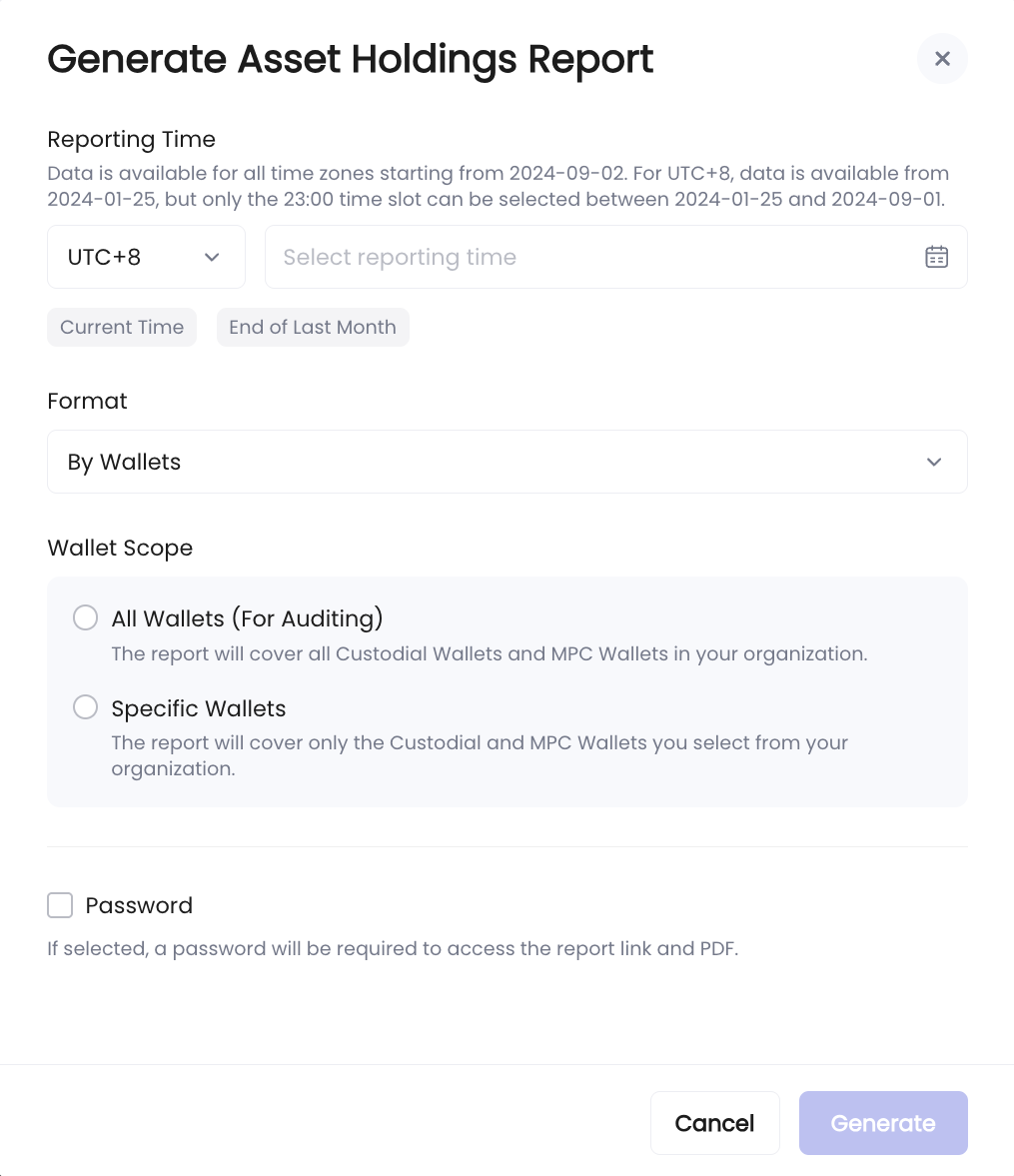 1. Set the **Reporting Time**:
* Choose a timezone (for example, UTC+8)
* Define the reporting time (for example, 2024-09-09 13:00)
The earliest timestamp you can select is midnight on September 2, 2024.
2. Select the report format: **By Wallets** or **By Assets**.
3. Specify the **Wallet Scope**:
* Select all wallets for auditing purposes, or
* Select one or more specific wallets
4. Check the **Password** box if you want to enable password protection.
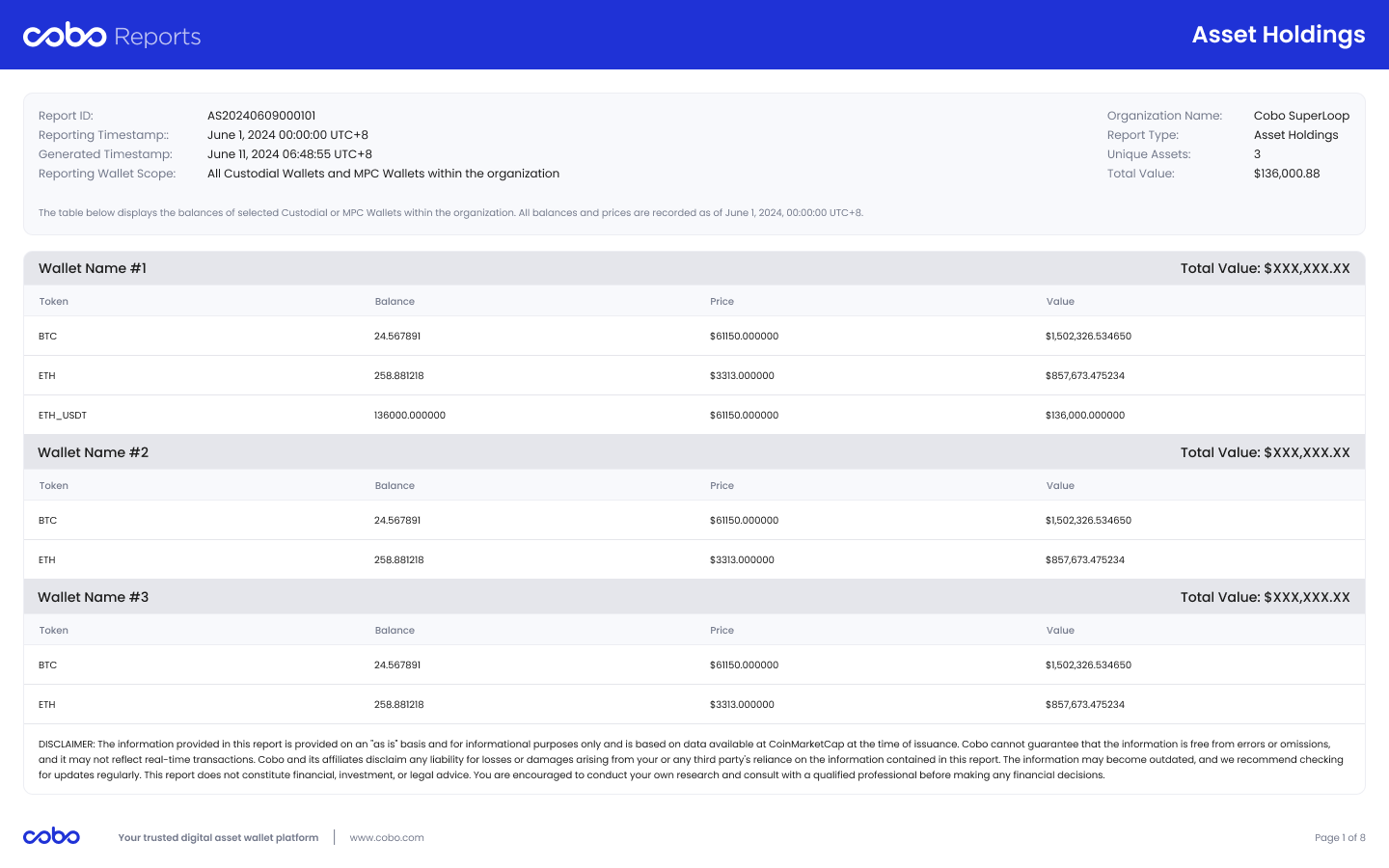
5. Click **Generate** to create the report. Sample asset holdings report:
* By Assets:
1. Set the **Reporting Time**:
* Choose a timezone (for example, UTC+8)
* Define the reporting time (for example, 2024-09-09 13:00)
The earliest timestamp you can select is midnight on September 2, 2024.
2. Select the report format: **By Wallets** or **By Assets**.
3. Specify the **Wallet Scope**:
* Select all wallets for auditing purposes, or
* Select one or more specific wallets
4. Check the **Password** box if you want to enable password protection.
5. Click **Generate** to create the report. Sample asset holdings report:
* By Assets:
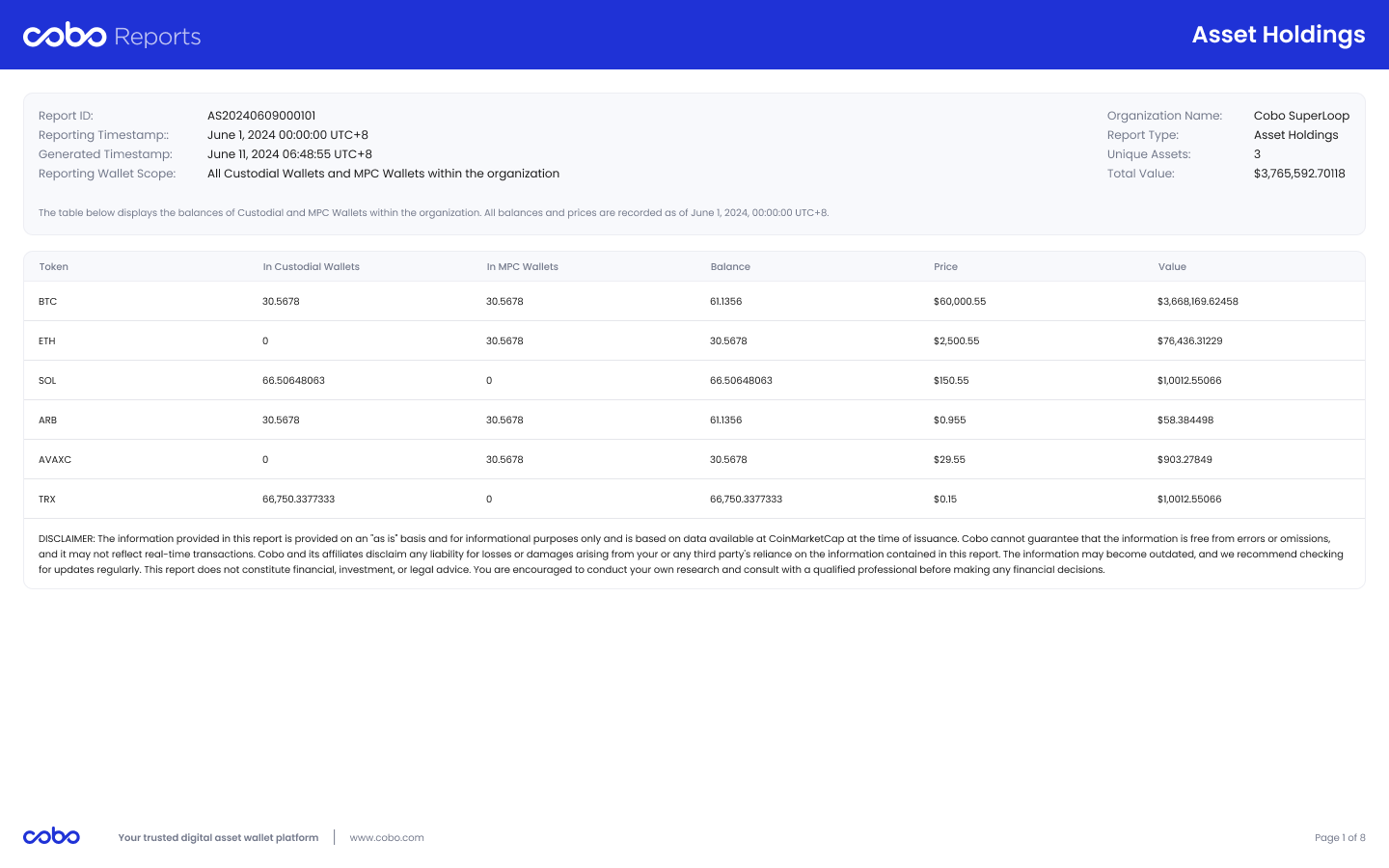 * By Wallets:
 5. In the **Report Logs** section, you can:
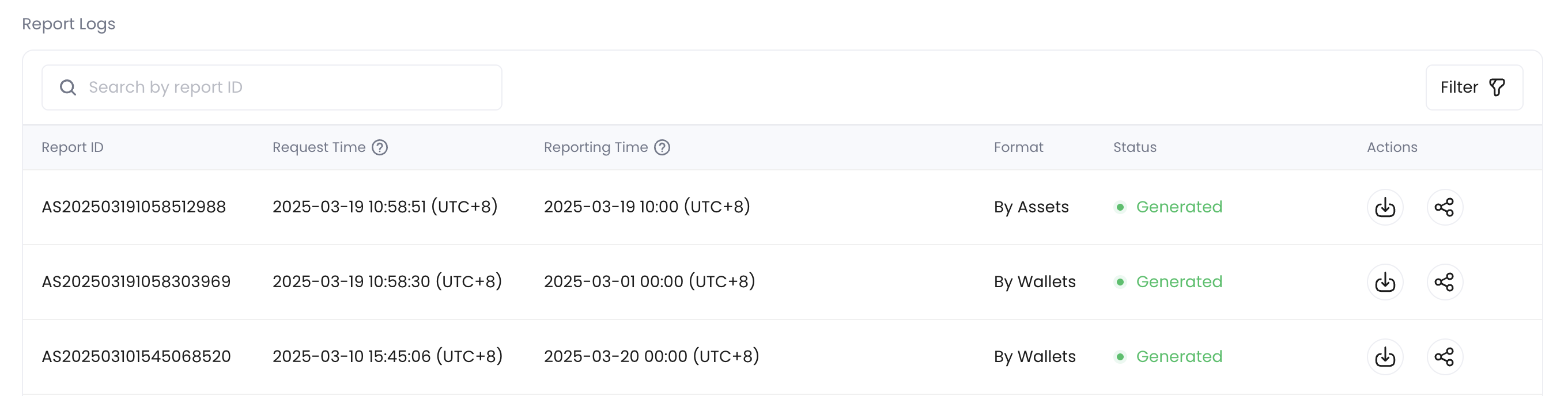 * View report generation status
* Download reports in PDF format
* Share reports online:
* View report generation status
* Download reports in PDF format
* Share reports online:
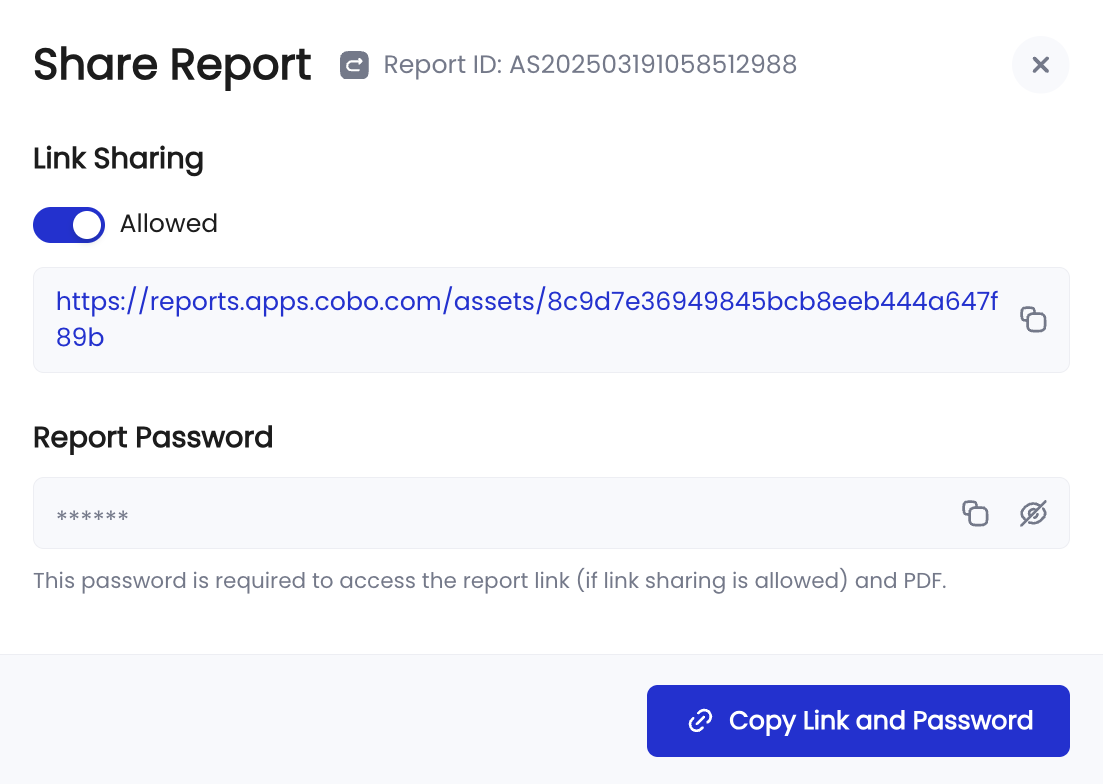 * Generate secure links for recipients to view and download reports online
* Require password authentication if password protection was enabled when generating the report
* Control access by enabling or disabling link sharing at any time
* Generate secure links for recipients to view and download reports online
* Require password authentication if password protection was enabled when generating the report
* Control access by enabling or disabling link sharing at any time