> ## Documentation Index
> Fetch the complete documentation index at: https://manuals.cobo.com/llms.txt
> Use this file to discover all available pages before exploring further.
# Create an invoice
> Follow the steps to create an invoice in Cobo, ensuring all necessary information is included for accurate billing.
1. Click **Apps** in the left sidebar of [Cobo Portal](https://portal.cobo.com/login), find **Invoicing**, then click **Open** to open Invoicing.
2. On the **Invoices** page, click **Create Invoice**.
3. Fill in the following information.
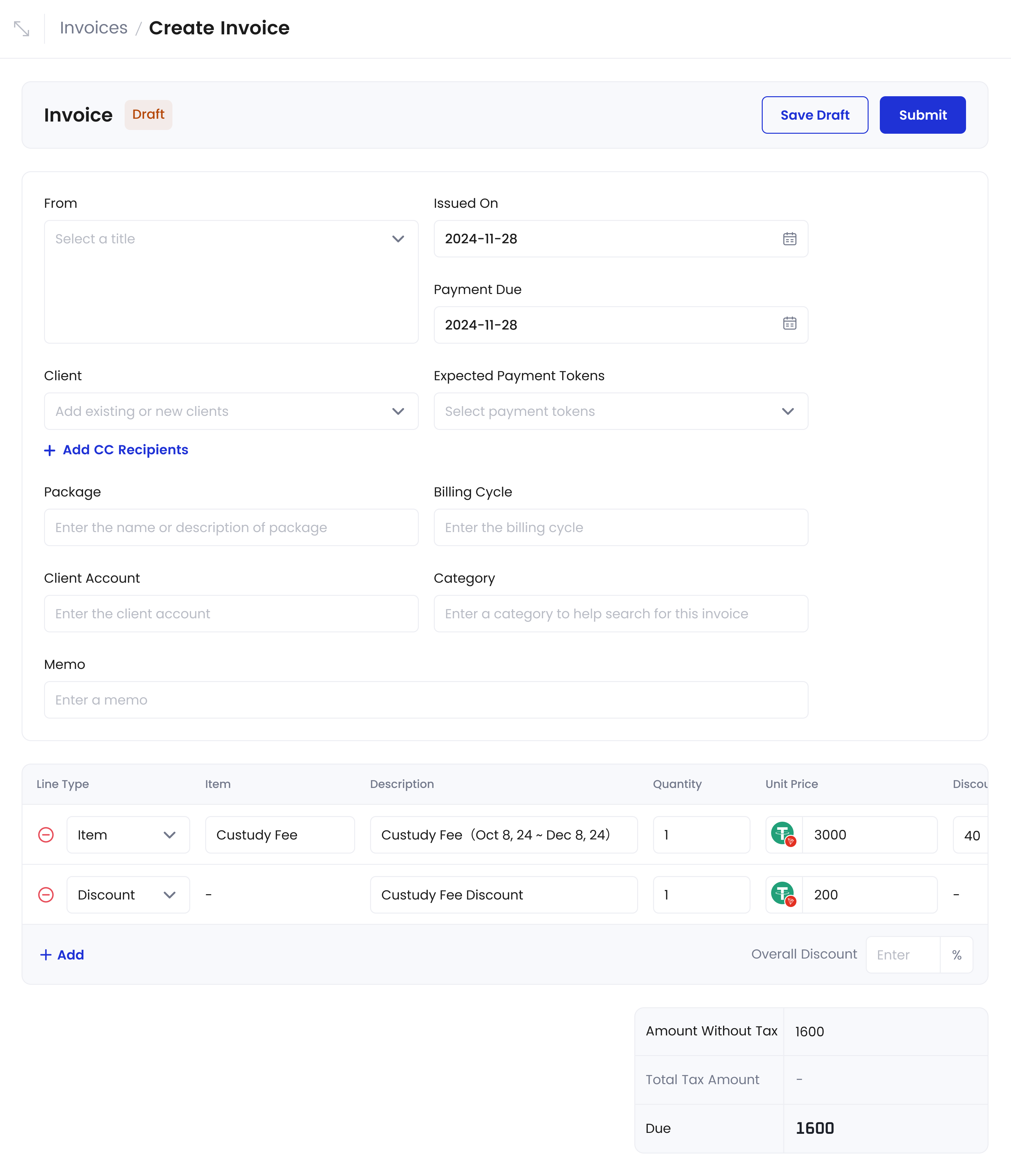 General information:
* **From**: Select a title from the dropdown menu.
* **Payment Due**: The invoice's due date.
* **Issued On**: The date the invoice is issued.
* **Client**: Select a client from the list, which only shows clients in the **Active** status. You can also add a new client manually. Click **Add CC Recipients** to add email addresses for those who should receive a copy of the invoice.
* **Expected Payment Tokens**: Select one or multiple payment tokens. If you select multiple tokens, the payer can choose any one of them to complete the payment.
* **Package (Optional)**: Enter the name or description of the service package arranged with the client, up to 50 characters.
* **Billing Cycle (Optional)**: Enter the billing cycle (for example, monthly, quarterly, or annual), up to 50 characters.
* **Client Account (Optional)**: Enter the client's payment account, up to 50 characters.
* **Memo (Optional)**: Enter a memo of up to 500 characters.
* **Category (Optional)**: Enter a category of up to 100 characters.
* **Recurring Invoice (Optional)**: Toggle the option on if you want the invoice to repeat. You can select the frequency and choose how you want the repetition to end.
Item lines:
* **Line Type**: For item information, select **Item** as **Line Type**.
* **Item**: Name or description of the item, with a character limit of 3-100 characters. To add more items, click **Add an Item**.
* **Description (Optional)**: Additional description for the item, up to 200 characters.
* **Note (Optional)**: Additional notes for the item, up to 200 characters.
* **Quantity**: Enter a positive integer.
* **Unit Price**: Enter a price with no more than 8 decimal places.
* **Discount (Optional)**: Enter a discount as a percentage.
* **Tax (Optional)**: Enter a tax rate as a percentage greater than 0.
Discount lines:
* **Line Type**: For discount information, select **Discount** as **Line Type**.
* **Description (Optional)**: Description for the discount, up to 200 characters.
* **Quantity**: Defaults to 1.
* **Unit Price**: Enter a positive number as the amount to be deducted.
* **Note (Optional)**: Additional notes for the discount, up to 200 characters.
**Overall Discount**: Additional discount applied to all items on top of individual item discounts.
The amounts are calculated automatically:
* **Amount** for each item: Amount = (Unit price \* Quantity \* (1 - discount percentage) \* (1 - overall discount percentage)) \* (1 + tax).
* **Amount without Tax**: The total amount before tax is applied.
* **Total Tax Amount**: The total tax amount, calculated by applying the tax rate to the discounted price of each item.
* **Due**: The total amount due with tax minus any discount lines, displayed with up to 6 decimal places.
4. Either click **Save Draft** to save the current invoice as a draft, or click **Submit** to proceed with the invoice. If the system detects that the client's status is **Frozen**, a prompt will indicate that the invoice cannot be sent.
5. After you click **Submit**, the invoice status will change to **Submitted** and a payment link will be generated. The invoice will be pending review. Once the invoice is approved, click **Send** to send the invoice to the client. If rejected, the invoice status will return to **Draft**.
If the status remains **Sending** for an extended period, please contact the Cobo invoice support team at [invoiceservice@cobo.com](mailto:invoiceservice@cobo.com).
General information:
* **From**: Select a title from the dropdown menu.
* **Payment Due**: The invoice's due date.
* **Issued On**: The date the invoice is issued.
* **Client**: Select a client from the list, which only shows clients in the **Active** status. You can also add a new client manually. Click **Add CC Recipients** to add email addresses for those who should receive a copy of the invoice.
* **Expected Payment Tokens**: Select one or multiple payment tokens. If you select multiple tokens, the payer can choose any one of them to complete the payment.
* **Package (Optional)**: Enter the name or description of the service package arranged with the client, up to 50 characters.
* **Billing Cycle (Optional)**: Enter the billing cycle (for example, monthly, quarterly, or annual), up to 50 characters.
* **Client Account (Optional)**: Enter the client's payment account, up to 50 characters.
* **Memo (Optional)**: Enter a memo of up to 500 characters.
* **Category (Optional)**: Enter a category of up to 100 characters.
* **Recurring Invoice (Optional)**: Toggle the option on if you want the invoice to repeat. You can select the frequency and choose how you want the repetition to end.
Item lines:
* **Line Type**: For item information, select **Item** as **Line Type**.
* **Item**: Name or description of the item, with a character limit of 3-100 characters. To add more items, click **Add an Item**.
* **Description (Optional)**: Additional description for the item, up to 200 characters.
* **Note (Optional)**: Additional notes for the item, up to 200 characters.
* **Quantity**: Enter a positive integer.
* **Unit Price**: Enter a price with no more than 8 decimal places.
* **Discount (Optional)**: Enter a discount as a percentage.
* **Tax (Optional)**: Enter a tax rate as a percentage greater than 0.
Discount lines:
* **Line Type**: For discount information, select **Discount** as **Line Type**.
* **Description (Optional)**: Description for the discount, up to 200 characters.
* **Quantity**: Defaults to 1.
* **Unit Price**: Enter a positive number as the amount to be deducted.
* **Note (Optional)**: Additional notes for the discount, up to 200 characters.
**Overall Discount**: Additional discount applied to all items on top of individual item discounts.
The amounts are calculated automatically:
* **Amount** for each item: Amount = (Unit price \* Quantity \* (1 - discount percentage) \* (1 - overall discount percentage)) \* (1 + tax).
* **Amount without Tax**: The total amount before tax is applied.
* **Total Tax Amount**: The total tax amount, calculated by applying the tax rate to the discounted price of each item.
* **Due**: The total amount due with tax minus any discount lines, displayed with up to 6 decimal places.
4. Either click **Save Draft** to save the current invoice as a draft, or click **Submit** to proceed with the invoice. If the system detects that the client's status is **Frozen**, a prompt will indicate that the invoice cannot be sent.
5. After you click **Submit**, the invoice status will change to **Submitted** and a payment link will be generated. The invoice will be pending review. Once the invoice is approved, click **Send** to send the invoice to the client. If rejected, the invoice status will return to **Draft**.
If the status remains **Sending** for an extended period, please contact the Cobo invoice support team at [invoiceservice@cobo.com](mailto:invoiceservice@cobo.com).