> ## Documentation Index
> Fetch the complete documentation index at: https://manuals.cobo.com/llms.txt
> Use this file to discover all available pages before exploring further.
# Set up multi-factor authentication (MFA) methods
> Set up your preferred multi-factor authentication (MFA) methods in Cobo Accounts to enhance security using Portal Mobile or other options.
## Set up authenticator app
Cobo Accounts supports multiple authenticator apps for multi-factor authenticator (MFA), with Google Authenticator recommended. The following steps use Google Authenticator as an example.
1. Log in to [Cobo Accounts](https://accounts.cobo.com/) and locate **MFA Management** section.
2. Click **Add** next to **Authenticator App**.
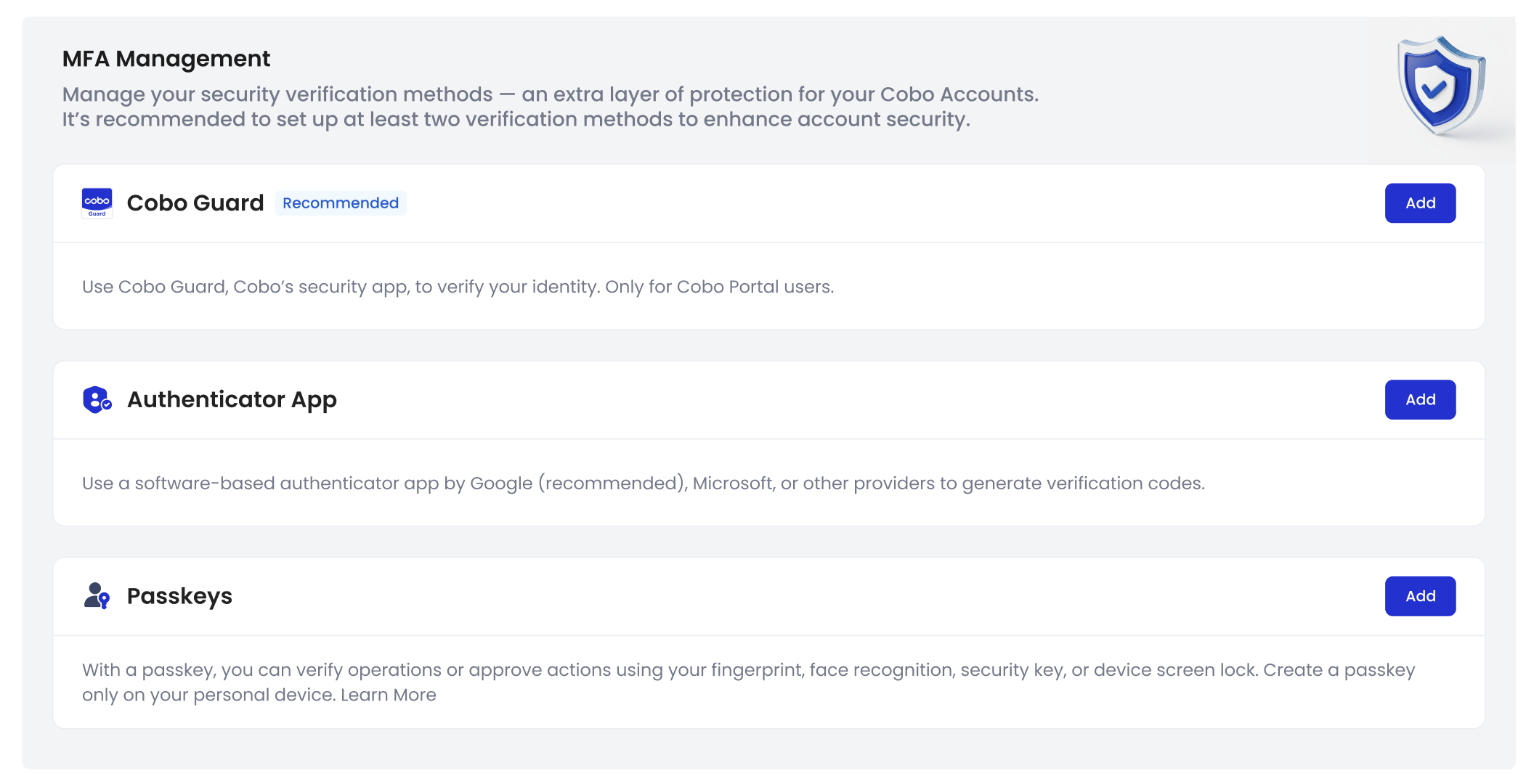 3. It is recommended to download and install **Google Authenticator**.
4. Use **Google Authenticator** to scan the QR code displayed on **Cobo Accounts**.
Please save this QR code, in case you need to recover Google Authenticator in case of device loss or replacement. If you don't save this QR code and need to reset Google Authenticator, please refer to [Reset Authenticator App](/en/accounts/reset-google-authenticator).
5. Enter the 6-digit Authenticator App code, then click **Submit**.
6. In the **MFA Management** section of the Cobo Accounts page, the Authenticator App status will be updated to **Enabled**.
## Set up passkeys
Passkeys offer a simpler and more secure authentication method. Once created, you can use a fingerprint, facial recognition, screen lock (PIN), or hardware device to verify various activities in Cobo Portal. You can add up to 10 security keys to your Cobo Accounts.
1. Log in to [Cobo Accounts](https://accounts.cobo.com/) and locate **MFA Management** section.
2. Click **Add** next to **Passkeys**.
3. Follow the on-screen instructions. If you are using a security key, insert the security key device and touch it to complete the addition.
3. It is recommended to download and install **Google Authenticator**.
4. Use **Google Authenticator** to scan the QR code displayed on **Cobo Accounts**.
Please save this QR code, in case you need to recover Google Authenticator in case of device loss or replacement. If you don't save this QR code and need to reset Google Authenticator, please refer to [Reset Authenticator App](/en/accounts/reset-google-authenticator).
5. Enter the 6-digit Authenticator App code, then click **Submit**.
6. In the **MFA Management** section of the Cobo Accounts page, the Authenticator App status will be updated to **Enabled**.
## Set up passkeys
Passkeys offer a simpler and more secure authentication method. Once created, you can use a fingerprint, facial recognition, screen lock (PIN), or hardware device to verify various activities in Cobo Portal. You can add up to 10 security keys to your Cobo Accounts.
1. Log in to [Cobo Accounts](https://accounts.cobo.com/) and locate **MFA Management** section.
2. Click **Add** next to **Passkeys**.
3. Follow the on-screen instructions. If you are using a security key, insert the security key device and touch it to complete the addition.
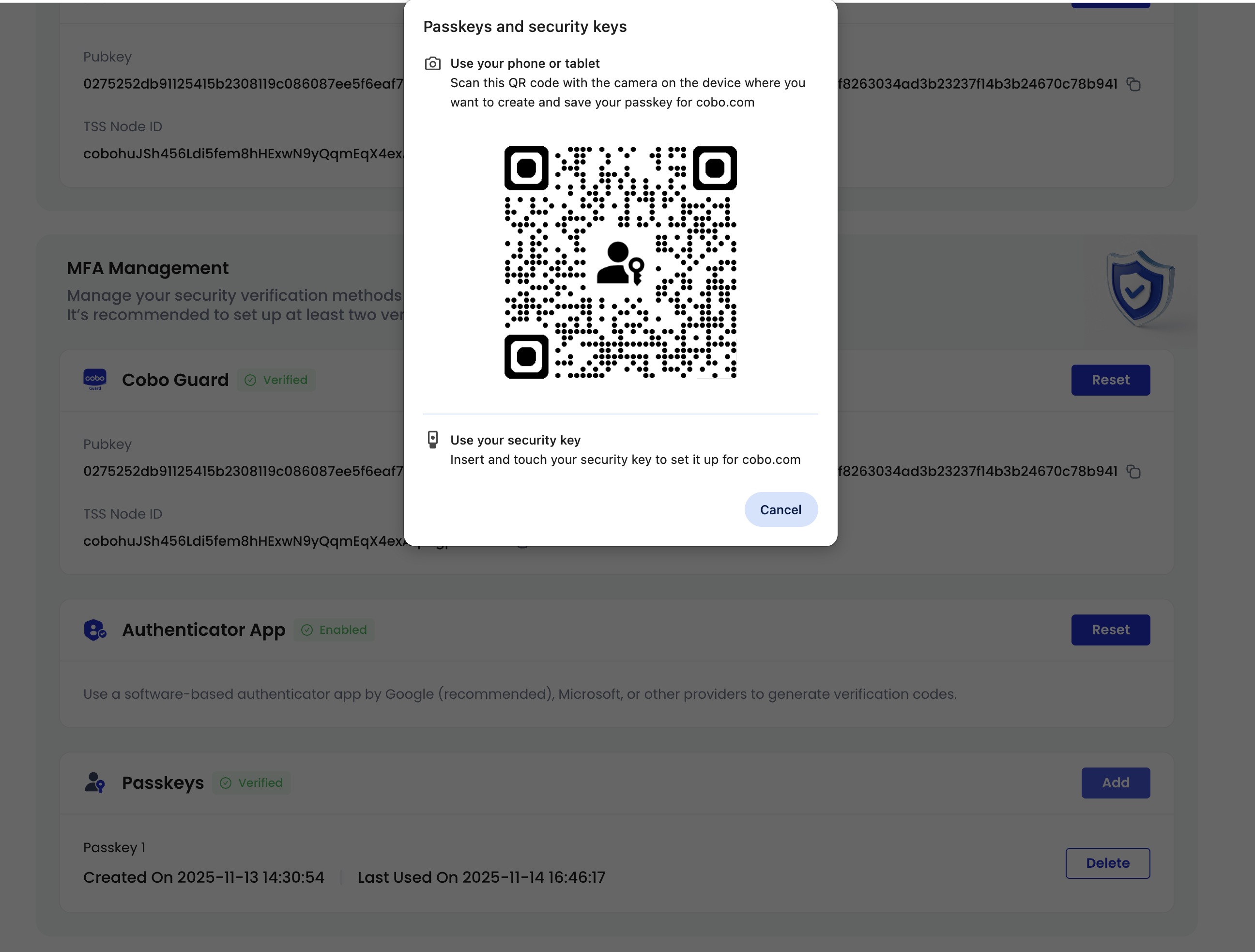 4. You can view the details of the newly added passkey, including its creation time and last used time.
 ## Set up Portal Mobile
See [**Set up Portal Mobile**](/en/portal-mobile/set-up).
## Set up Portal Mobile
See [**Set up Portal Mobile**](/en/portal-mobile/set-up).