> ## Documentation Index
> Fetch the complete documentation index at: https://manuals.cobo.com/llms.txt
> Use this file to discover all available pages before exploring further.
# Reset authenticator app
> Learn how to reset the authenticator app for your Cobo Accounts, ensuring continued access and security for your digital assets.
To reset your authenticator app for Cobo Accounts due to device loss or replacement, follow these steps:
1. Log in to [Cobo Accounts](https://accounts.cobo.com/).
2. In the **MFA Management** section, click **Reset** next to **Authenticator App** to display the dialog as the following screenshot shows.
 3. Open the authenticator app on your new device and scan the QR code, enter the six-digit code from the app on the dialog, and click **Submit** to display the **Security Verification** dialog as follows.
 4. On the **Security Verification** dialog, you can choose either of the following two methods:
**Method 1: Use your old authenticator app device**
Click **Authenticator App** and the following instructions will be displayed.
4. On the **Security Verification** dialog, you can choose either of the following two methods:
**Method 1: Use your old authenticator app device**
Click **Authenticator App** and the following instructions will be displayed.
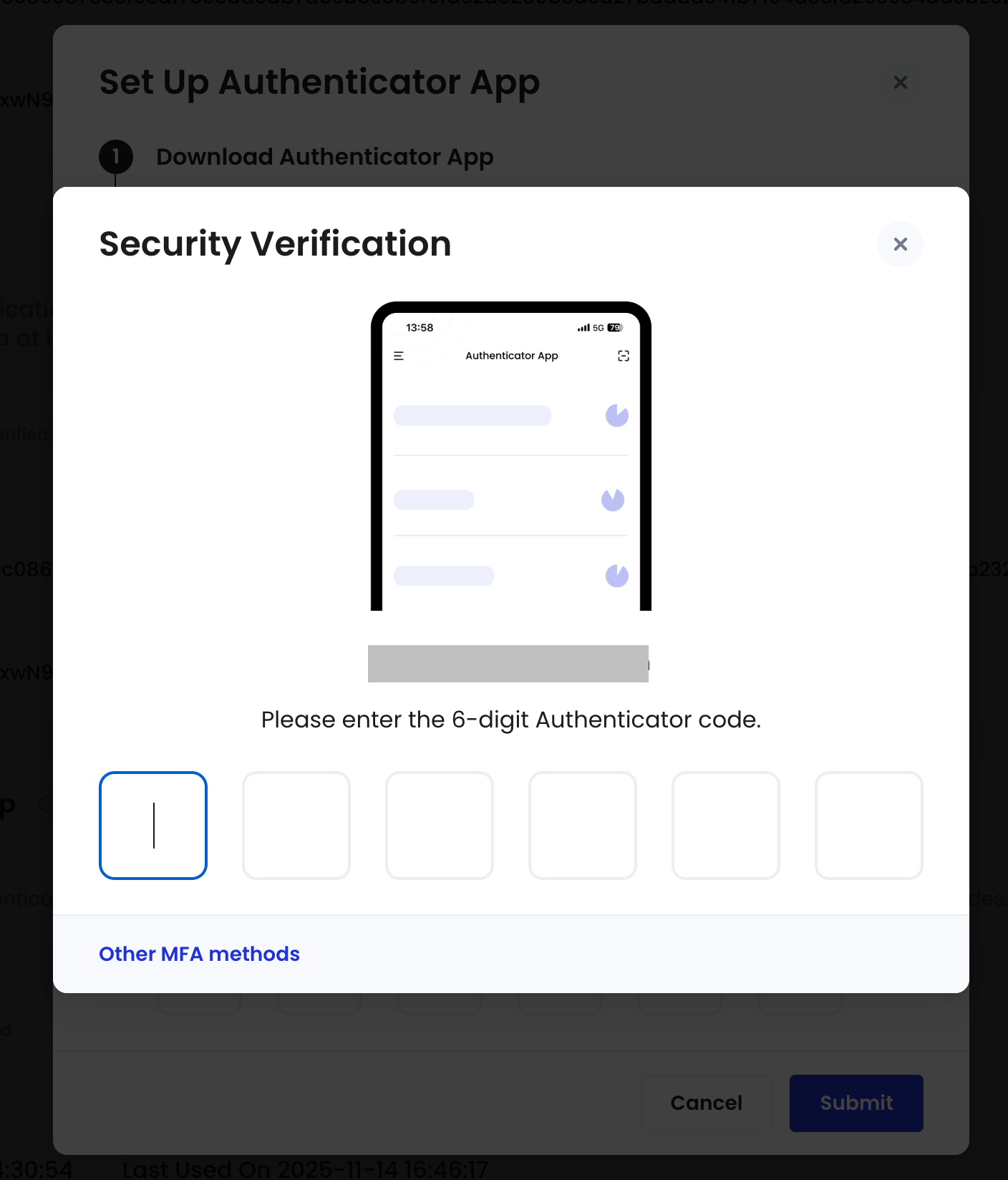 Enter the six-digit code from the old authenticator app.
If your old authenticator app is not available, please choose method two which uses Portal Mobile to reset your authenticator app. If you have not set up Portal Mobile, please contact our [support team](mailto:help@cobo.com) to help you reset.
**Method 2: Use Portal Mobile**
Click **Portal Mobile** and the following instructions will be displayed.
Enter the six-digit code from the old authenticator app.
If your old authenticator app is not available, please choose method two which uses Portal Mobile to reset your authenticator app. If you have not set up Portal Mobile, please contact our [support team](mailto:help@cobo.com) to help you reset.
**Method 2: Use Portal Mobile**
Click **Portal Mobile** and the following instructions will be displayed.
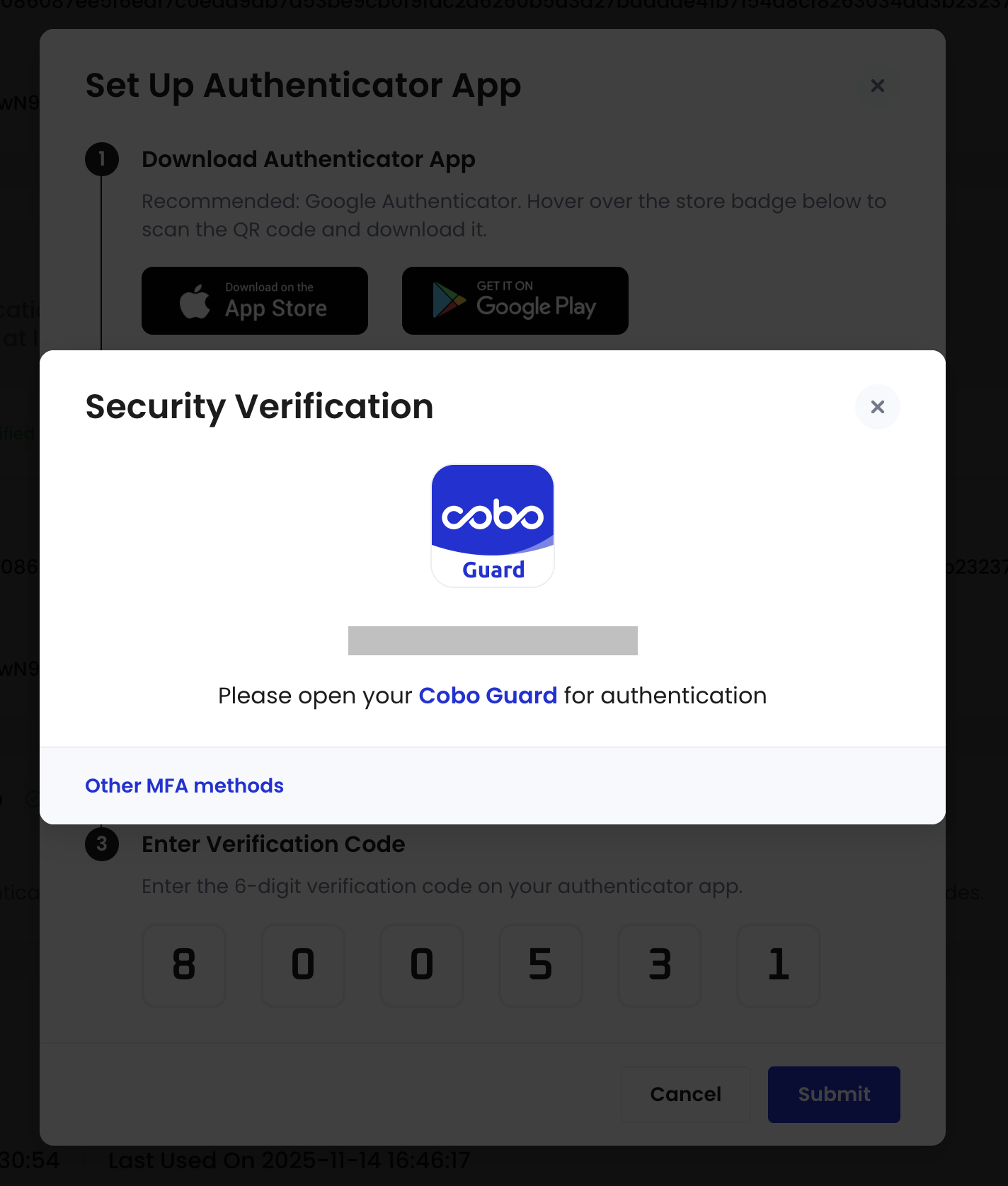 Open the Portal Mobile app and approve the modify-MFA method request.
 Then return to the Cobo Accounts webpage.
If your Portal Mobile is unavailable, please refer to [reset Portal Mobile due to device change or app reinstallation](/en/portal-mobile/reset).
Now your authenticator app has been reset. You can use the new device for MFA.
Then return to the Cobo Accounts webpage.
If your Portal Mobile is unavailable, please refer to [reset Portal Mobile due to device change or app reinstallation](/en/portal-mobile/reset).
Now your authenticator app has been reset. You can use the new device for MFA.