> ## Documentation Index
> Fetch the complete documentation index at: https://manuals.cobo.com/llms.txt
> Use this file to discover all available pages before exploring further.
# 设置 Cobo Guard
> 学习如何设置 Cobo Guard,将其关联到您的 Cobo Accounts,作为多重身份验证的方式。
为正常使用 Cobo Guard,您的 iOS 设备必须设置密码。请确保密码始终开启,关闭密码将导致无法使用 Cobo Guard。
本文档将介绍如何设置 Cobo Guard 并将其关联到您的 Cobo 账户,作为登录和操作批准的多重身份验证 (MFA) 方式。
1. 下载 Cobo Guard 后,打开该 App,用户界面会提示您为 iOS 设备设置 PIN 码。
2. 设置 PIN 码后,用户界面会提示您选择您的情况,选择**首次设置** (First-time setup)。
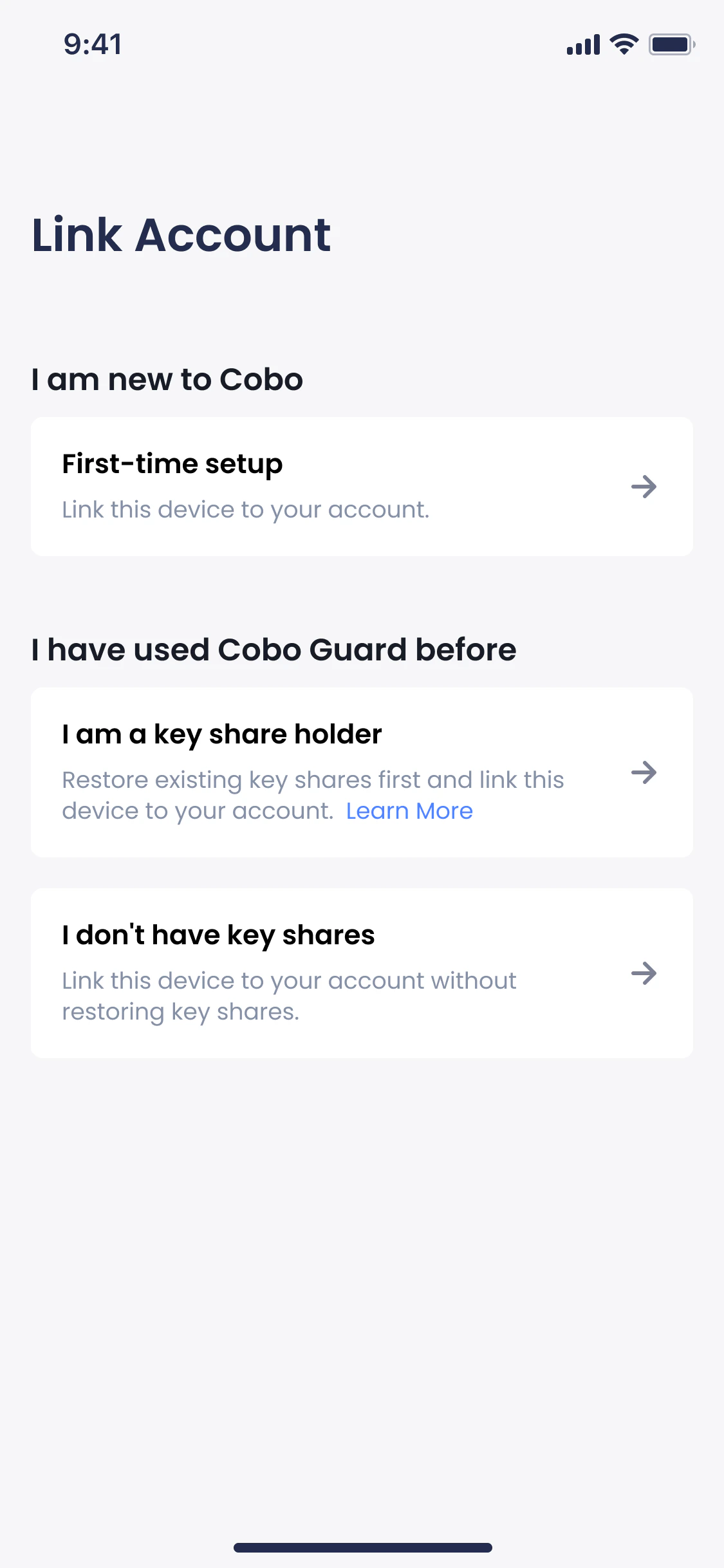 3. 在您的网页浏览器中,登录您的 [Cobo Accounts](https://accounts.cobo.com/)。
4. 在 **MFA Management**(多重身份验证管理)部分,点击 **Cobo Guard** 旁边的 **Add**(添加)。
3. 在您的网页浏览器中,登录您的 [Cobo Accounts](https://accounts.cobo.com/)。
4. 在 **MFA Management**(多重身份验证管理)部分,点击 **Cobo Guard** 旁边的 **Add**(添加)。
 您将 Cobo Guard 设置为 MFA 方式后,Cobo Guard 将自动作为登录方式。
5. 在 **Download Cobo Guard**(下载 Cobo Guard) 页面上,点击 **Continue**(继续)。
6. 在 **Set Up Cobo Guard**(设置 Cobo Guard) 页面上,您将看到一个二维码。
7. 打开您的 Cobo Guard App 并点击
您将 Cobo Guard 设置为 MFA 方式后,Cobo Guard 将自动作为登录方式。
5. 在 **Download Cobo Guard**(下载 Cobo Guard) 页面上,点击 **Continue**(继续)。
6. 在 **Set Up Cobo Guard**(设置 Cobo Guard) 页面上,您将看到一个二维码。
7. 打开您的 Cobo Guard App 并点击  扫描该二维码。
8. 在您的 Cobo Guard 上,您将看到**绑定 Cobo 账户**页面。点击**绑定**。
您现在已成功将 Cobo Guard 关联至 Cobo Accounts,可以使用 Cobo Guard 进行登录和操作批准。在您的网页浏览器上,点击 **Continue**(继续)返回到 Cobo Accounts 页面。
扫描该二维码。
8. 在您的 Cobo Guard 上,您将看到**绑定 Cobo 账户**页面。点击**绑定**。
您现在已成功将 Cobo Guard 关联至 Cobo Accounts,可以使用 Cobo Guard 进行登录和操作批准。在您的网页浏览器上,点击 **Continue**(继续)返回到 Cobo Accounts 页面。