> ## Documentation Index
> Fetch the complete documentation index at: https://manuals.cobo.com/llms.txt
> Use this file to discover all available pages before exploring further.
# 注册 Cobo Accounts
> 建议通过电子邮件或 Google Account 注册 Cobo Accounts ,确保安全访问 Cobo 产品。
## 通过电子邮件和密码进行注册
1. 进入 [Cobo Accounts 主页](https://accounts.cobo.com/),点击右上角切换到 **Sign Up** 页面。
2. 输入您的电子邮件地址,然后点击 **Continue**。
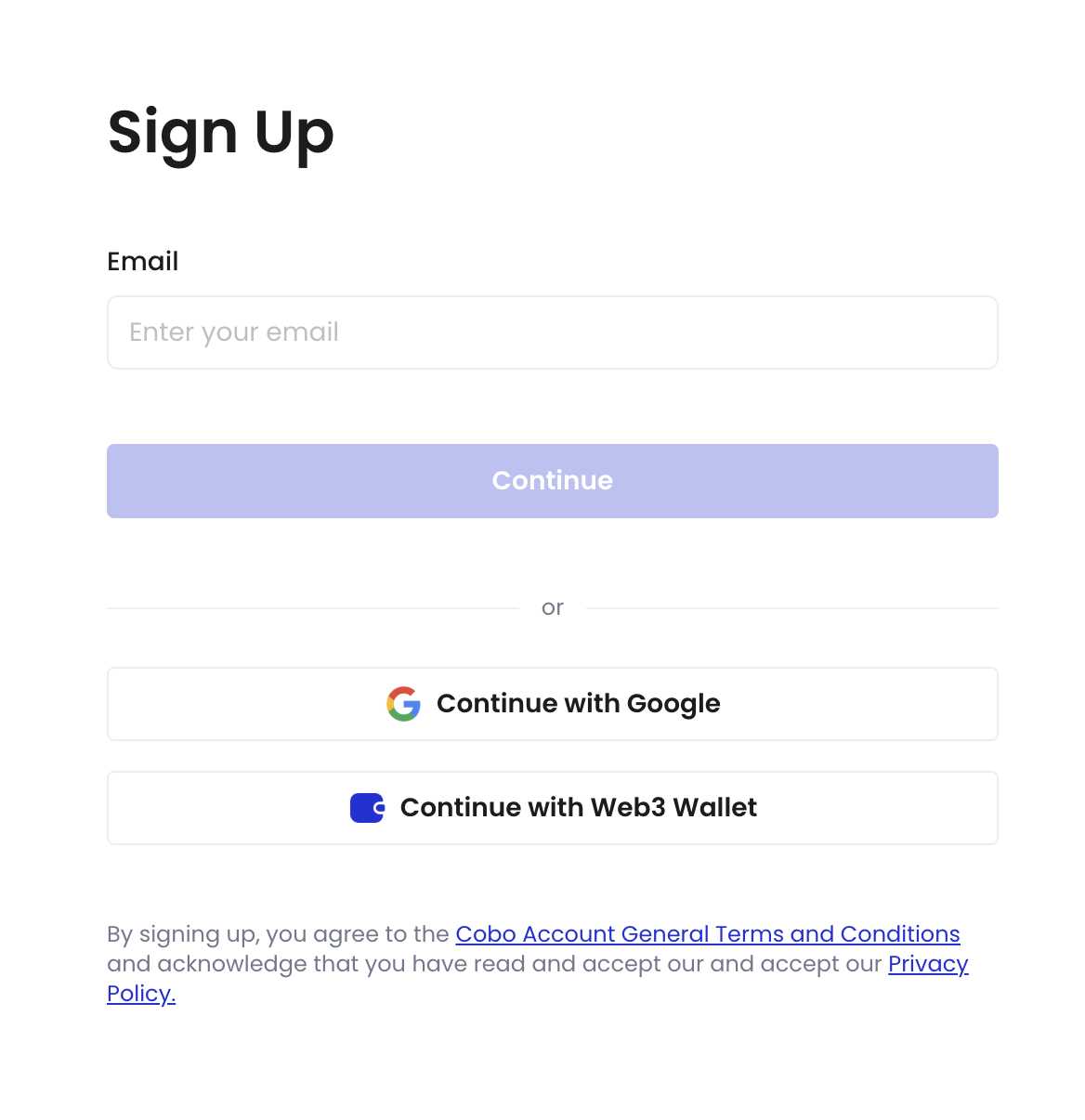 3. 输入发送到您注册电子邮件的六位验证码,然后点击 **Continue**。
4. 设置密码,密码长度至少 8 个字符,且需至少包含一个大写字母、一个小写字母和一个数字。
5. 确认密码,然后点击 **Continue**。
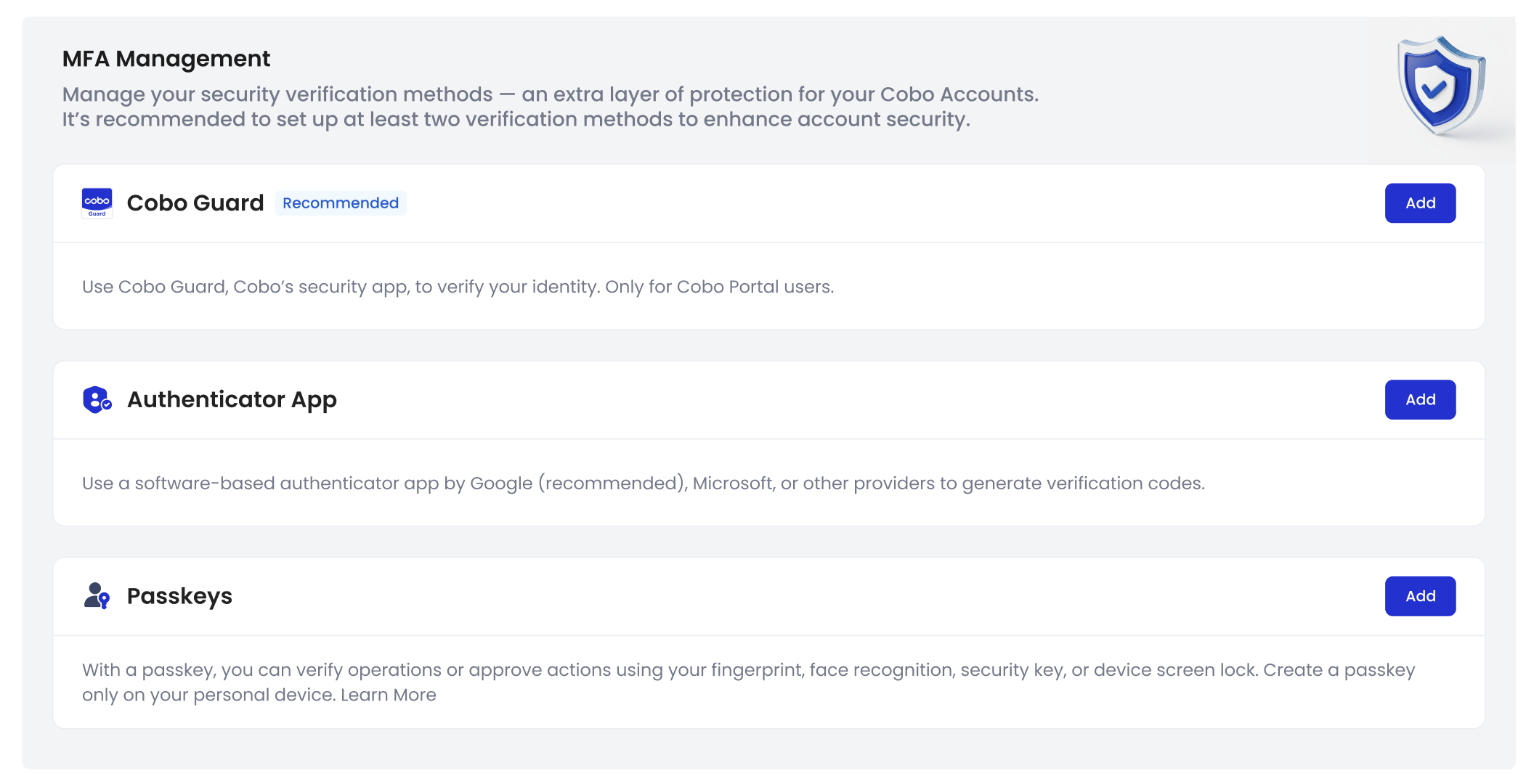
密码设置成功后,将跳转至 Cobo Accounts 账户概览。接下来您可以设置多重身份验证方式,请参阅[设置多重身份验证 (MFA) 方式](/cn/accounts/set-up-mfa)。
3. 输入发送到您注册电子邮件的六位验证码,然后点击 **Continue**。
4. 设置密码,密码长度至少 8 个字符,且需至少包含一个大写字母、一个小写字母和一个数字。
5. 确认密码,然后点击 **Continue**。
密码设置成功后,将跳转至 Cobo Accounts 账户概览。接下来您可以设置多重身份验证方式,请参阅[设置多重身份验证 (MFA) 方式](/cn/accounts/set-up-mfa)。
 ## 通过 Google 账号注册
1. 进入 [Cobo Accounts 主页](https://accounts.cobo.com/),点击右上角切换到 **Sign Up** 页面,点击 **Continue with Google** 。
2. 按照提示使用您的 Google 账号进行注册。
注册成功后将跳转至 Cobo Accounts 账户概览。接下来您可以设置多重身份验证方式,请参阅[设置多重身份验证 (MFA) 方式](/cn/accounts/set-up-mfa)。
## 通过 Google 账号注册
1. 进入 [Cobo Accounts 主页](https://accounts.cobo.com/),点击右上角切换到 **Sign Up** 页面,点击 **Continue with Google** 。
2. 按照提示使用您的 Google 账号进行注册。
注册成功后将跳转至 Cobo Accounts 账户概览。接下来您可以设置多重身份验证方式,请参阅[设置多重身份验证 (MFA) 方式](/cn/accounts/set-up-mfa)。