> ## Documentation Index
> Fetch the complete documentation index at: https://manuals.cobo.com/llms.txt
> Use this file to discover all available pages before exploring further.
# 重置身份验证器 App
> 了解如何重置 Cobo Accounts 的身份验证器 App,确保继续访问和安全。
如果由于设备丢失或更换等,您需要重置用于 Cobo Accounts 的 Authenticator App(身份验证器 App),请按照以下步骤进行重置。
1. 登录 [Cobo Accounts](https://accounts.cobo.com/)。
2. 在 **MFA Management** 部分,点击 **Authenticator App** 旁的 **Reset**(重置),出现下图所示对话框。
 3. 打开新的身份验证器并扫描二维码,在对话框中输入身份验证器提供的六位数字,然后点击 **Submit**(提交),出现 **Security Verification**(选择安全验证方式)对话框。
 4. 在 **Security Verification**(选择安全验证方式)对话框中,您可以选择以下方式其一:
**方法一:通过旧设备的身份验证器 App 重置**
点击 **Authenticator App**,出现以下提示。
4. 在 **Security Verification**(选择安全验证方式)对话框中,您可以选择以下方式其一:
**方法一:通过旧设备的身份验证器 App 重置**
点击 **Authenticator App**,出现以下提示。
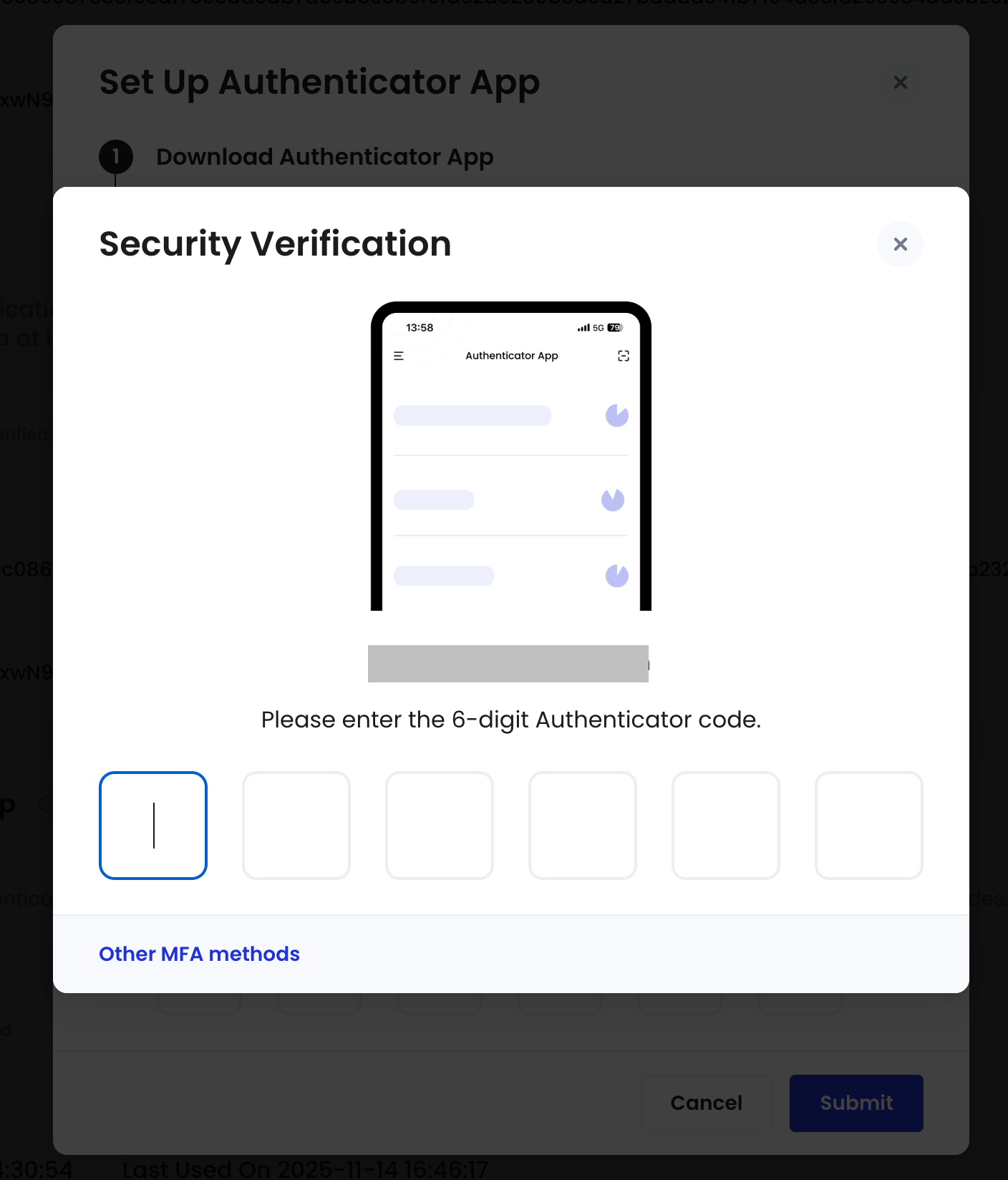 输入您旧设备上身份验证器 App 的六位数字即可。
如果旧设备已不可用,请选择方法二使用 Portal Mobile 进行重置。如果您没有设置 Portal Mobile,请联系 [Cobo 技术支持团队](mailto:help@cobo.com)为您重置身份验证器 App。
**方法二:通过 Portal Mobile 重置**
点击 **Portal Mobile**,出现以下提示。
输入您旧设备上身份验证器 App 的六位数字即可。
如果旧设备已不可用,请选择方法二使用 Portal Mobile 进行重置。如果您没有设置 Portal Mobile,请联系 [Cobo 技术支持团队](mailto:help@cobo.com)为您重置身份验证器 App。
**方法二:通过 Portal Mobile 重置**
点击 **Portal Mobile**,出现以下提示。
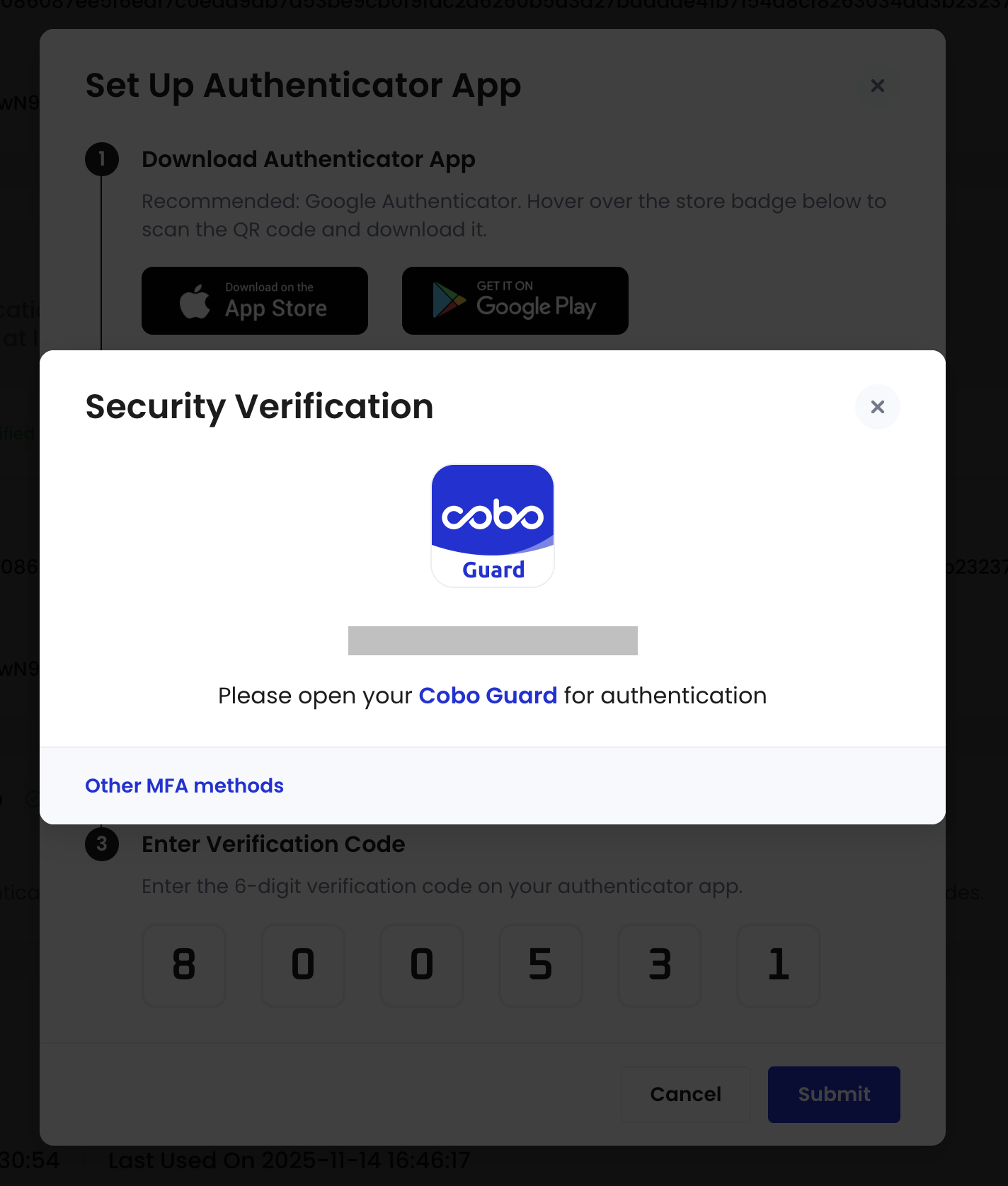 打开 Portal Mobile App,批准修改验证请求。
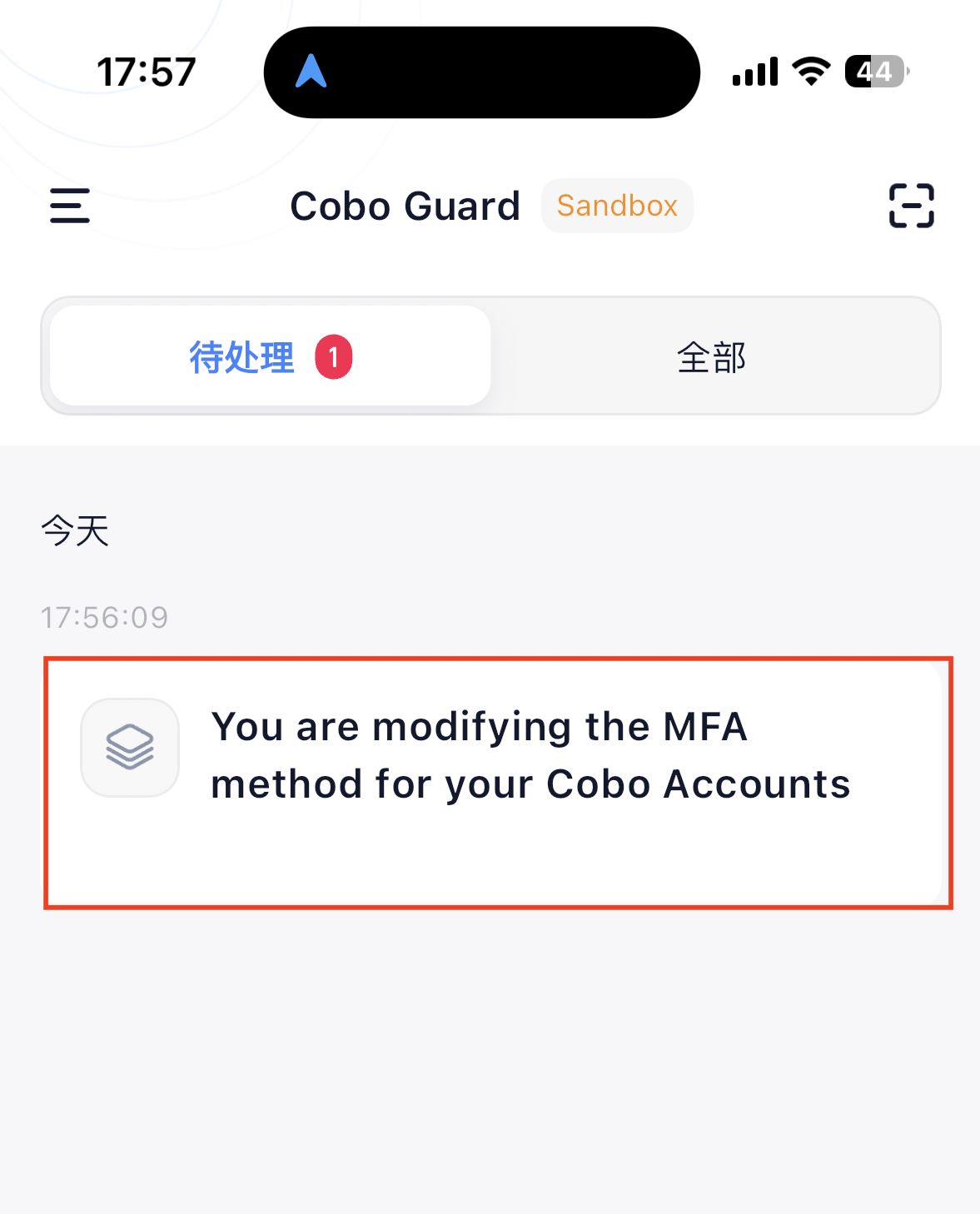 然后回到 Cobo Accounts 网页即可。
如果 Portal Mobile 不可用,请参照[因更换设备或重装 App 重置 Portal Mobile](/cn/portal-mobile/reset) 进行重置。
**方法三:通过 Passkeys(通行密钥)重置**
点击 **Passkeys**,出现以下提示。
然后回到 Cobo Accounts 网页即可。
如果 Portal Mobile 不可用,请参照[因更换设备或重装 App 重置 Portal Mobile](/cn/portal-mobile/reset) 进行重置。
**方法三:通过 Passkeys(通行密钥)重置**
点击 **Passkeys**,出现以下提示。
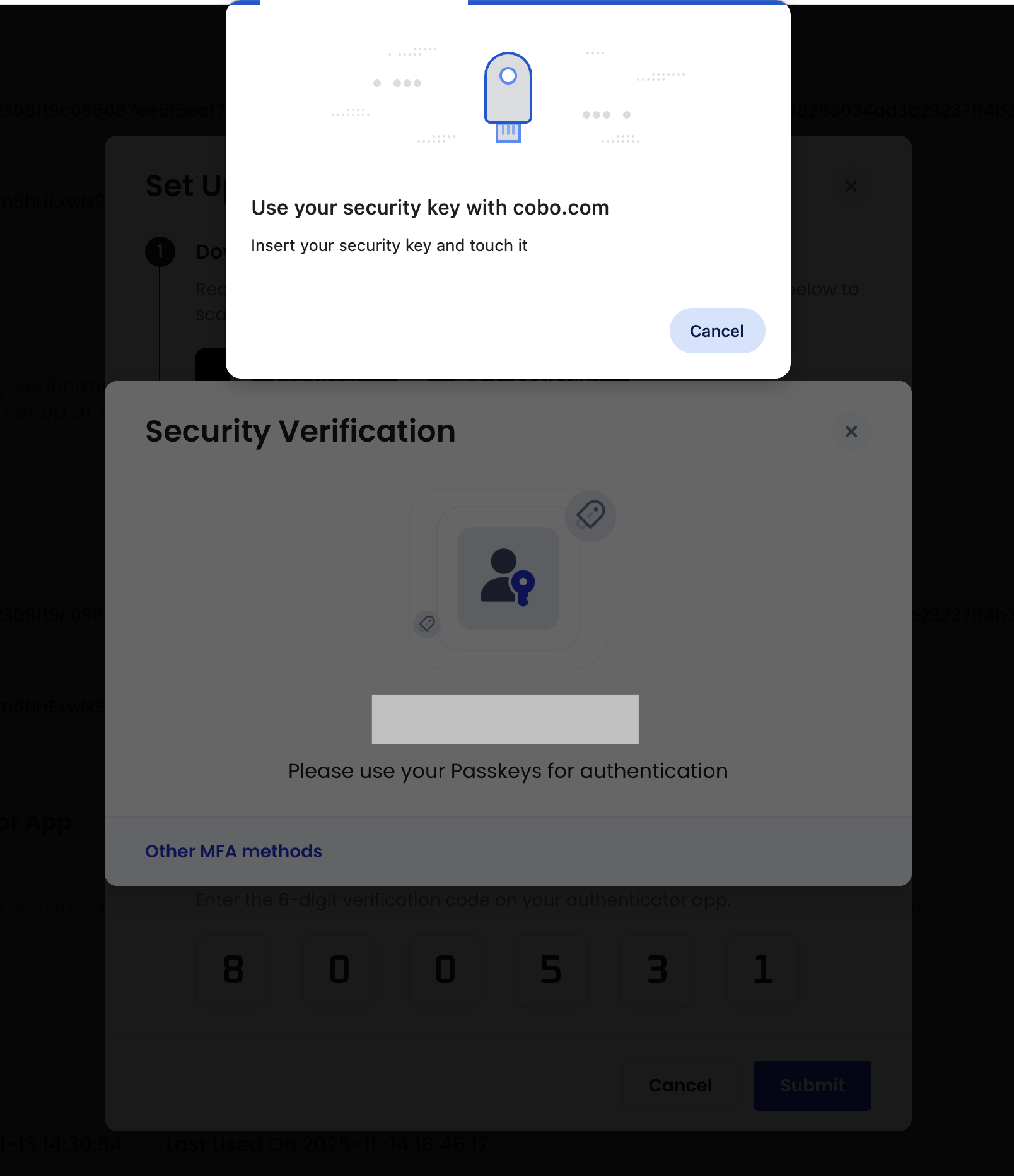 请使用您已注册的 Passkeys 进行验证。验证成功后将完成重置。图示为硬件 Security Key 的验证界面。
现在,您的身份验证器 App 已重置,您可以使用新设备上的身份验证器 App 做安全验证操作。
请使用您已注册的 Passkeys 进行验证。验证成功后将完成重置。图示为硬件 Security Key 的验证界面。
现在,您的身份验证器 App 已重置,您可以使用新设备上的身份验证器 App 做安全验证操作。