> ## Documentation Index
> Fetch the complete documentation index at: https://manuals.cobo.com/llms.txt
> Use this file to discover all available pages before exploring further.
# 登录 Cobo Accounts
> 说明如何使用电子邮件和密码、 Google 账号、Web3 钱包或 Portal Mobile 登录 Cobo Accounts,确保轻松访问您的个人资料。
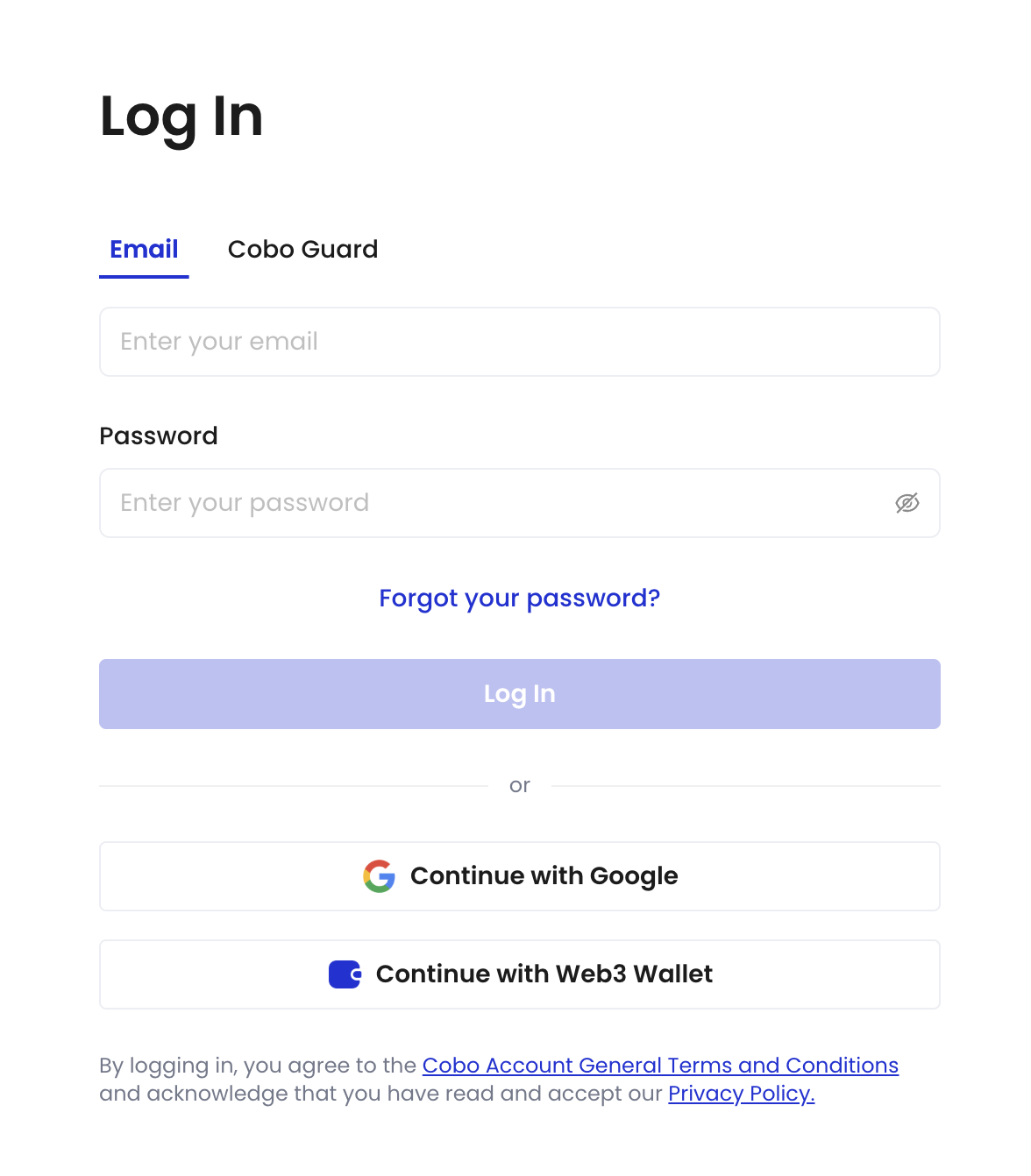 ## 通过电子邮件和密码登录
1. 进入 [Cobo Accounts 登录页面](https://accounts.cobo.com/)。
2. 输入您的电子邮件和密码,然后点击 **Log In**。
## 通过 Google 账号登录
1. 进入 [Cobo Accounts 登录页面](https://accounts.cobo.com/)。
2. 点击 **Continue with Google**。
## 通过 Web3 钱包登录
1. 进入 [Cobo Accounts 登录页面](https://accounts.cobo.com/)。
2. 点击 **Continue with Web3 Wallet**。
3. 在您的钱包中进行签名。
## 通过 Portal Mobile 登录
[Portal Mobile](/cn/portal-mobile/introduction) 是 Cobo 开发的交易审批 App,您可以随时随地授权交易并安全存储您的 MPC 私钥分片。有关如何将 Portal Mobile 设置为登录方式的更多信息,请查看[设置 Portal Mobile](/cn/guard/set-up)。
1. 进入 [Cobo Accounts 登录页面](https://accounts.cobo.com/)。
2. 切换到 **Portal Mobile** 页面登录。
## 通过电子邮件和密码登录
1. 进入 [Cobo Accounts 登录页面](https://accounts.cobo.com/)。
2. 输入您的电子邮件和密码,然后点击 **Log In**。
## 通过 Google 账号登录
1. 进入 [Cobo Accounts 登录页面](https://accounts.cobo.com/)。
2. 点击 **Continue with Google**。
## 通过 Web3 钱包登录
1. 进入 [Cobo Accounts 登录页面](https://accounts.cobo.com/)。
2. 点击 **Continue with Web3 Wallet**。
3. 在您的钱包中进行签名。
## 通过 Portal Mobile 登录
[Portal Mobile](/cn/portal-mobile/introduction) 是 Cobo 开发的交易审批 App,您可以随时随地授权交易并安全存储您的 MPC 私钥分片。有关如何将 Portal Mobile 设置为登录方式的更多信息,请查看[设置 Portal Mobile](/cn/guard/set-up)。
1. 进入 [Cobo Accounts 登录页面](https://accounts.cobo.com/)。
2. 切换到 **Portal Mobile** 页面登录。
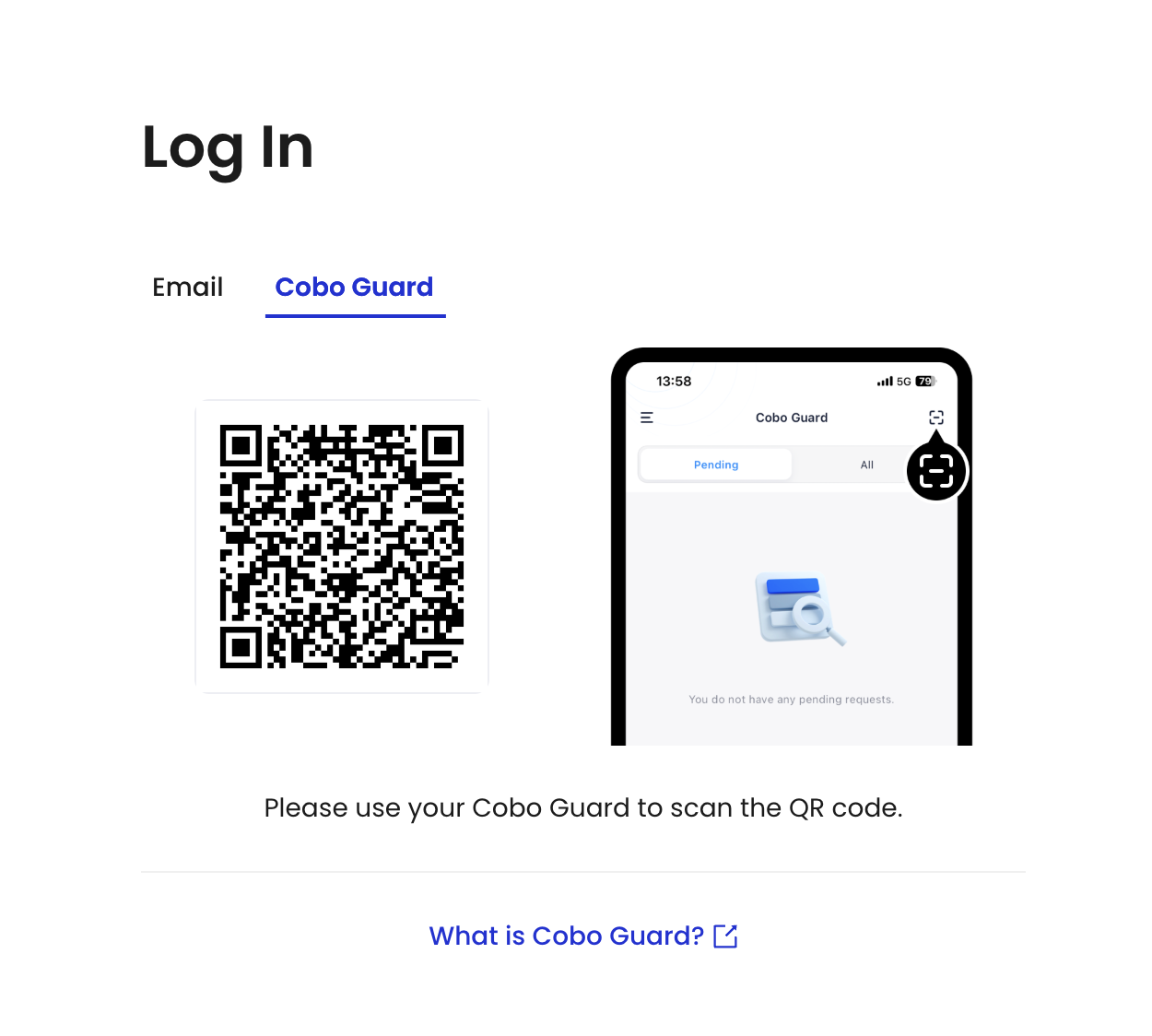 3. 确认您的 Portal Mobile 已更新到最新版本。
4. 用 Portal Mobile 扫描二维码。
5. 在 Portal Mobile 中选择账户并点击**登录**。
3. 确认您的 Portal Mobile 已更新到最新版本。
4. 用 Portal Mobile 扫描二维码。
5. 在 Portal Mobile 中选择账户并点击**登录**。